Setting Up Your Trust Center on Zentrova.ai
Link to the full training Loom video
https://loom.com/share/2c4b3490f96349a1b800799cfb39d2b6
Step 1: Start the Trust Center Setup 0:01
Go to Zentrova.ai and log in.
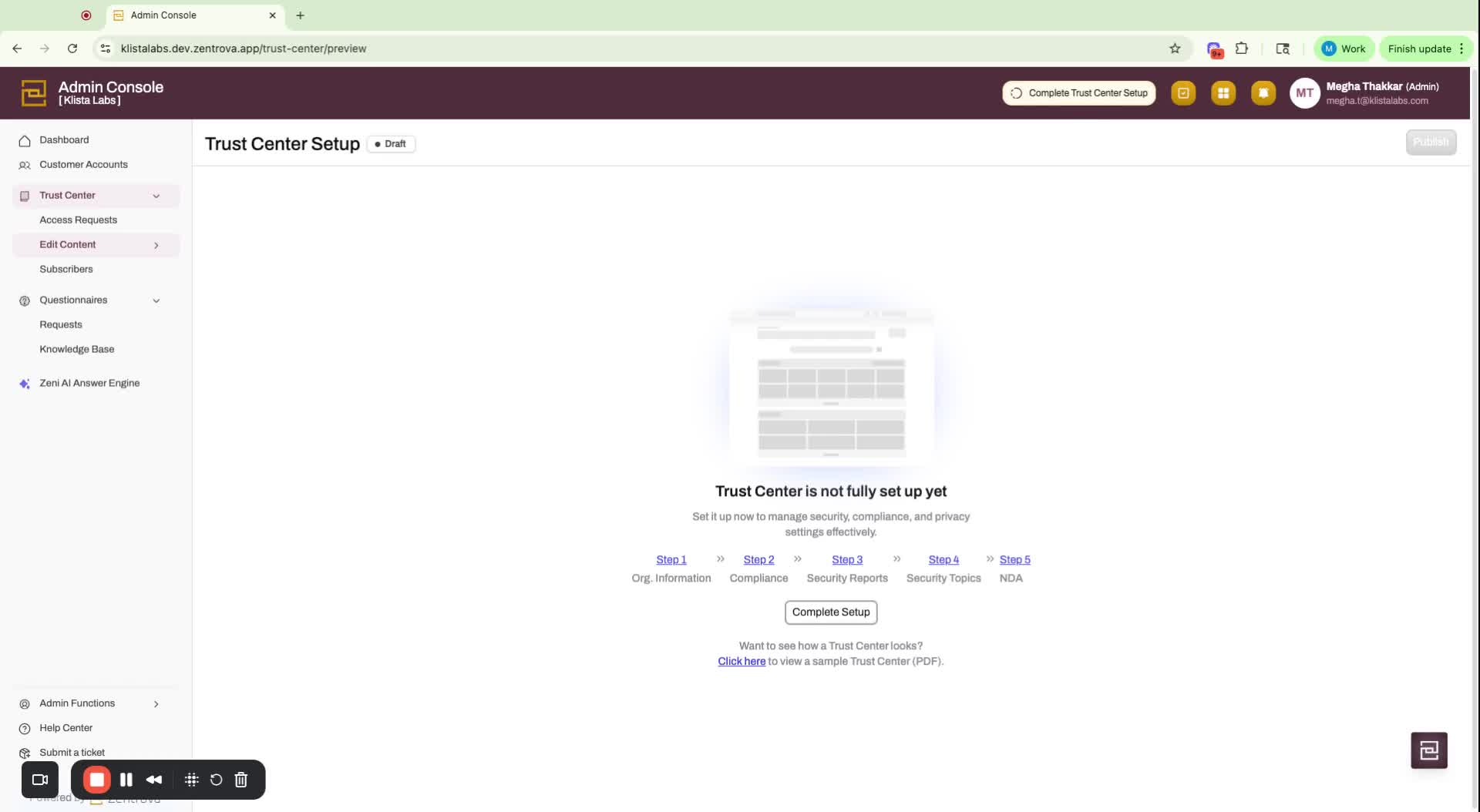
Click on 'Complete Trust Center Setup' to begin customizing your Trust Center site.
Alternatively, click 'Trust Center' on the left menu to start the setup.
Step 2: Overview of Setup Steps 0:50
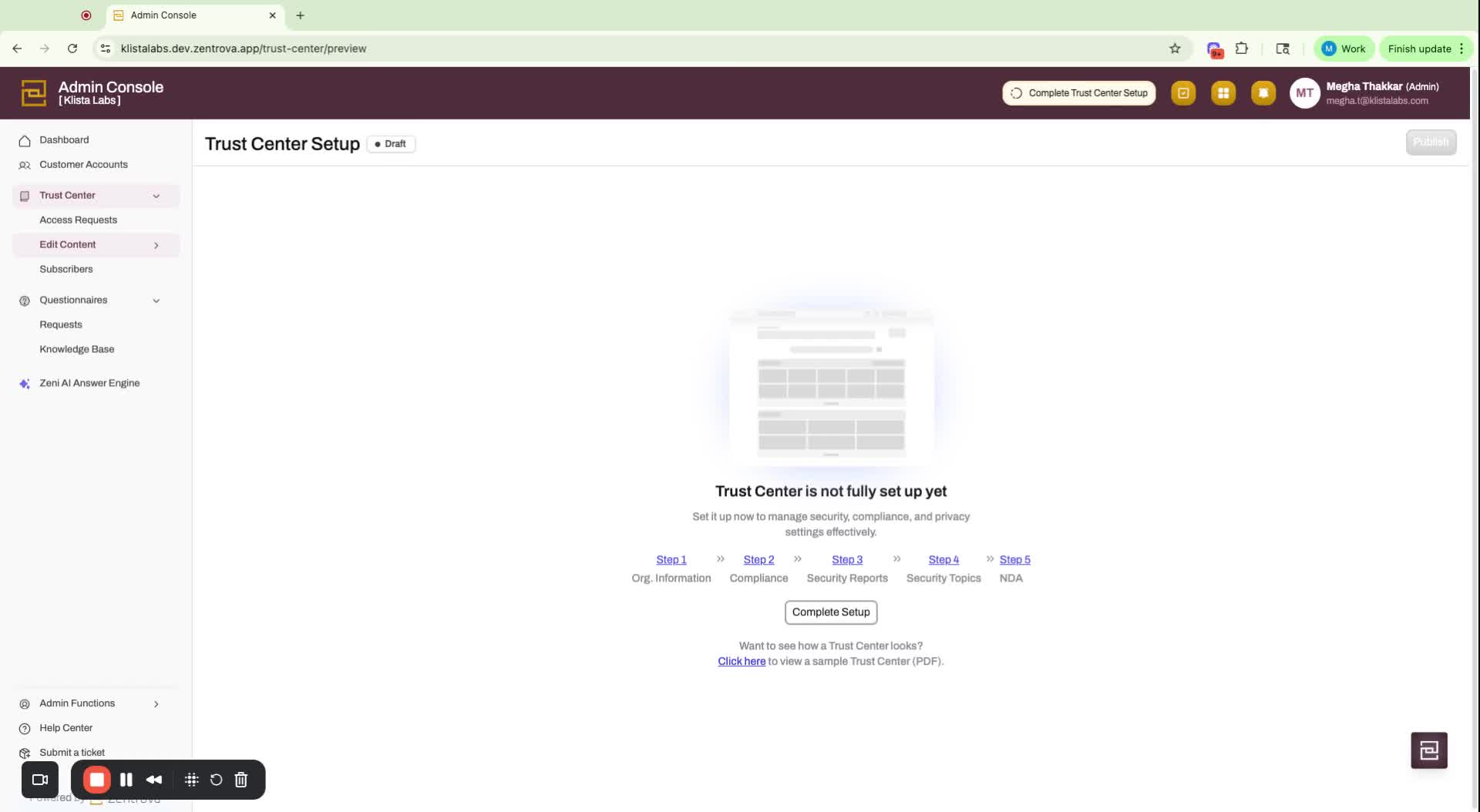
There are five steps involved in setting up your Trust Center.
You can exit and return to the setup at any time.
Step 3: Customize Your Trust Center 1:05
Click on Step 1 to start customizing:
Accept or edit the generated overview of your security program. Zeni our Copilot will generate some text for you to use.
Upload your company logo and favicon.
Choose a primary color for your Trust Center.
Enter your security team or GRC team's contact email address. This email will be visible to your customers at the bottom of the Trust Center site.
Click 'Save and Exit' or 'Next' to proceed.
Step 4: Enable Uptime Monitoring 2:41
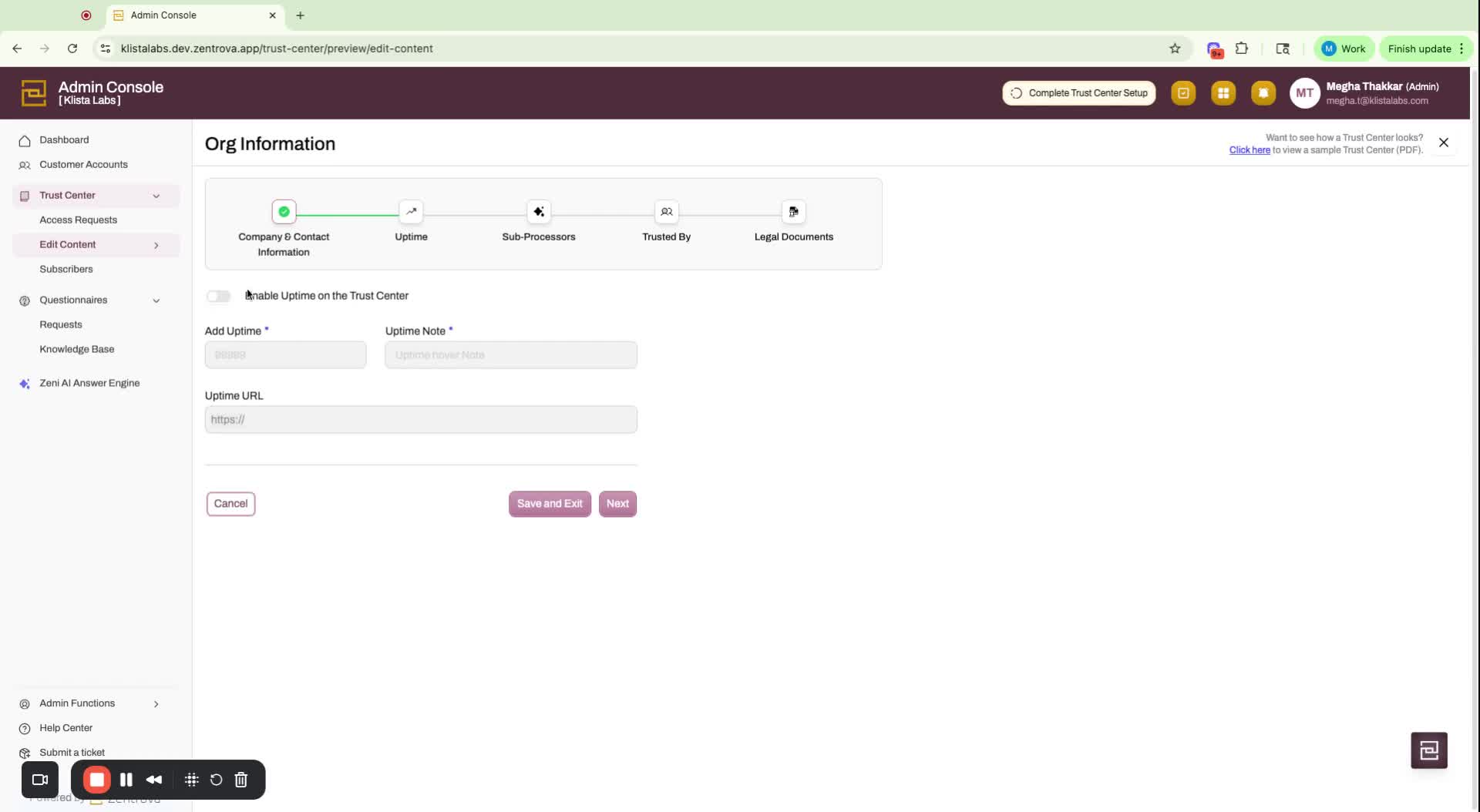
To enable uptime, click 'Enable Uptime on TrustCenter'.
Enter your uptime statistics and any footnotes.
Optionally, add an uptime page.
Step 5: Add Subprocessor Information 3:11
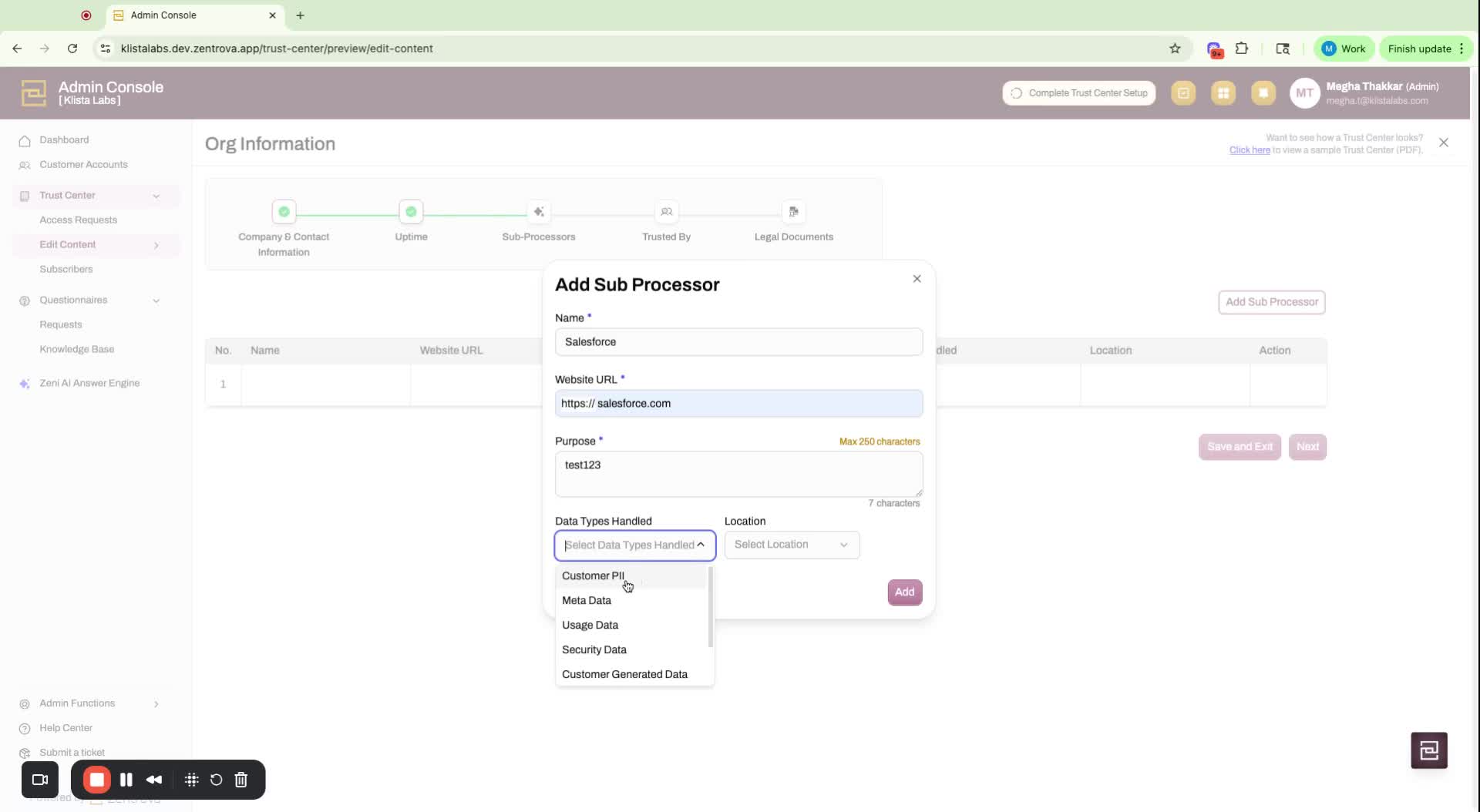
Enter subprocessor details.
Select the type of data handled by each subprocessor.
Click 'Add' to include subprocessors and then click 'Next'.
Step 6: Add Client Information 3:50
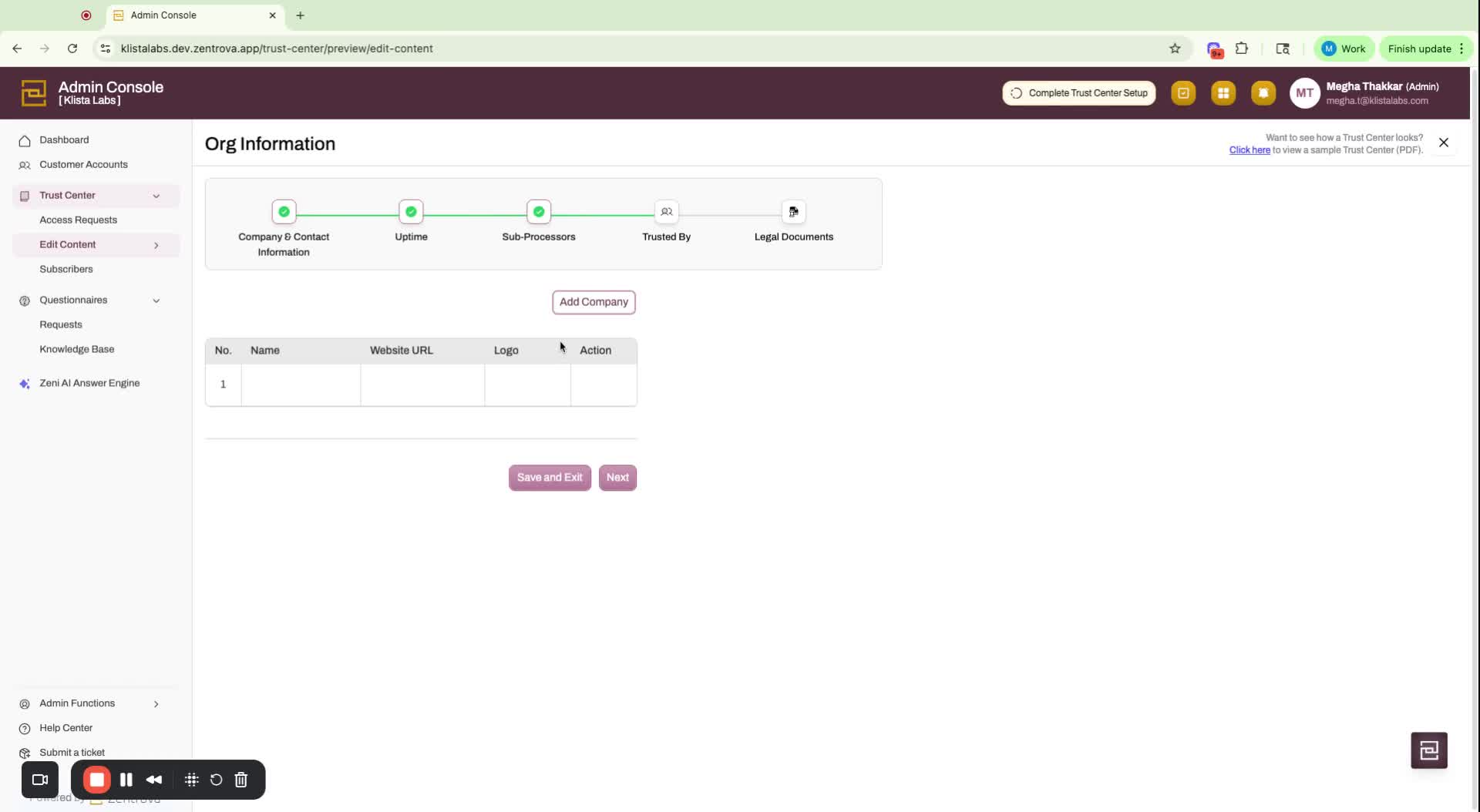
Enter information about existing clients who trust your products.
Click 'Next' after adding clients.
Step 7: Add Terms and Conditions Links 4:15
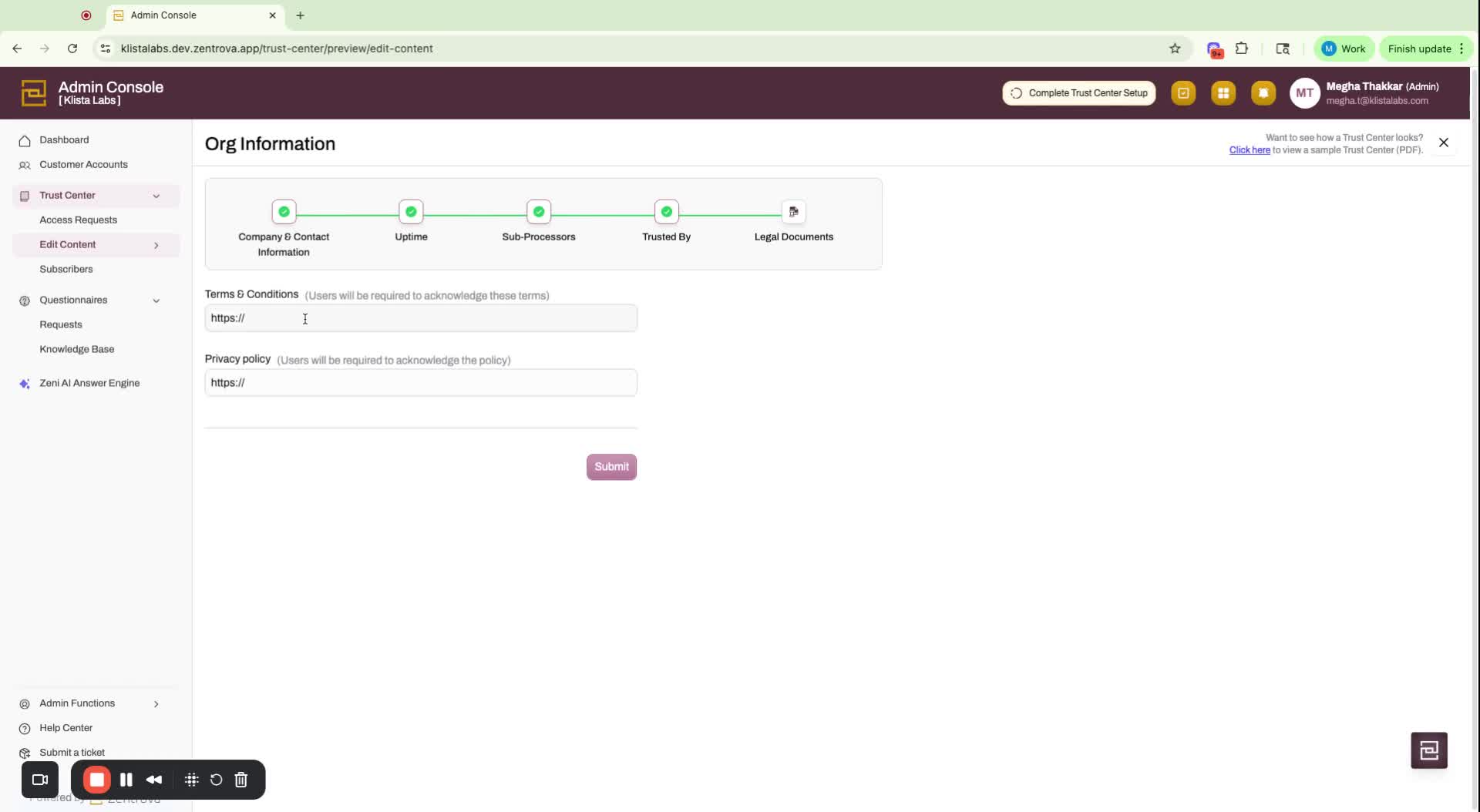
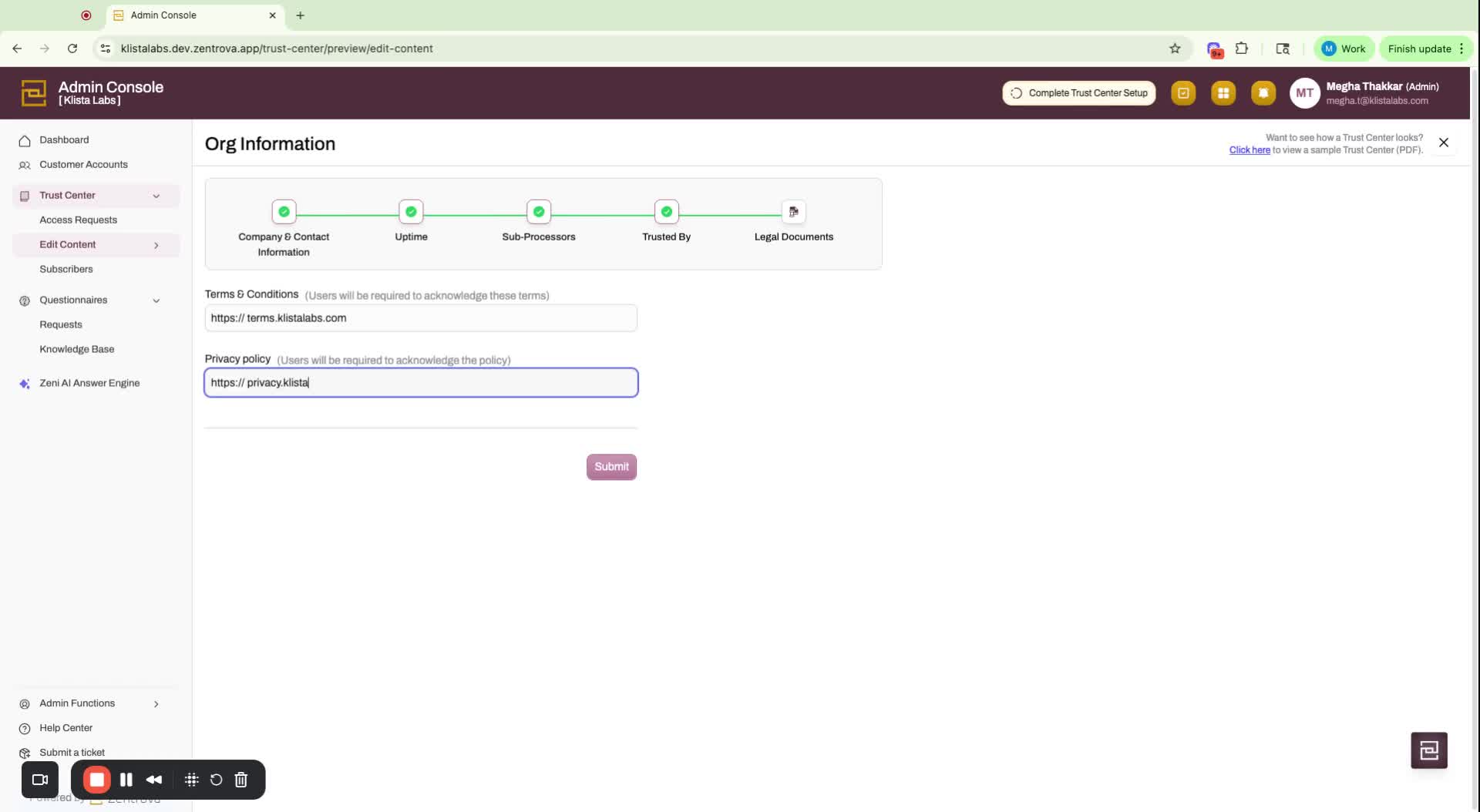
Add hyperlinks to your product's terms and conditions and privacy policy.
These are the terms your end users will need to agree to prior to accessing your Trust Center.
Step 8: Complete Step 1 4:38
Review the sample Trust Center site to see your progress.
Step 9: Add Compliance Reports 5:13
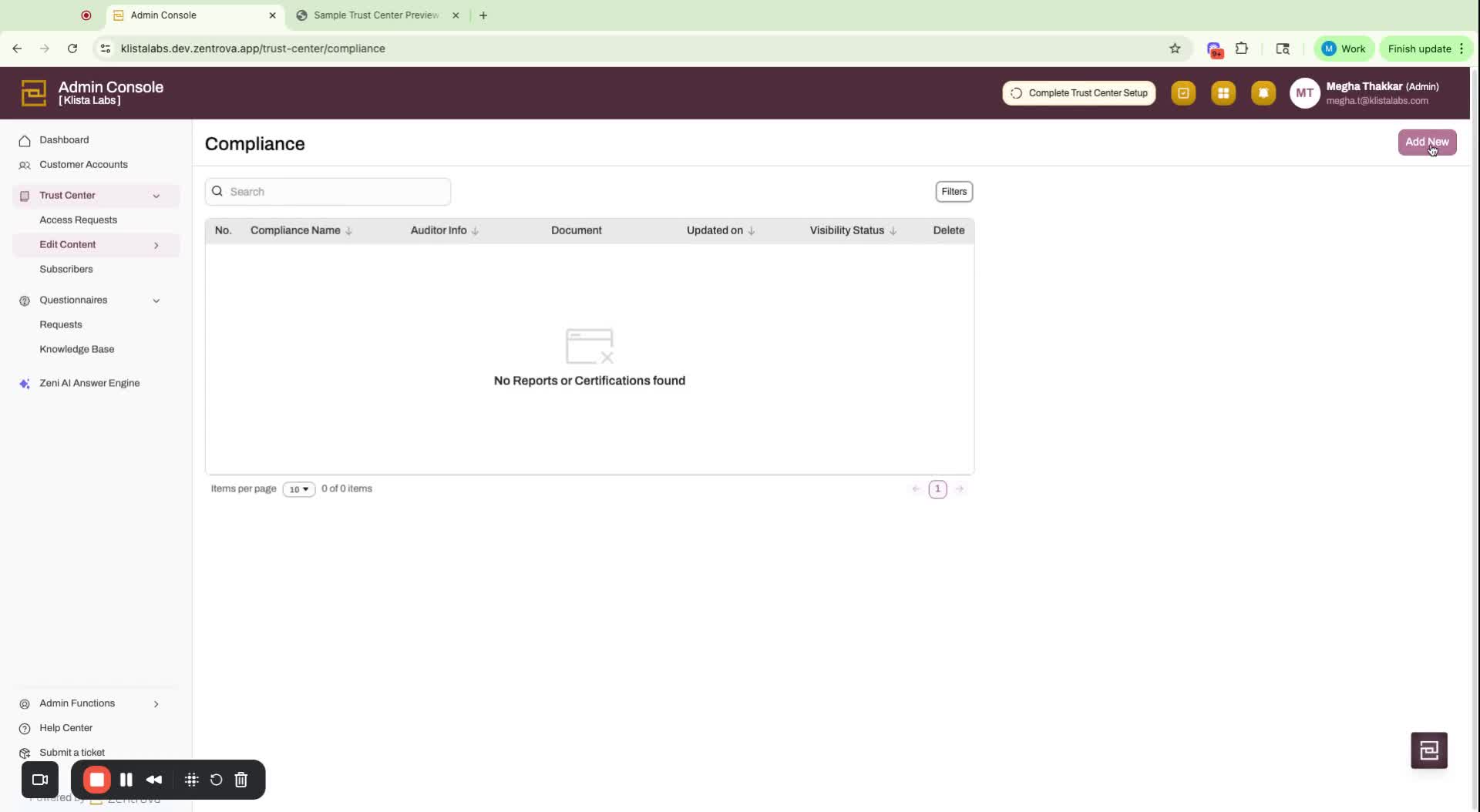
Click 'Add New' to start entering details for compliance reports (e.g., SOC 2).
Upload the document and add a description. Zeni our Copilot will generate some text for you to use.
Specify the report's expiry date and auditor details.
Step 10: Add Security Reports 9:47
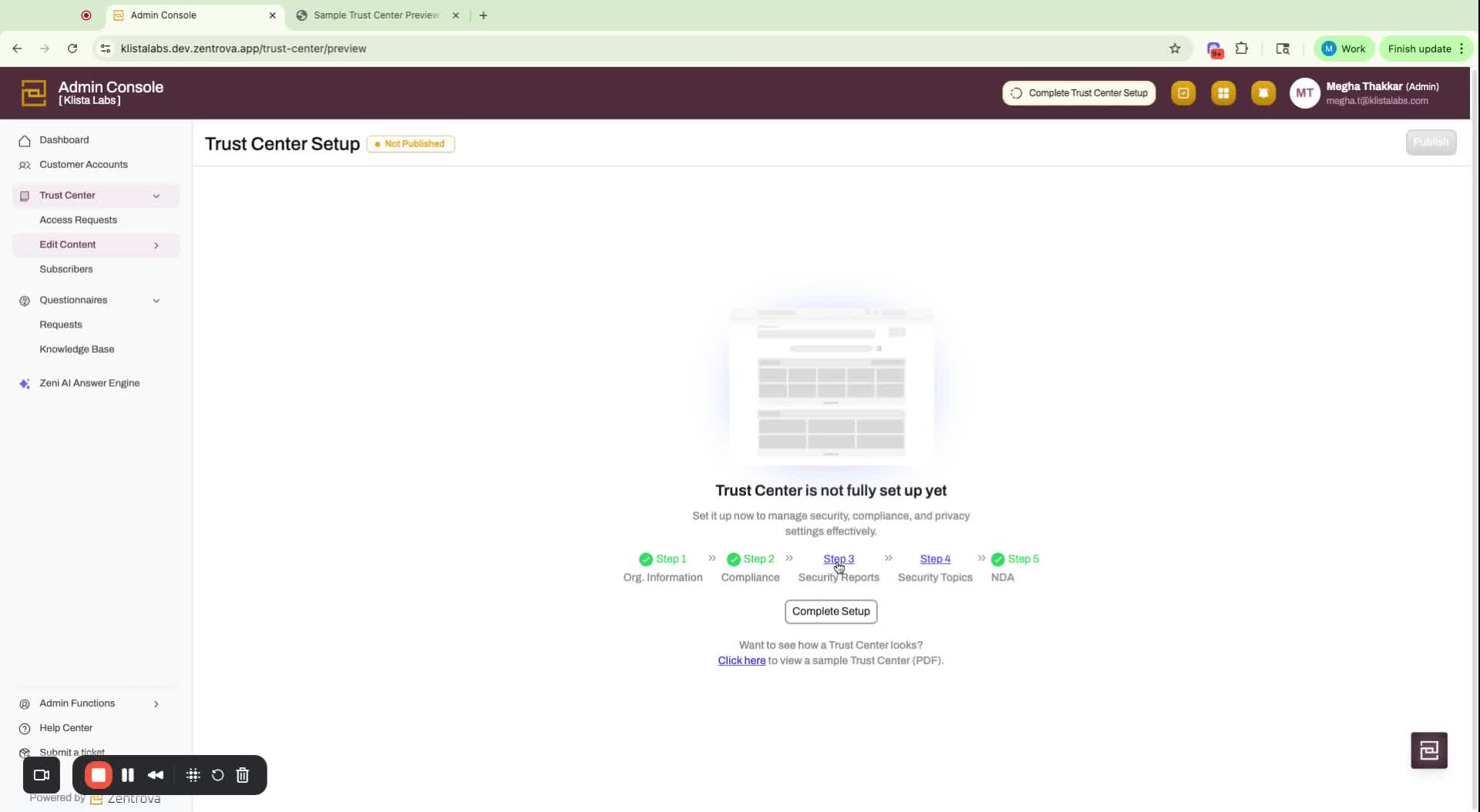
Move to Step 3 to upload security reports.
Click 'Add New', name the report, and upload the document.
Step 11: Add Security Topics 12:00
In Step 4, add relevant security topics that will be visible on your Trust Center.
Step 12: Review and Publish 13:04
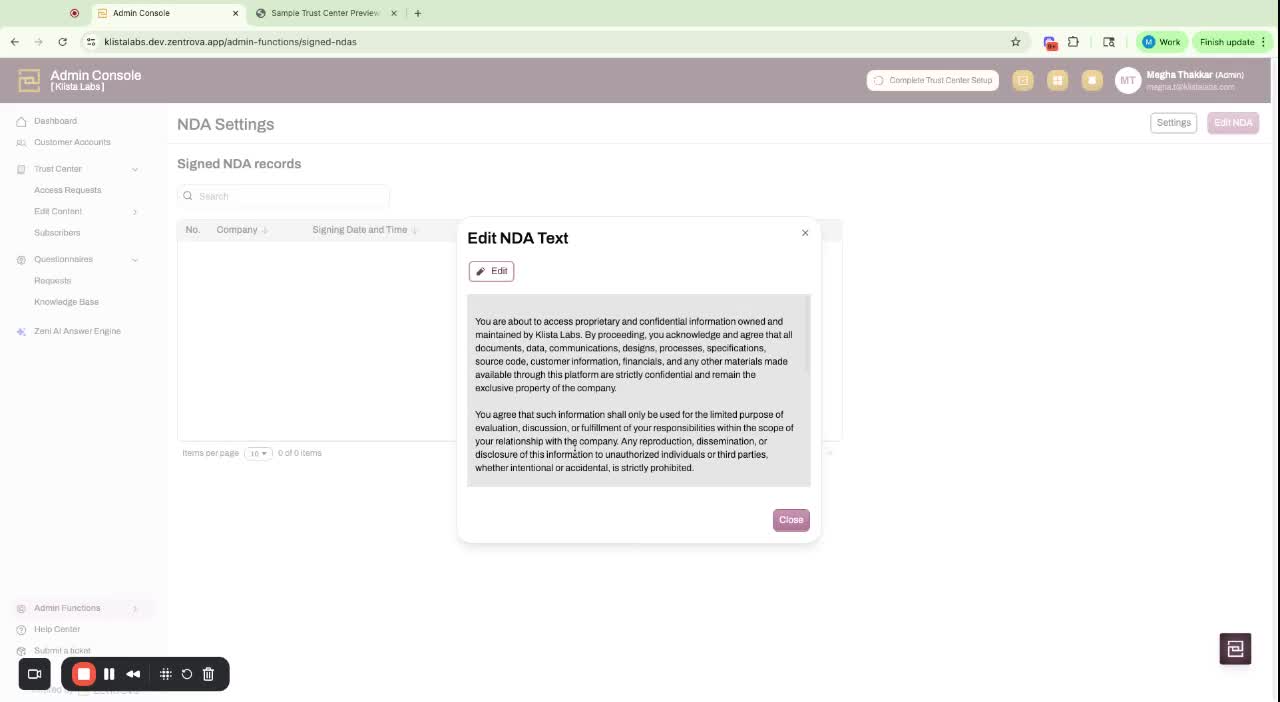
Step 5 is automatically marked as complete with default NDA text.
Edit NDA text if necessary, then save changes.
Click 'Publish' to make your Trust Center live.
Step 13: Finalize and Access Your Trust Center 14:09
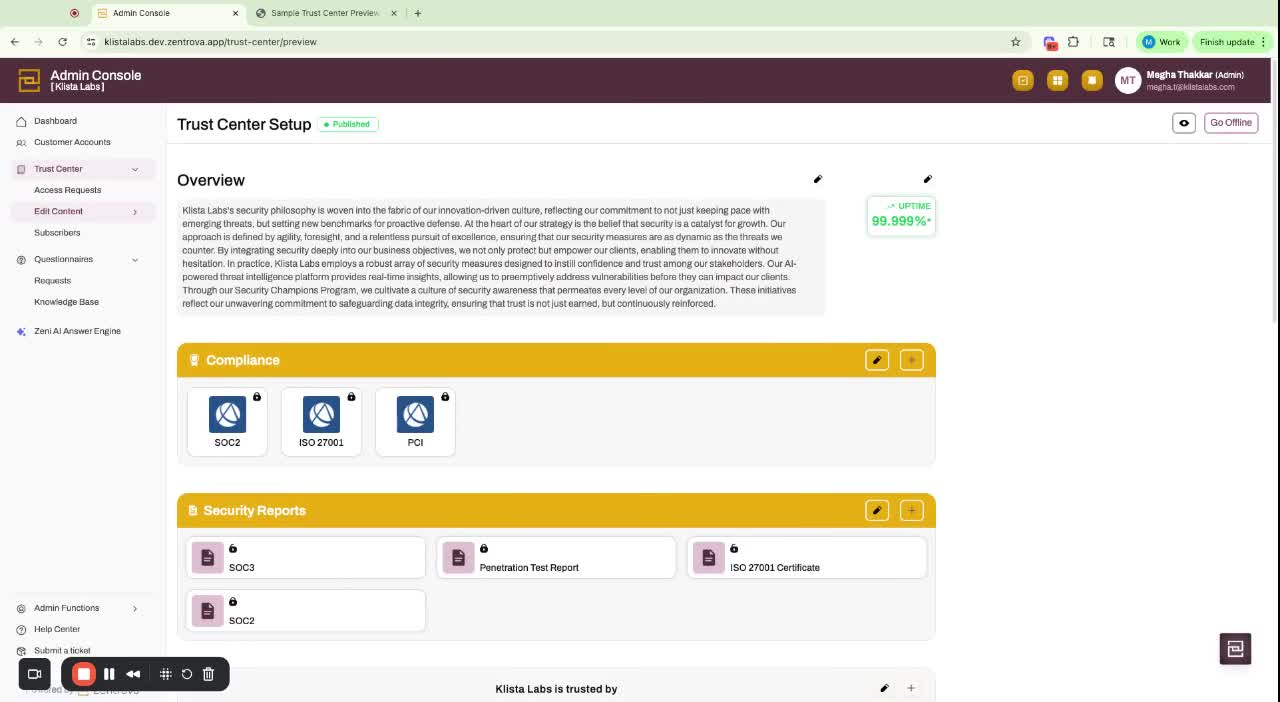
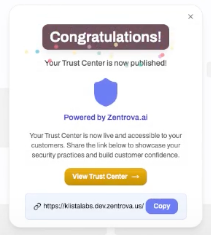
Confirm the publication of your Trust Center.
Access the live site or copy the link to share.
Step 14: Edit Content and Manage Trust Center 14:38
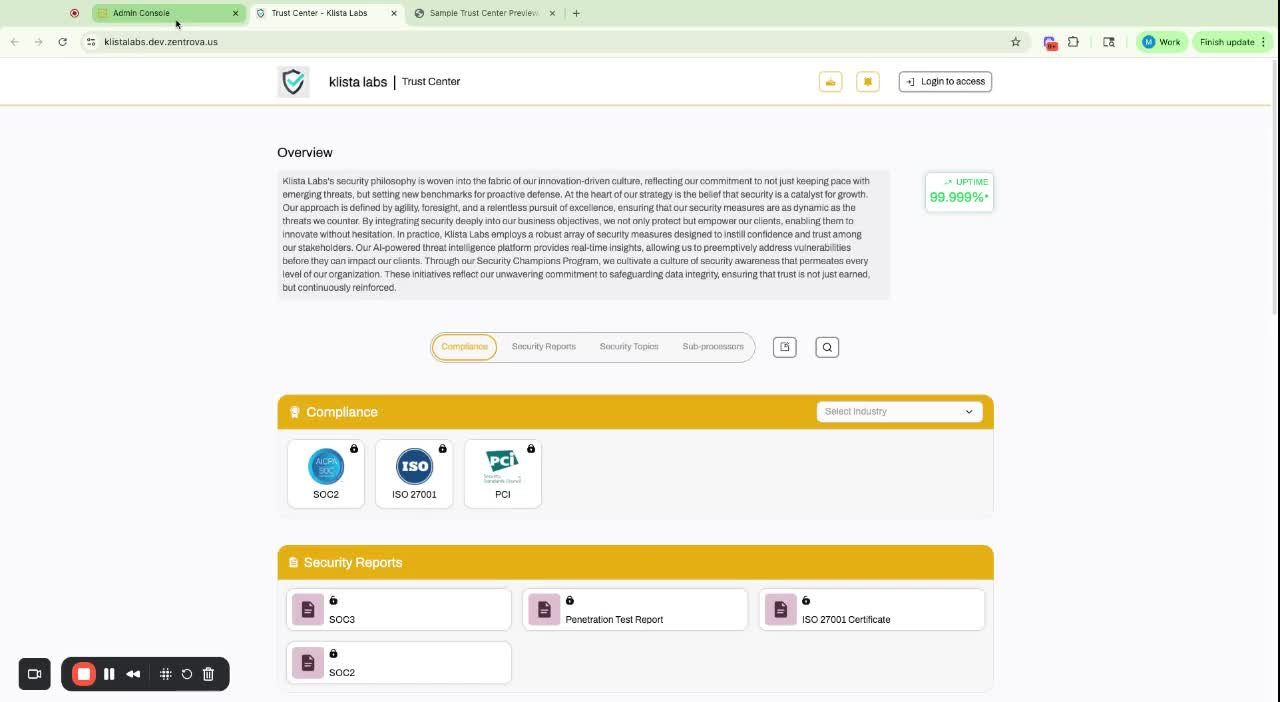
Go back to the Admin Console to edit content or make the Trust Center offline if needed.
For assistance, click 'Submit a Ticket'.
Link to Loom
Was this article helpful?
That’s Great!
Thank you for your feedback
Sorry! We couldn't be helpful
Thank you for your feedback
Feedback sent
We appreciate your effort and will try to fix the article