Trust Center Setup Procedure
Objective
This SOP outlines the steps to add trust pillars or security pillars to the trust center, ensuring a clear and organized presentation of security information.
Key Steps
Step 1: Access Admin Console 0:26
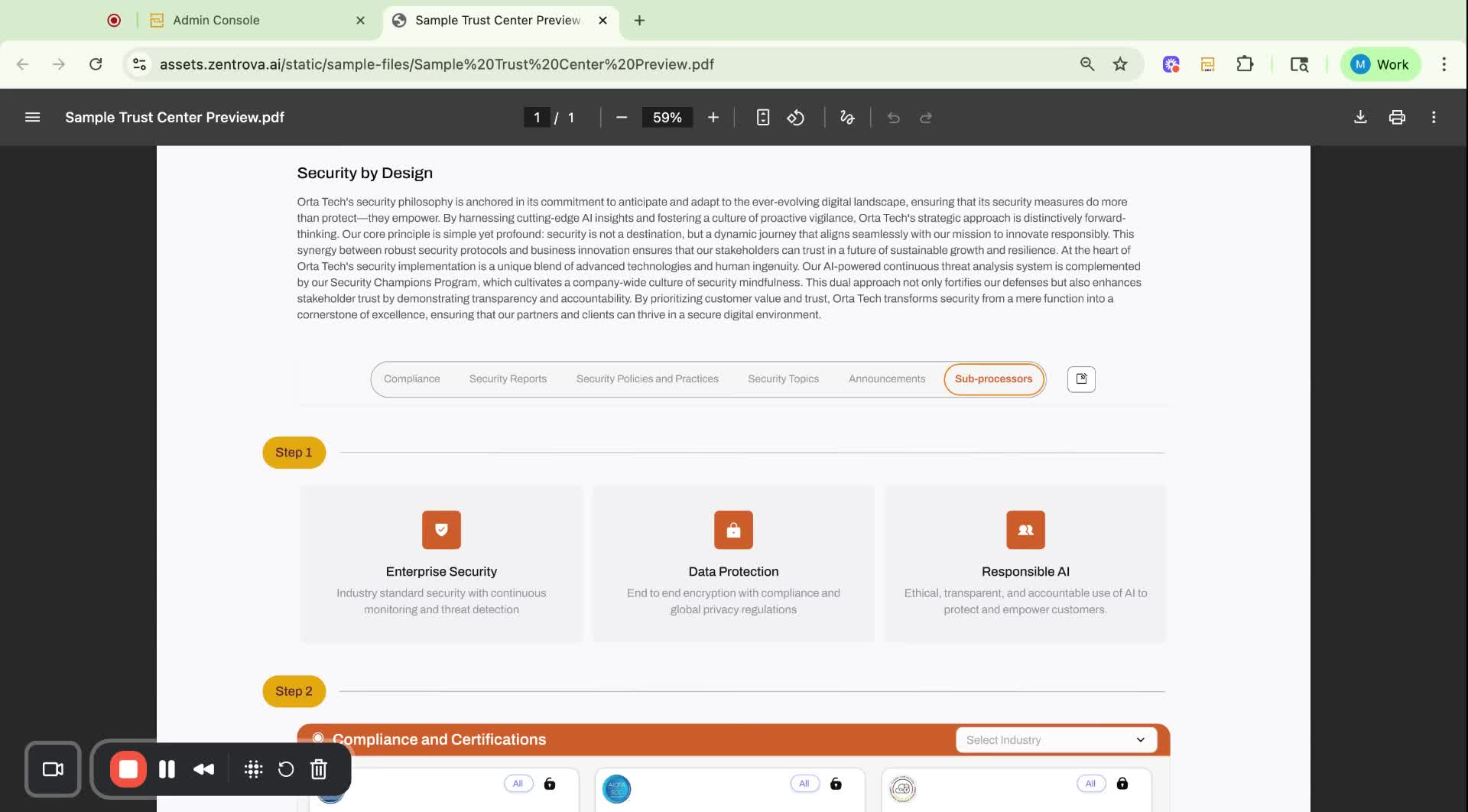
Navigate to the Admin Console.
Select Edit Content Organization Information.
Step 2: Add Security Pillars 0:42
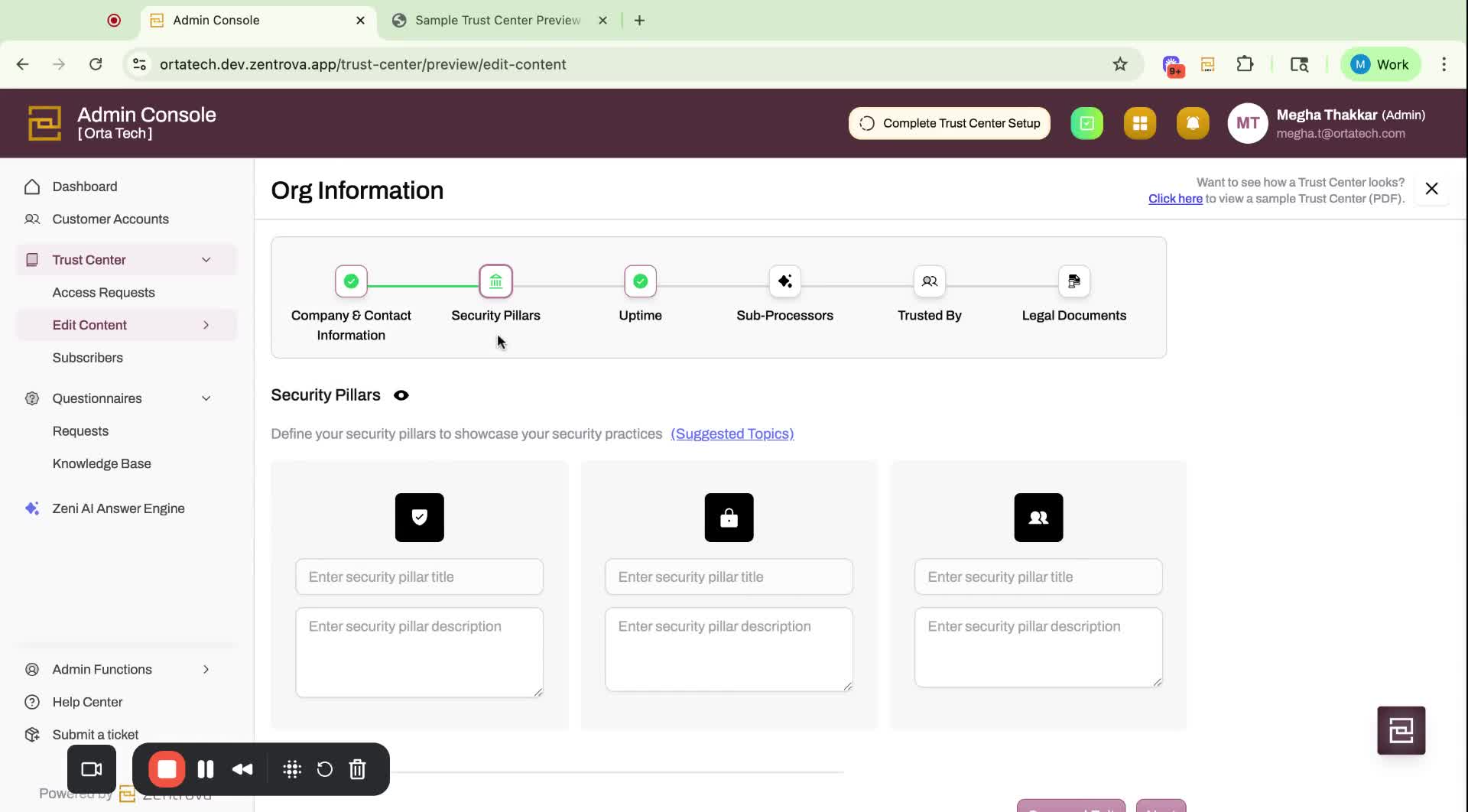
Look for the option to add information for security pillars.
Click the preview icon to see a sample view of the information on your trust center.
Step 3: Use Suggested Topics 0:59
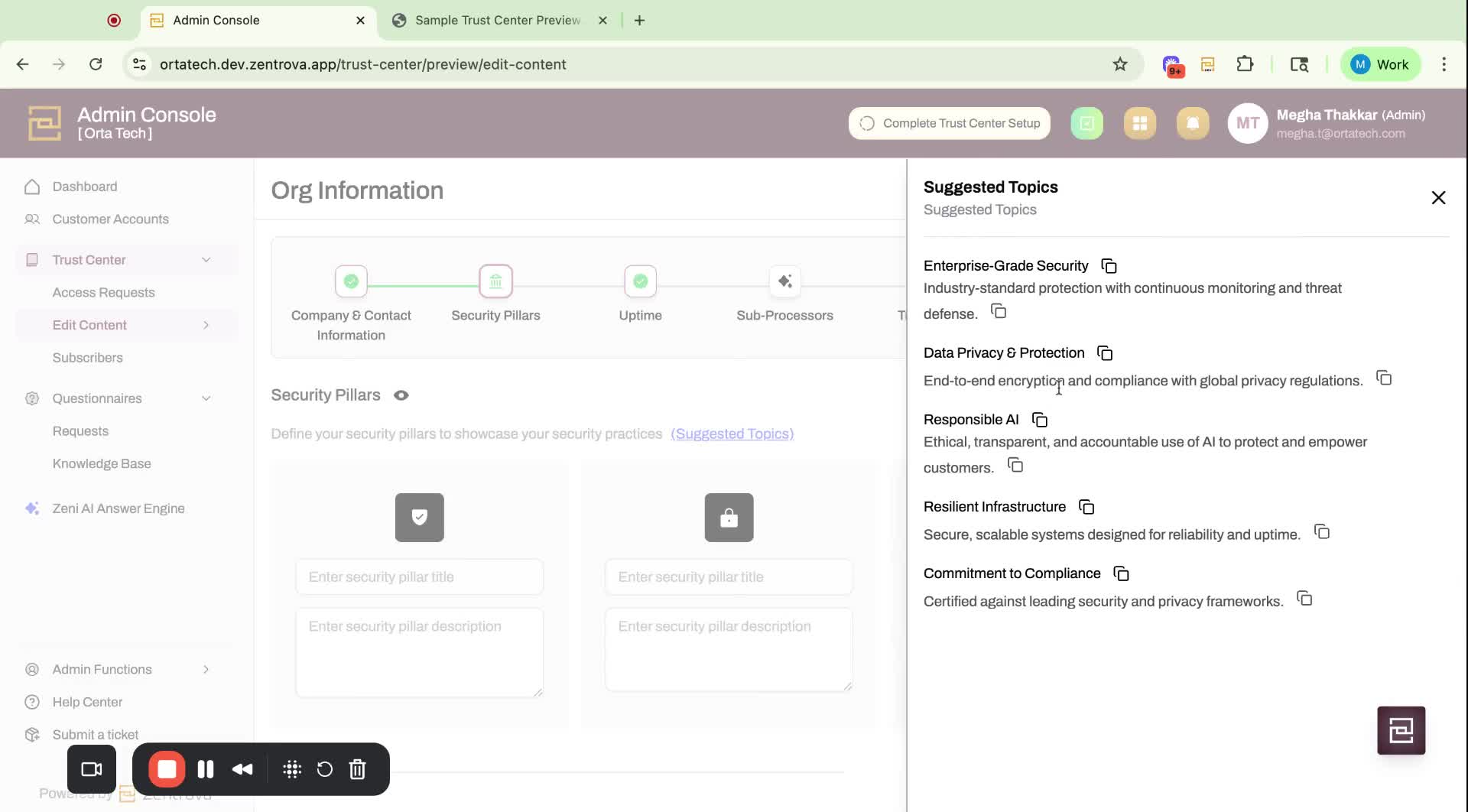
Review the suggested topics provided.
You can choose from these suggestions or create your own topics and descriptions.
Step 4: Populate Information 1:10
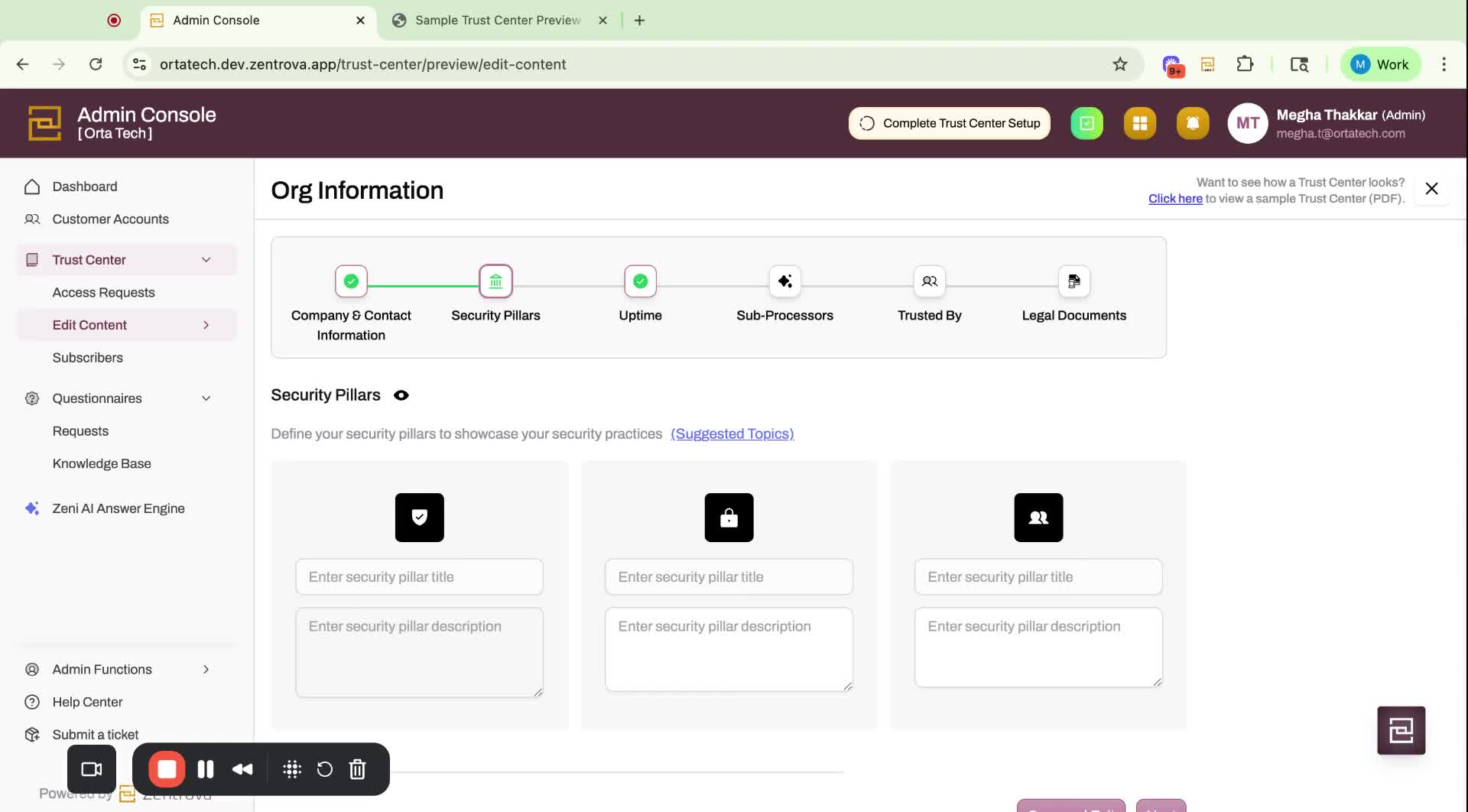
Ensure you have at least three pillars or security domains to make the section live.
Populate the information using suggested topics or your own text.
Step 5: Save Your Work 1:48
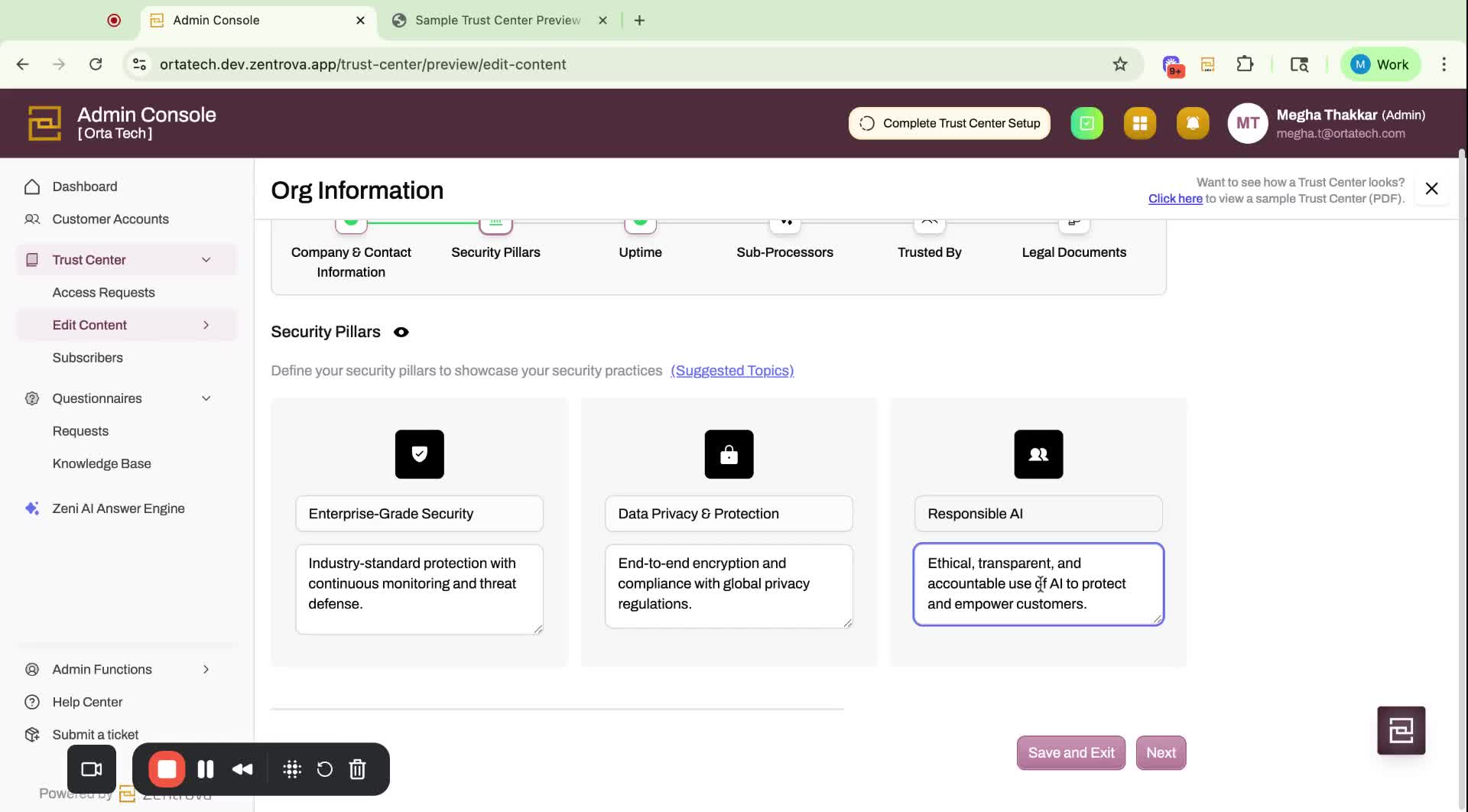
Once all three sections are complete, you can either:
Click Save and Exit.
Click Next to continue.
Step 6: Review Sample View 2:12
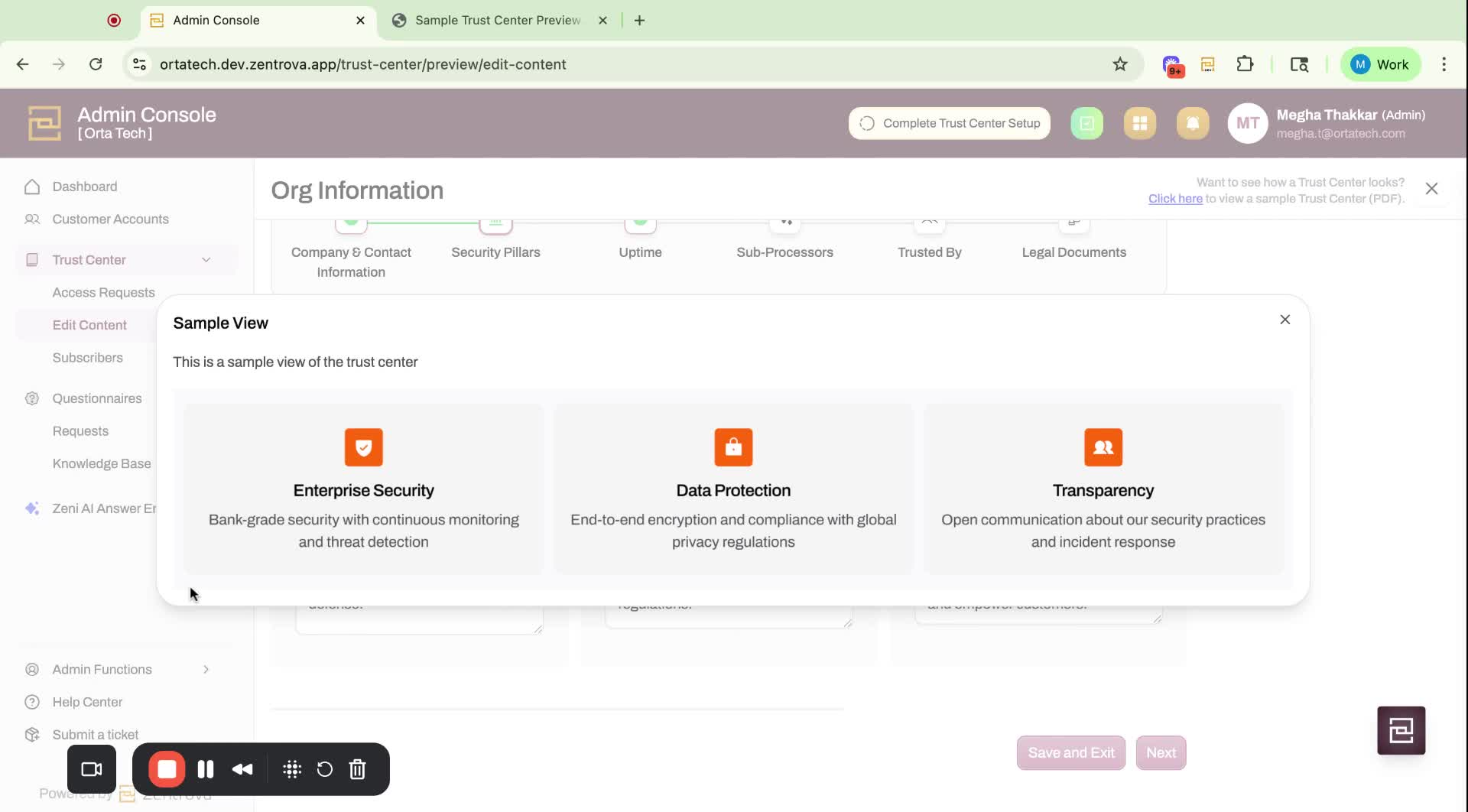
After saving, check the sample view to see how the information will appear on your trust center.
Cautionary Notes
Ensure at least three security pillars are filled out before saving
Remember to click Publish (if its the first time set up).
Tips for Efficiency
Use the suggested topics to save time in creating content.
Regularly review and update the trust pillars to keep the information current.
Link to Loom
Was this article helpful?
That’s Great!
Thank you for your feedback
Sorry! We couldn't be helpful
Thank you for your feedback
Feedback sent
We appreciate your effort and will try to fix the article