Adding Policies and Practices to the Trust Center
Objective
This SOP outlines the steps to add a policies and practices section to your trust center, ensuring it is visible on the customer-facing site.
Key Steps
Note: Post set up view:
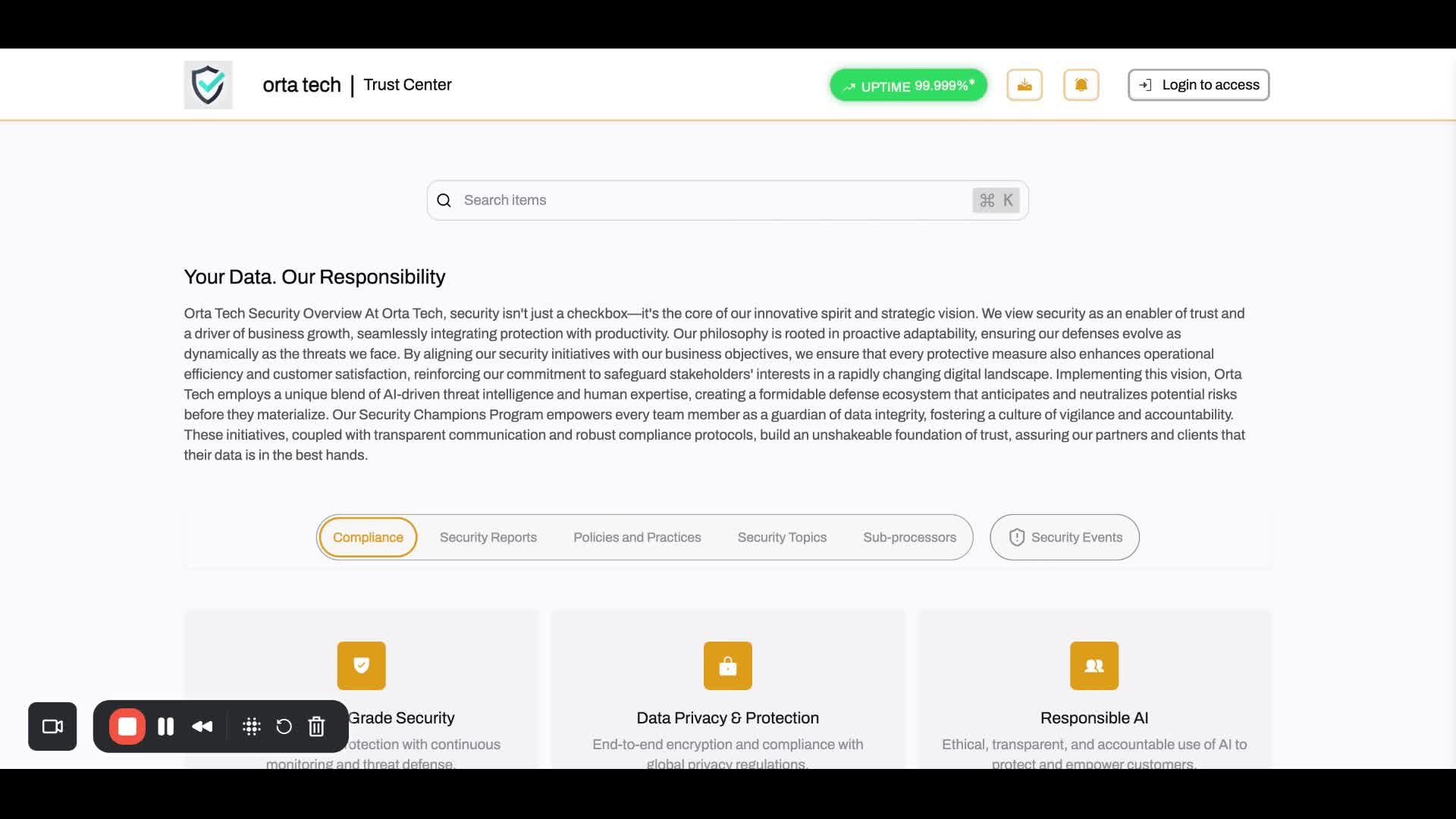
Step 1: Go to Admin Console
Navigate to Trust Center - Edit Content
Step 2: Locate the Policies and Practices Section
Find the section labeled 'Policies and Practices' within the Trust Center -> Edit Content.
Step 4: Edit and Save Changes
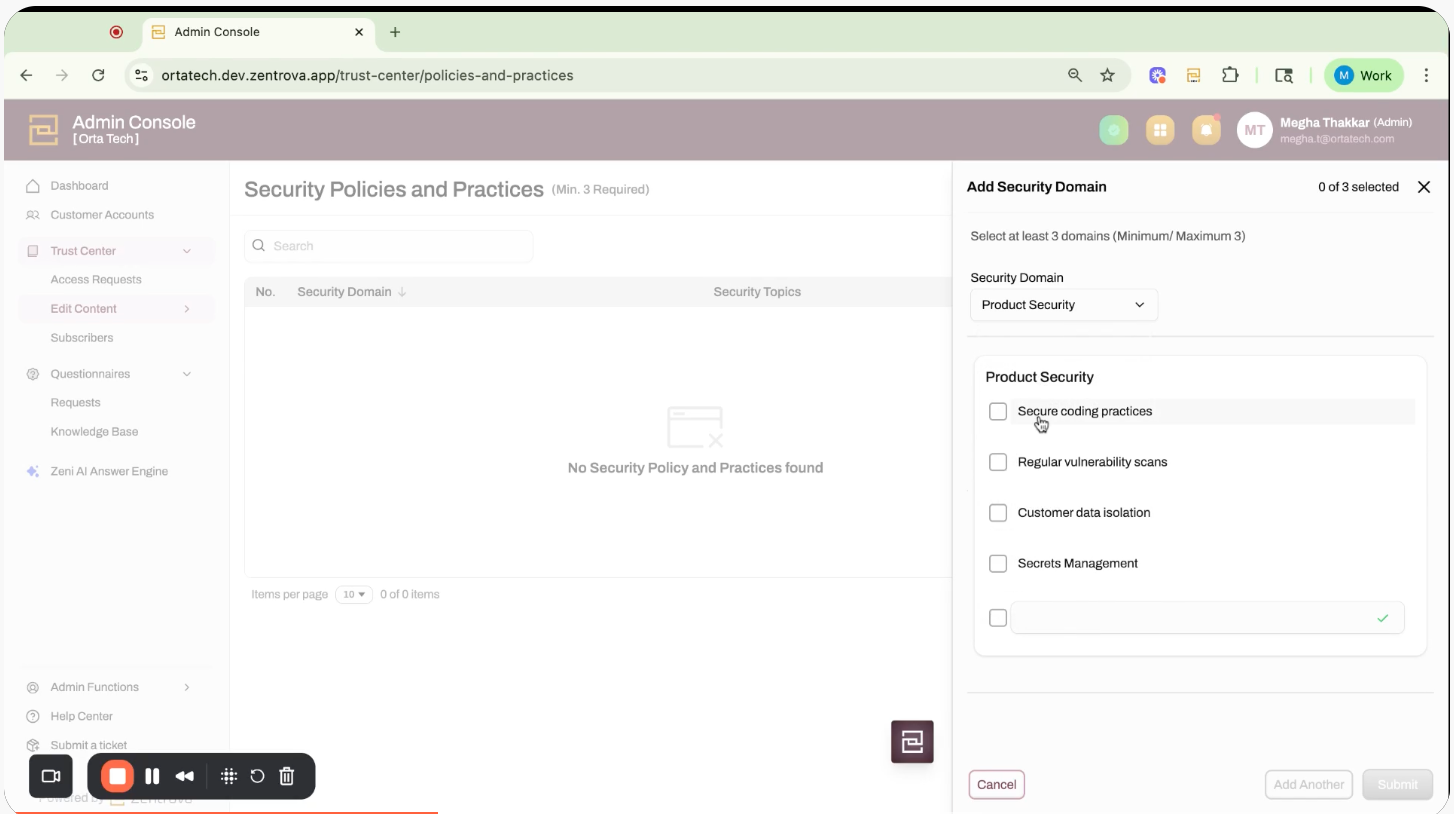
Enter Domains and Topics. Minimum 3 domains are required.
Enter Domain 1 information and click Add Another.
Double-check the information entered for accuracy.
Click 'Submit' to apply the changes.
Click Publish to ensure edits are published on your site.
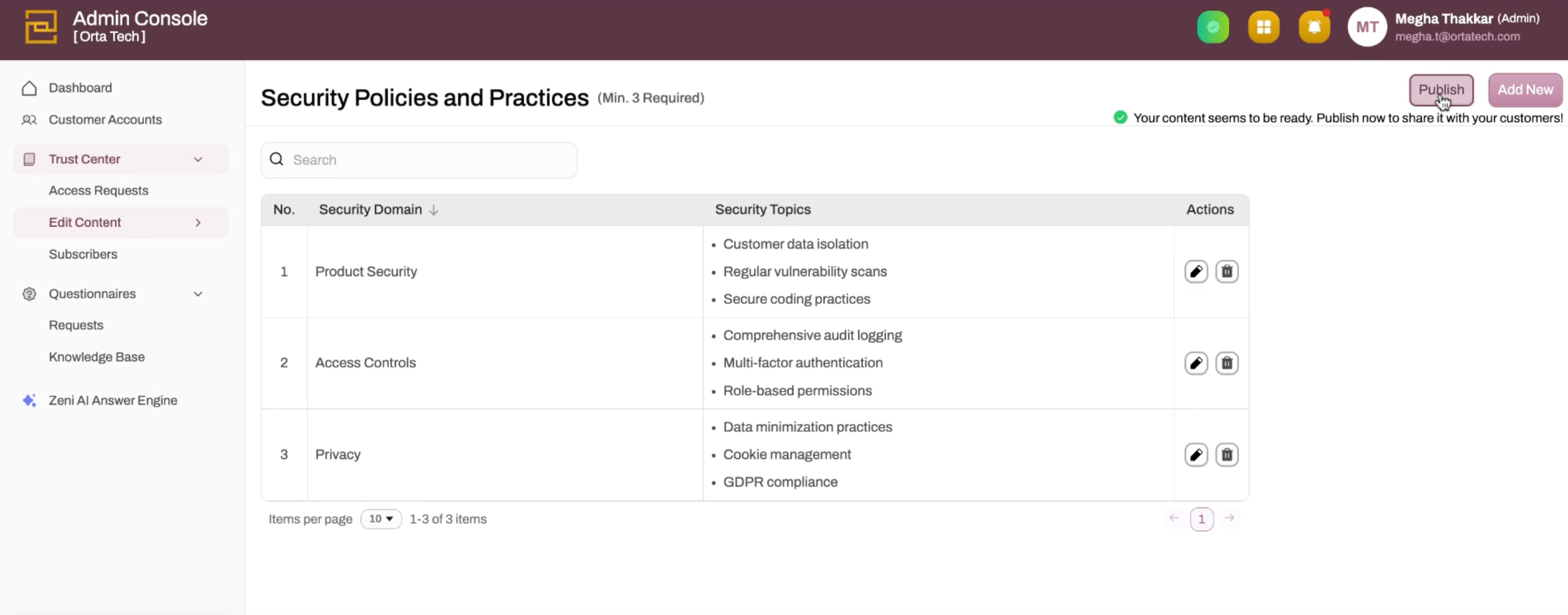
Step 5: Verify Visibility on Customer-Facing Site
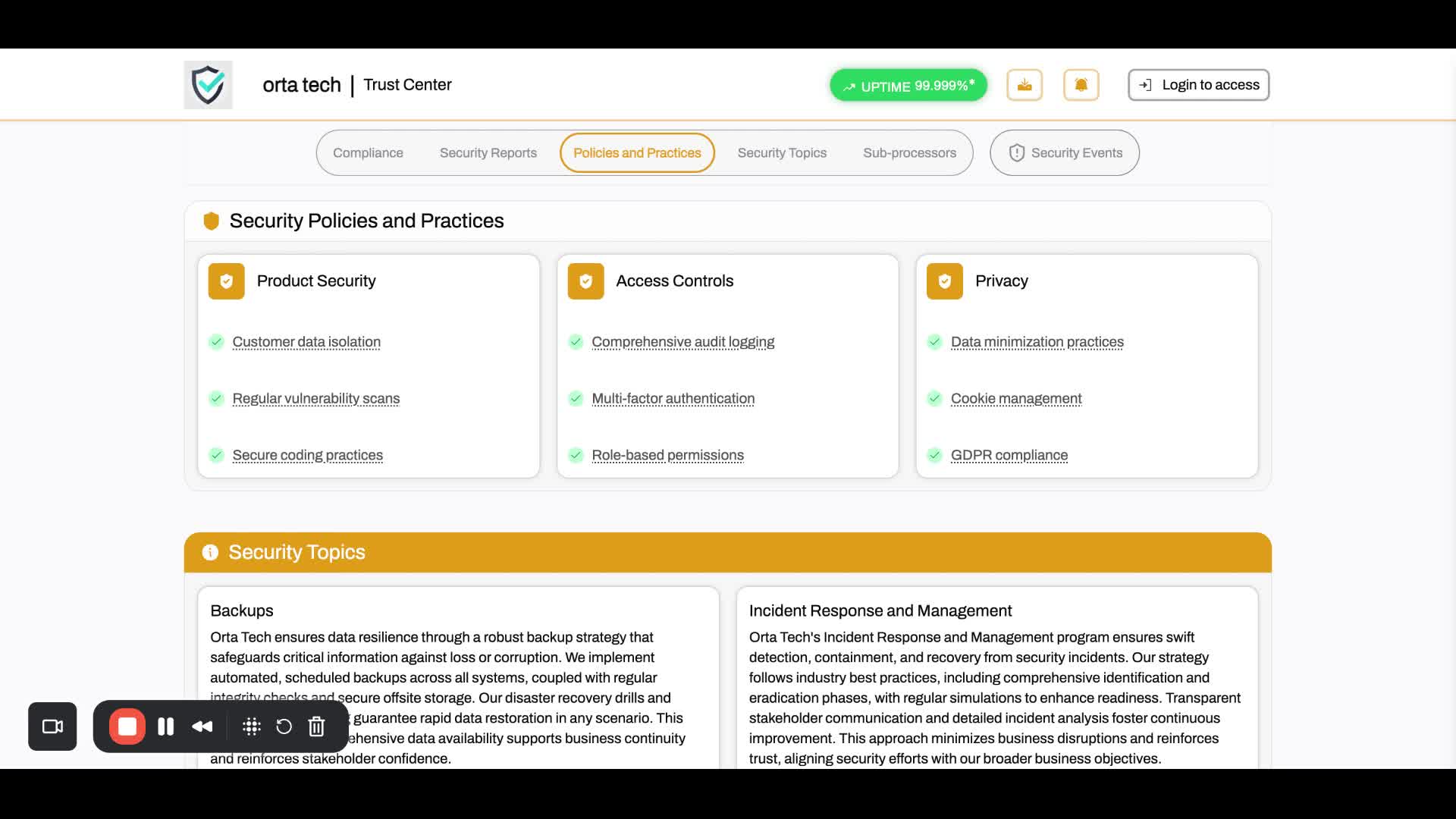
Navigate to the customer-facing site to ensure the new policies and practices are displayed correctly.
Test the visibility by refreshing the page.
Cautionary Notes
Ensure that all policies added are up-to-date.
Tips for Efficiency
Regularly review and update the policies to keep the content relevant.
Link to Loom
Was this article helpful?
That’s Great!
Thank you for your feedback
Sorry! We couldn't be helpful
Thank you for your feedback
Feedback sent
We appreciate your effort and will try to fix the article