Questionnaires Module Walkthrough
Link to the full training Loom video
https://loom.com/share/880842c586fc41f1bc252fa248647906
1. Introduction to the Questionnaires Module 0:02
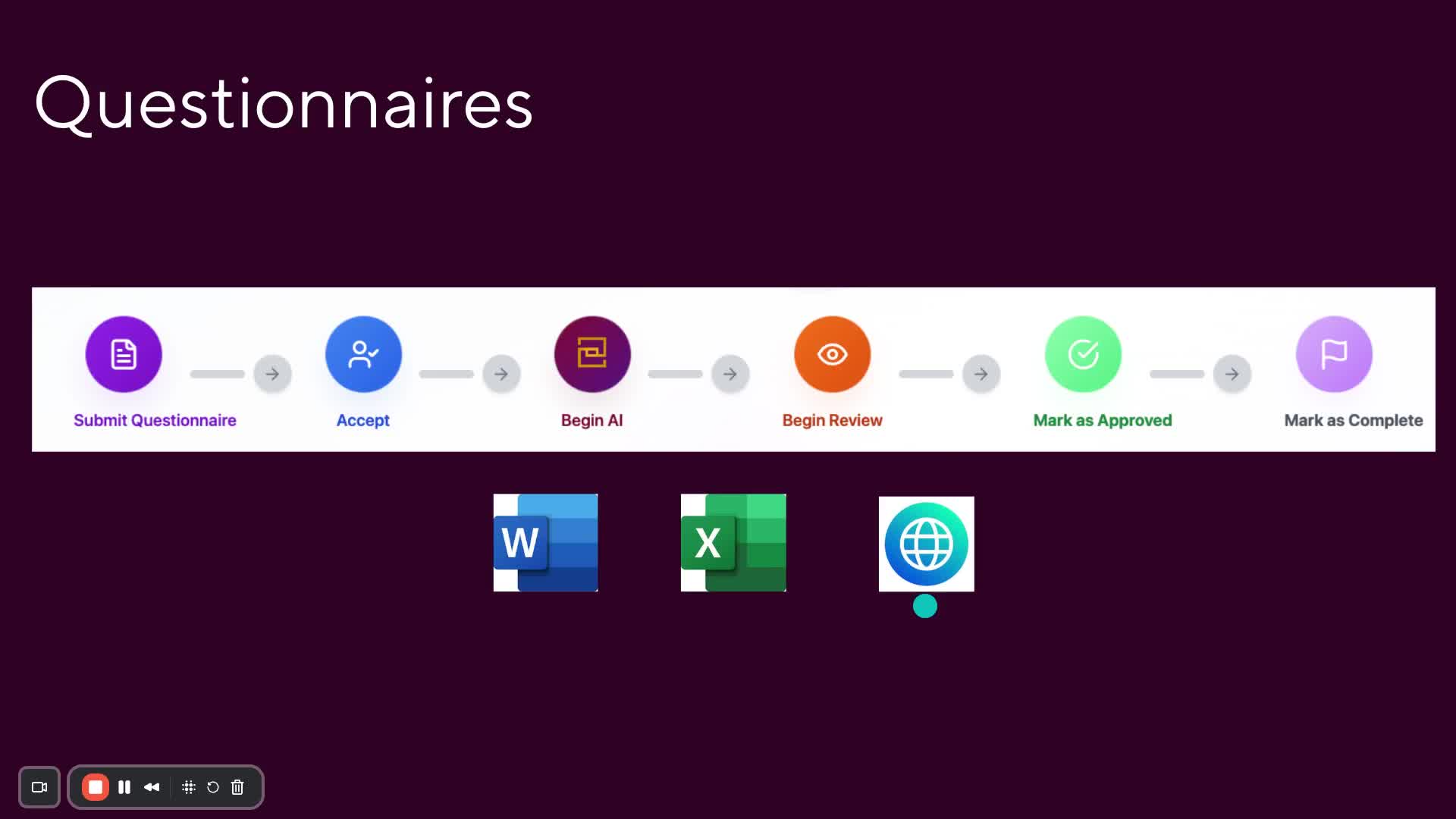
Overview of the questionnaire phases:
Submit questionnaire
Accept
Begin AI
Begin review
Mark as approved
Mark as complete
Supported formats: Microsoft Word, Excel, and web portal questionnaires.
2. Accessing the Questionnaires Module 0:37
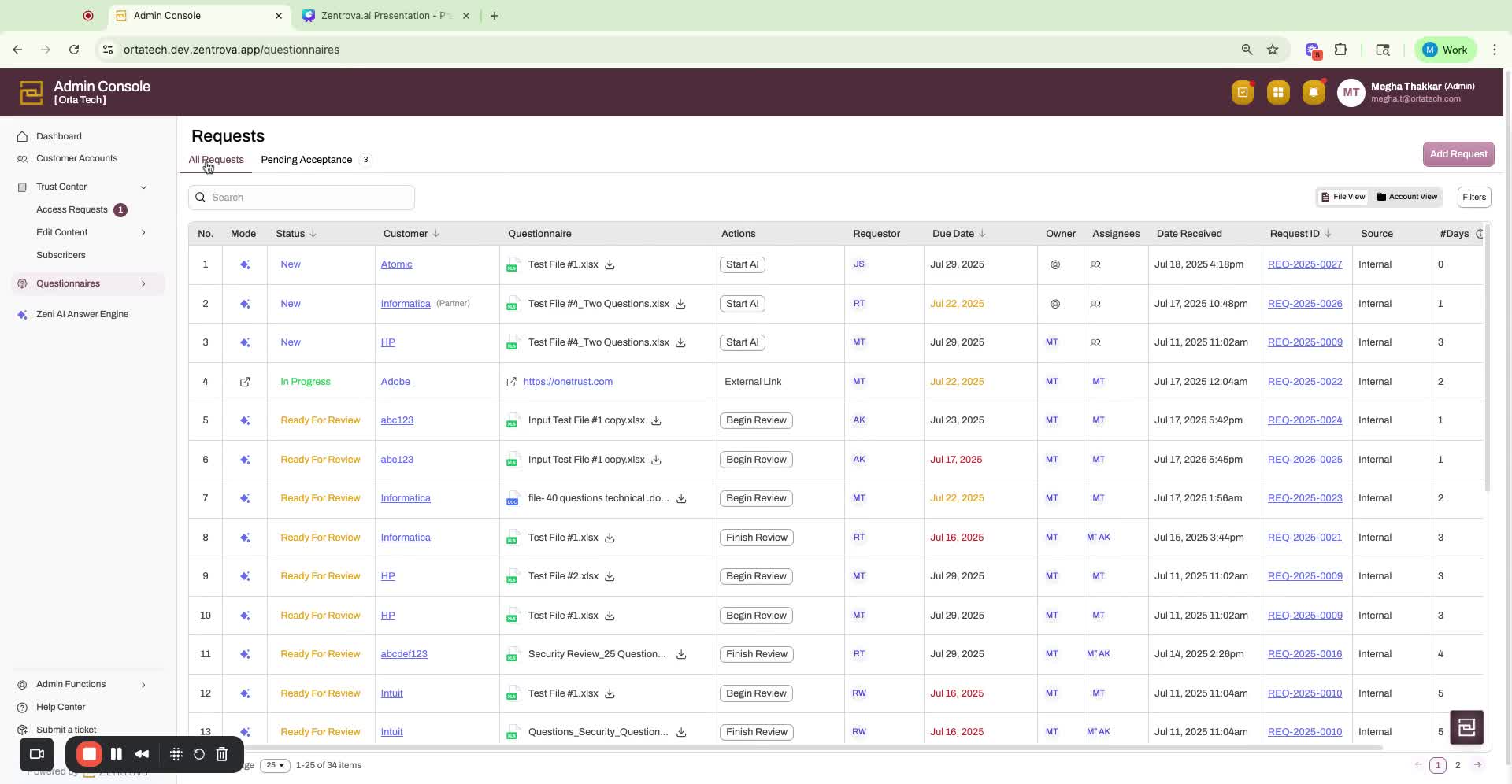
Navigate to the admin console.
Access the questionnaires module via:
Quick links
Left side menu.
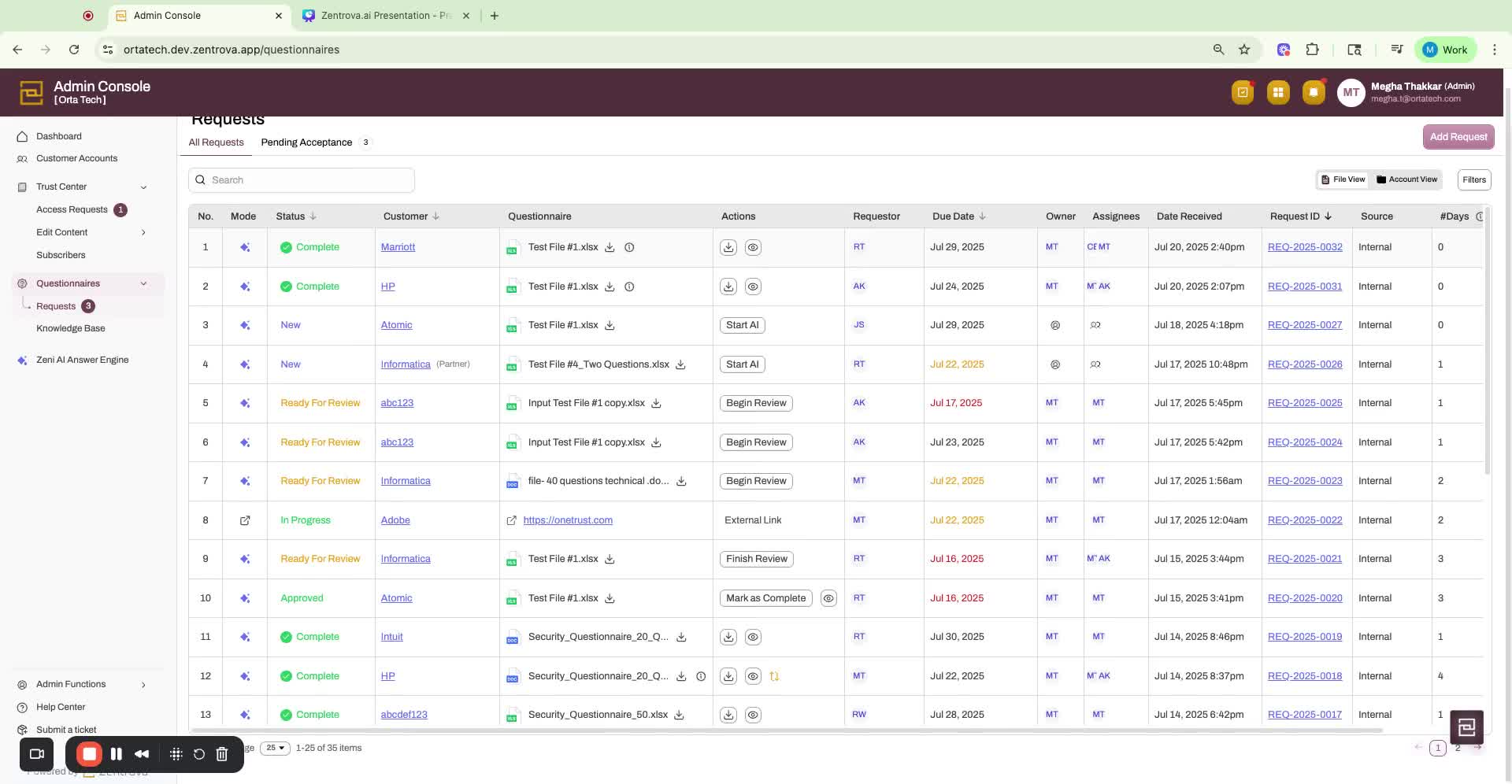
3. Viewing Requests 1:09
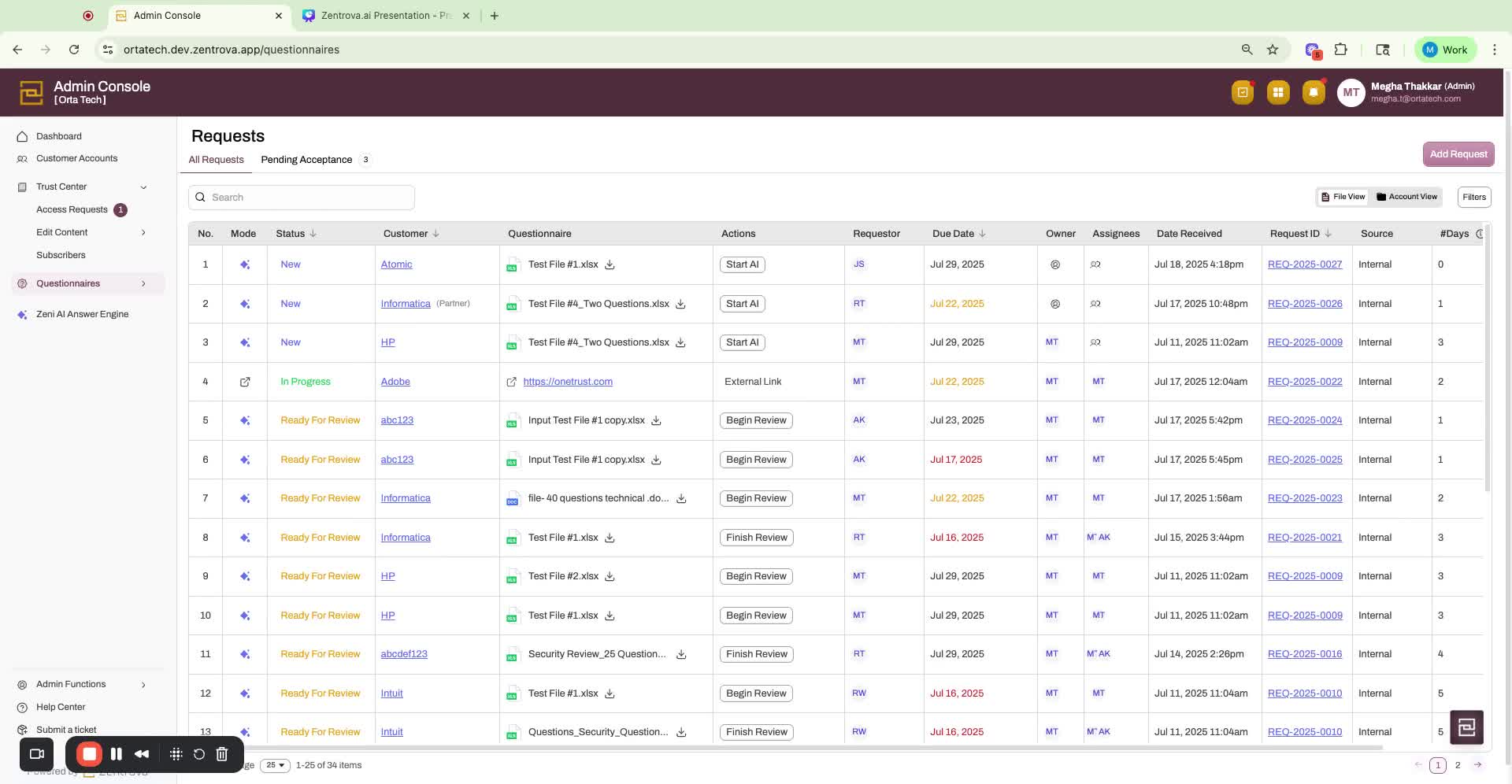
First tab: All requests in your queue.
Second tab: Requests waiting for acceptance.
4. Adding a New Request 1:18
Click 'Upload Files' to create a new request.
Complete the form:
Auto-populated fields if Salesforce integration is saved.
Choose environment for customer provisioning.
Select NDA (Yes or No).
Add comments.
Set a due date.
5. Submitting the Request 3:04
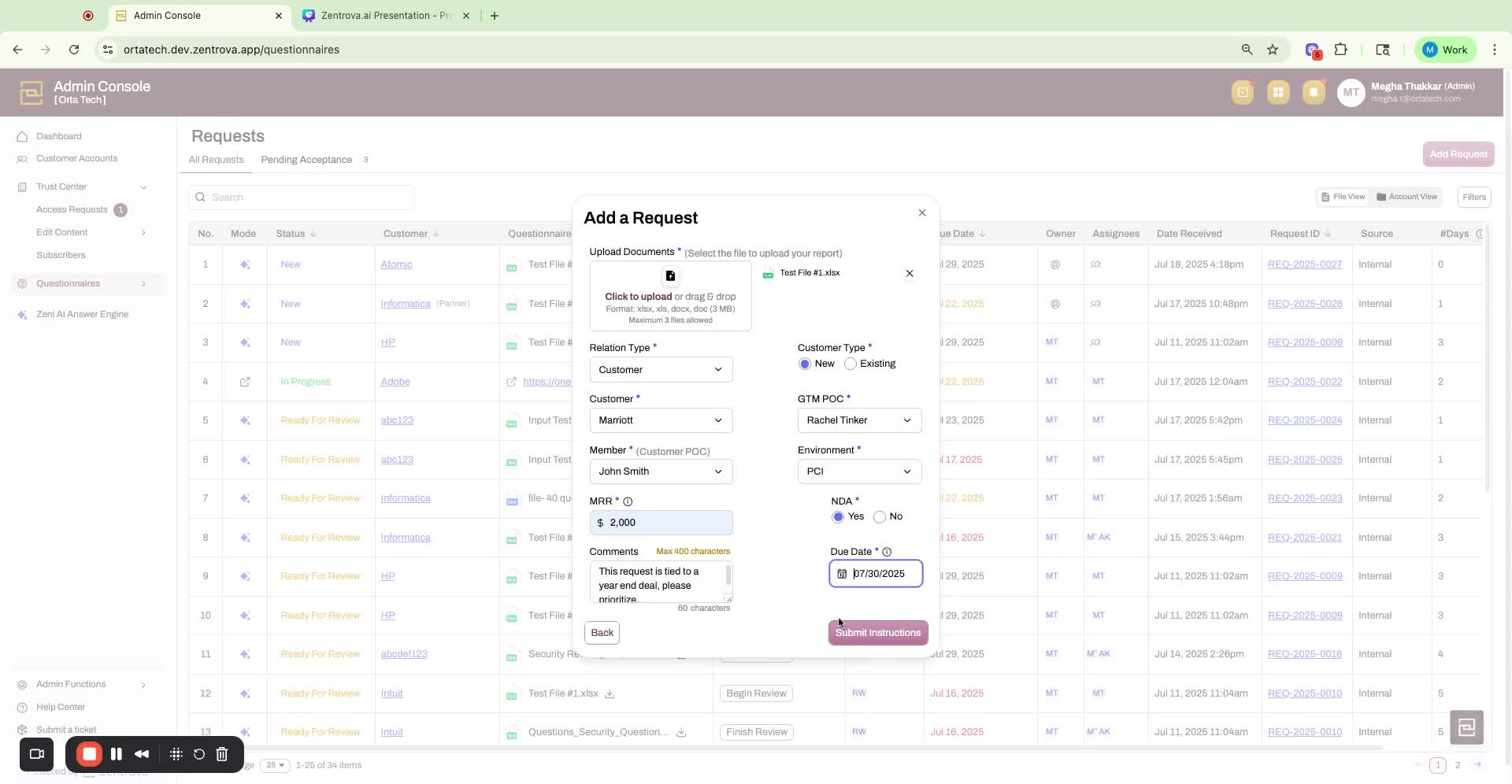
Click 'Submit' to create the request.
Example request ID: 0032.
6. Accepting the Request 3:20
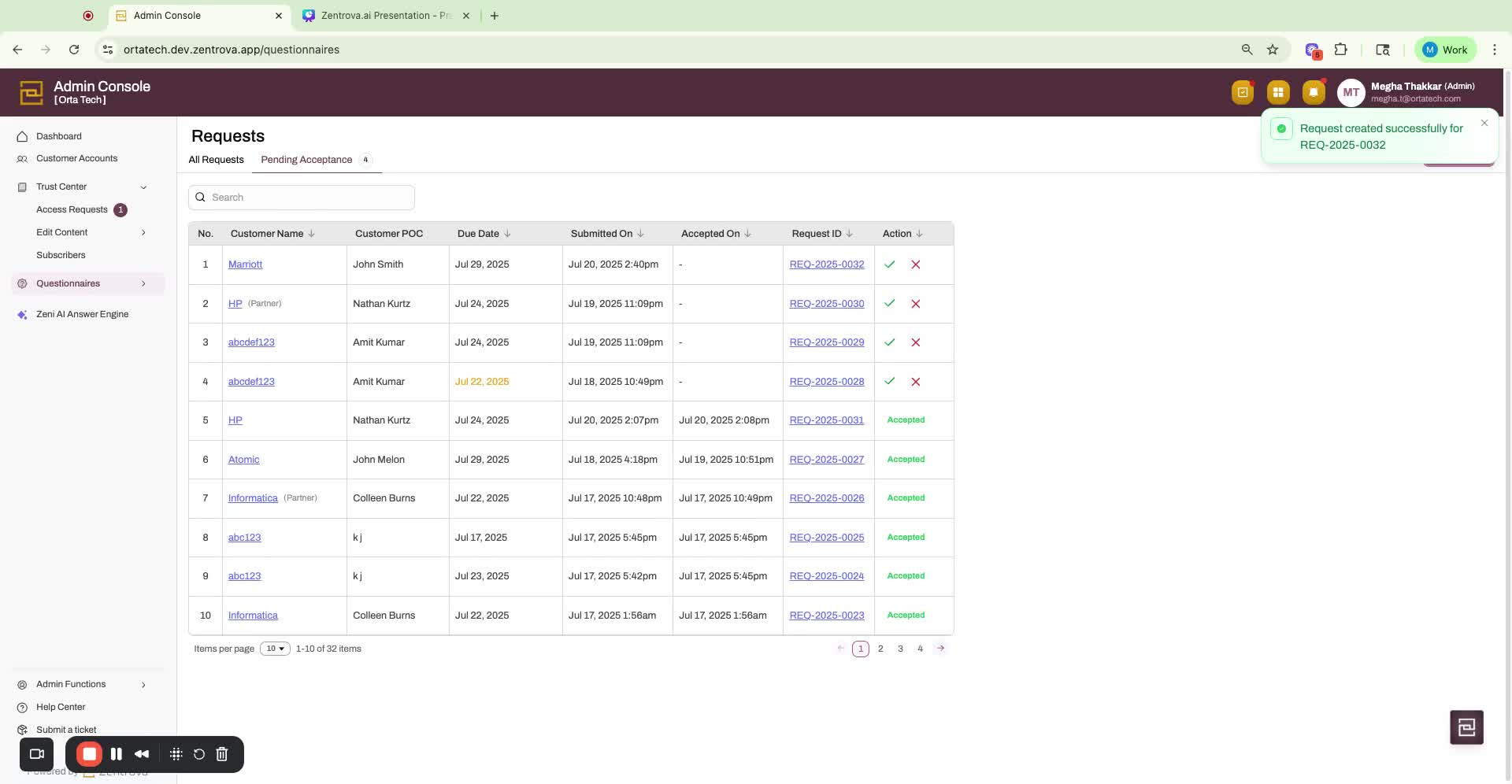
Click on the request ID to view details.
Confirm file accuracy and click 'Accept Request'.
7. Starting AI Processing 4:09
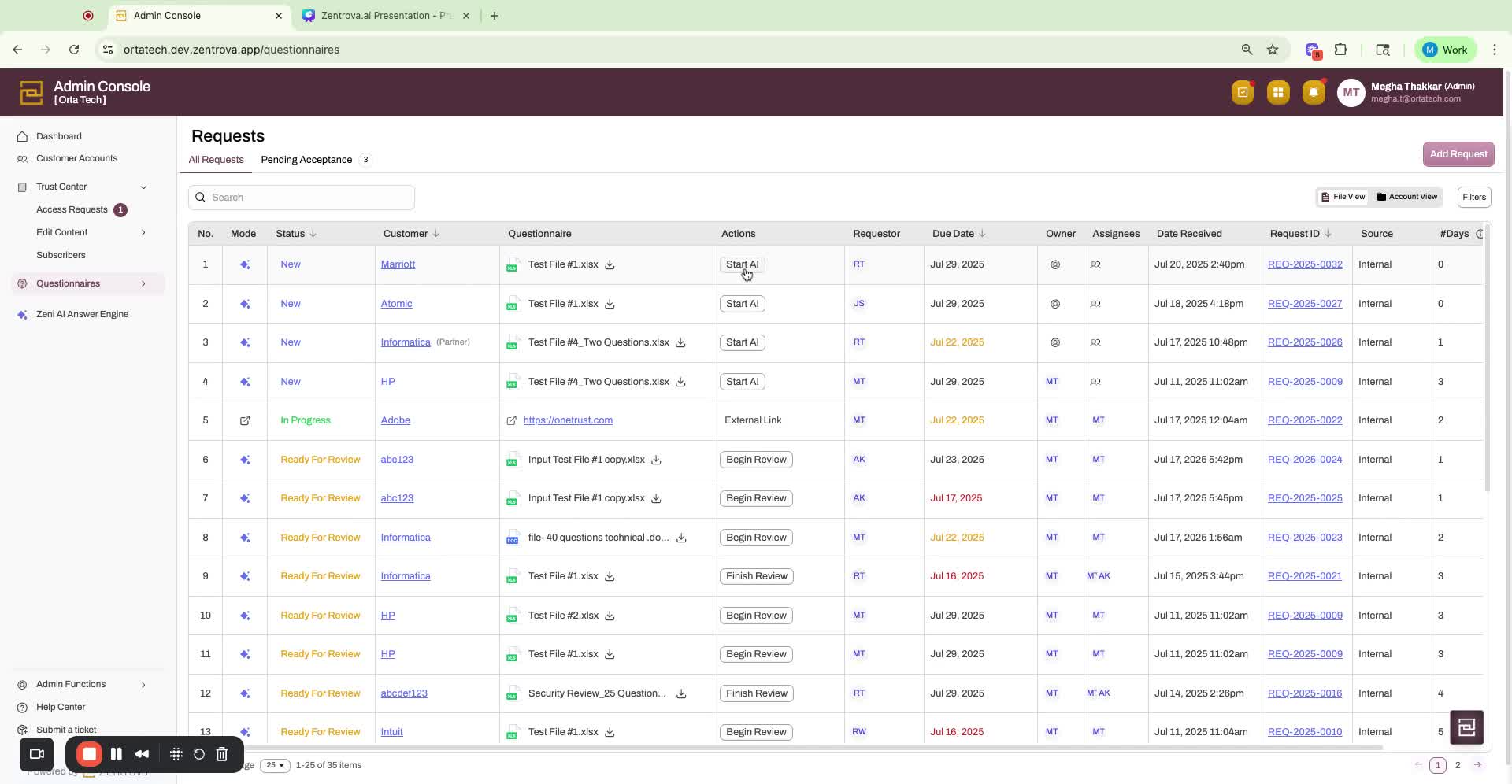
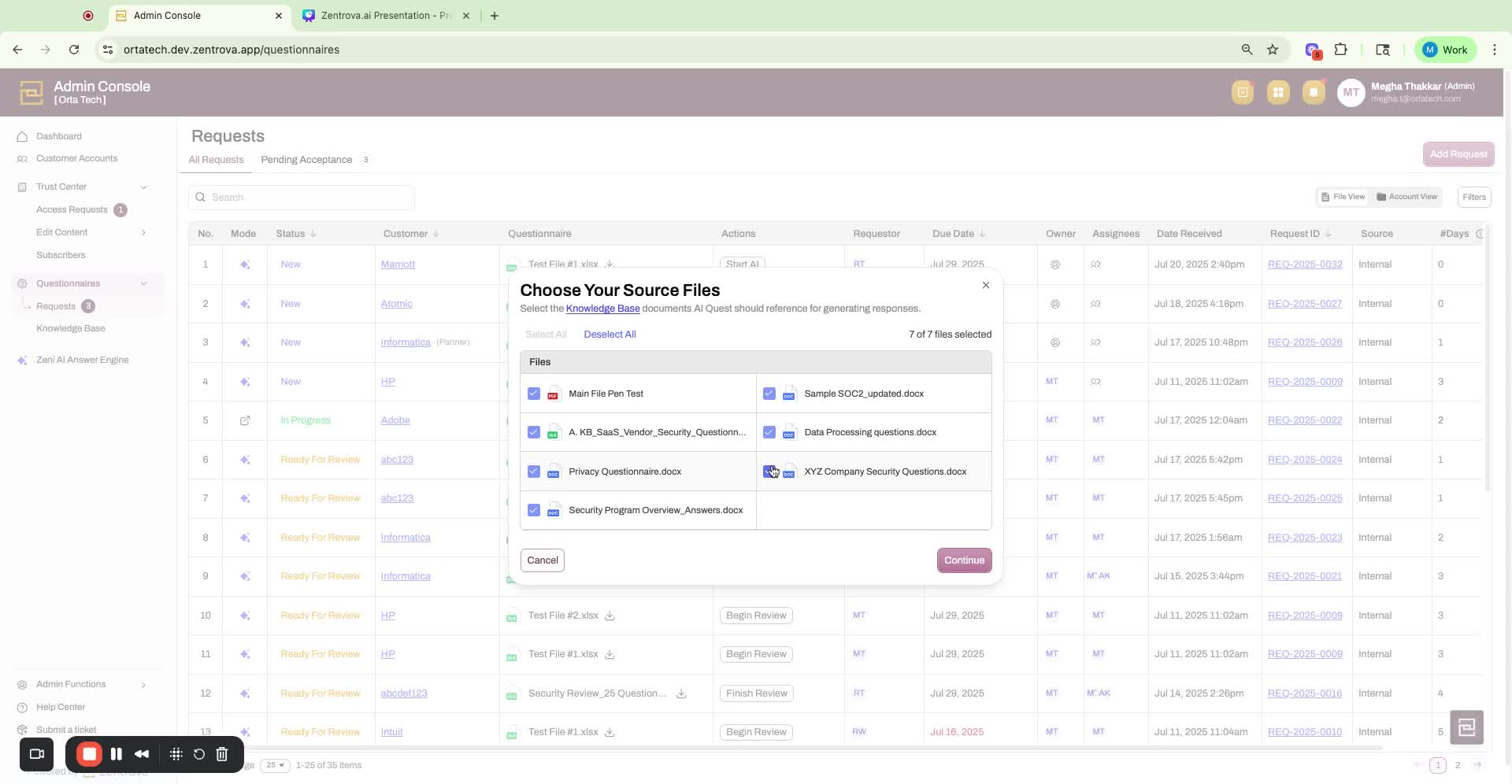
Click 'Start AI' to begin processing.
Choose source files for Zeni, the AI agent.
8. Reviewing Knowledge Base 4:40
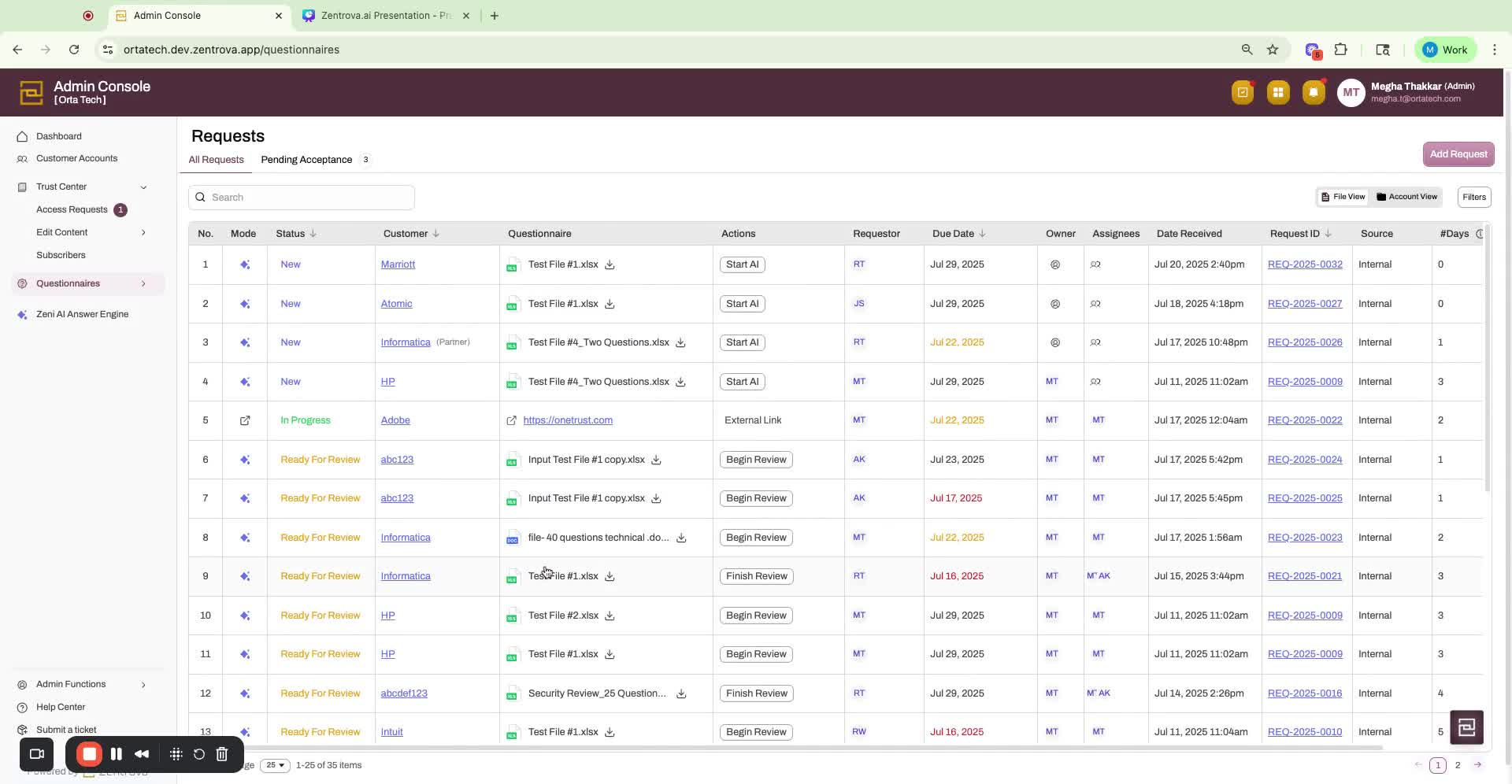
Access knowledge base files under questionnaires.
Option to use web-based knowledge base if enabled.
9. Mapping for Excel Files 5:34
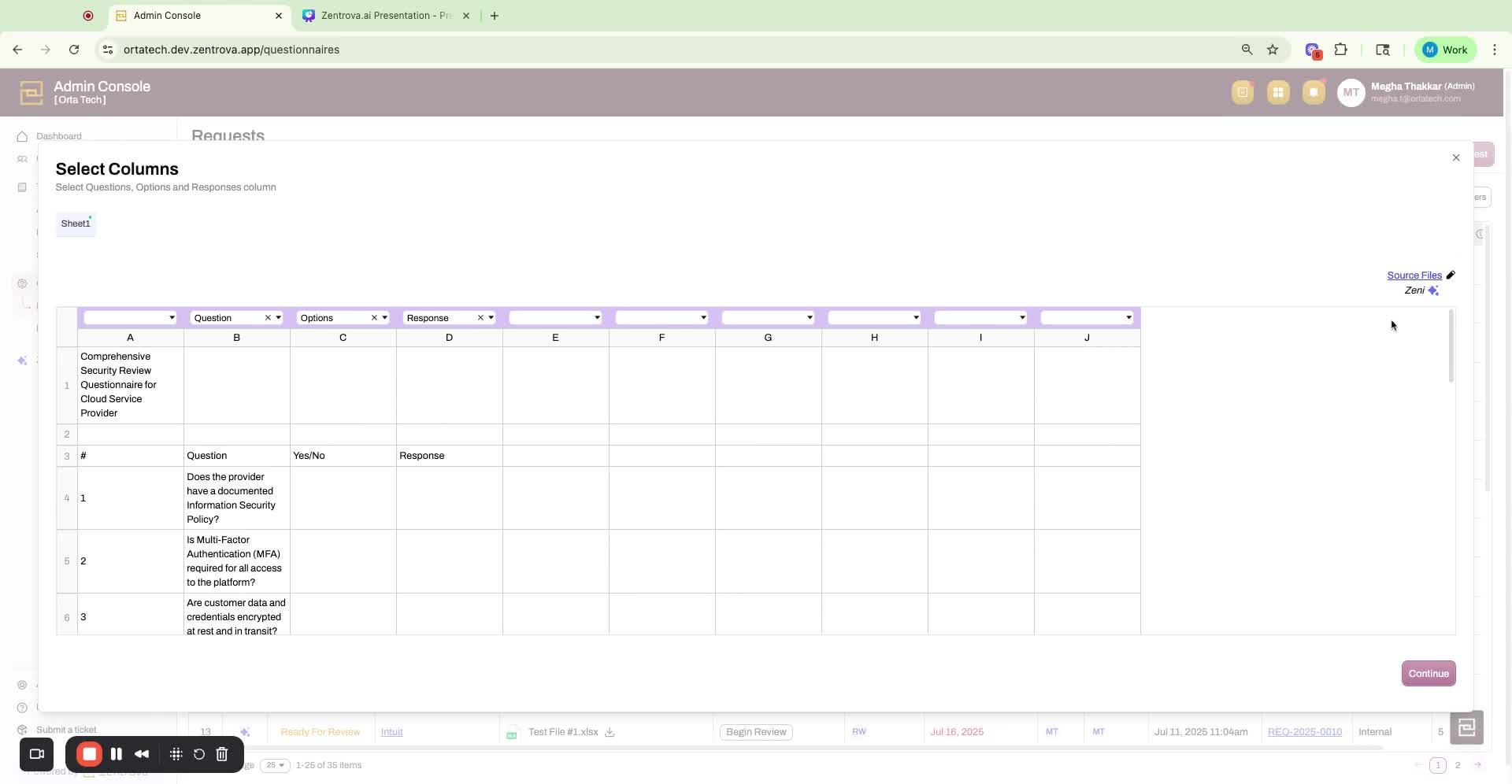
For Excel files, map the following columns:
Question column
Answer column
Options column
Response column
Click 'Continue' after mapping.
10. Generating Responses 6:08
Zeni generates responses for the questionnaire.
11. Reviewing AI Responses 6:37
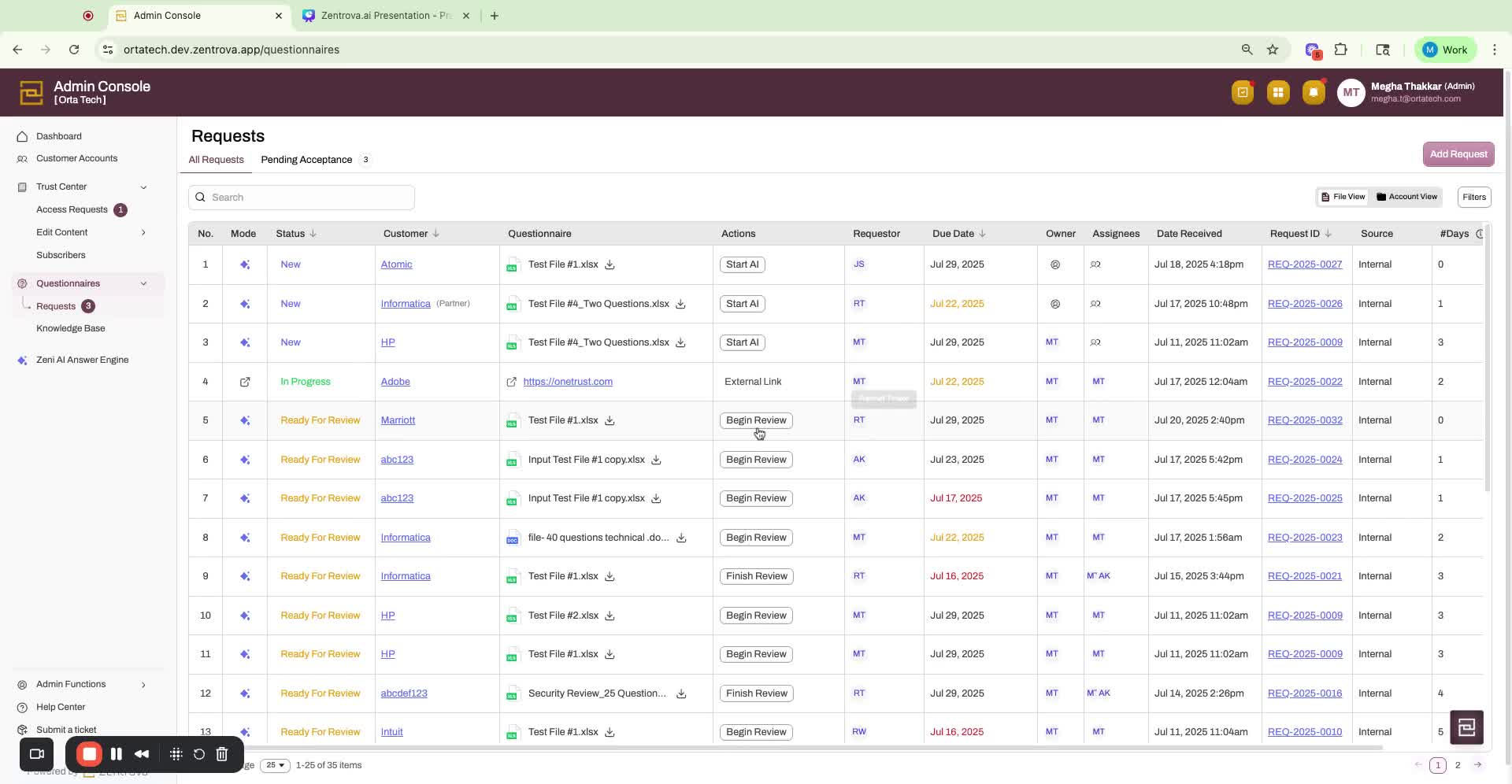
Click 'Begin Review' to review AI-generated responses.
Review screen includes:
Request ID, status, file name, due date.
Comments section, review logs, download option, approval option.
12. Approving Responses 7:39
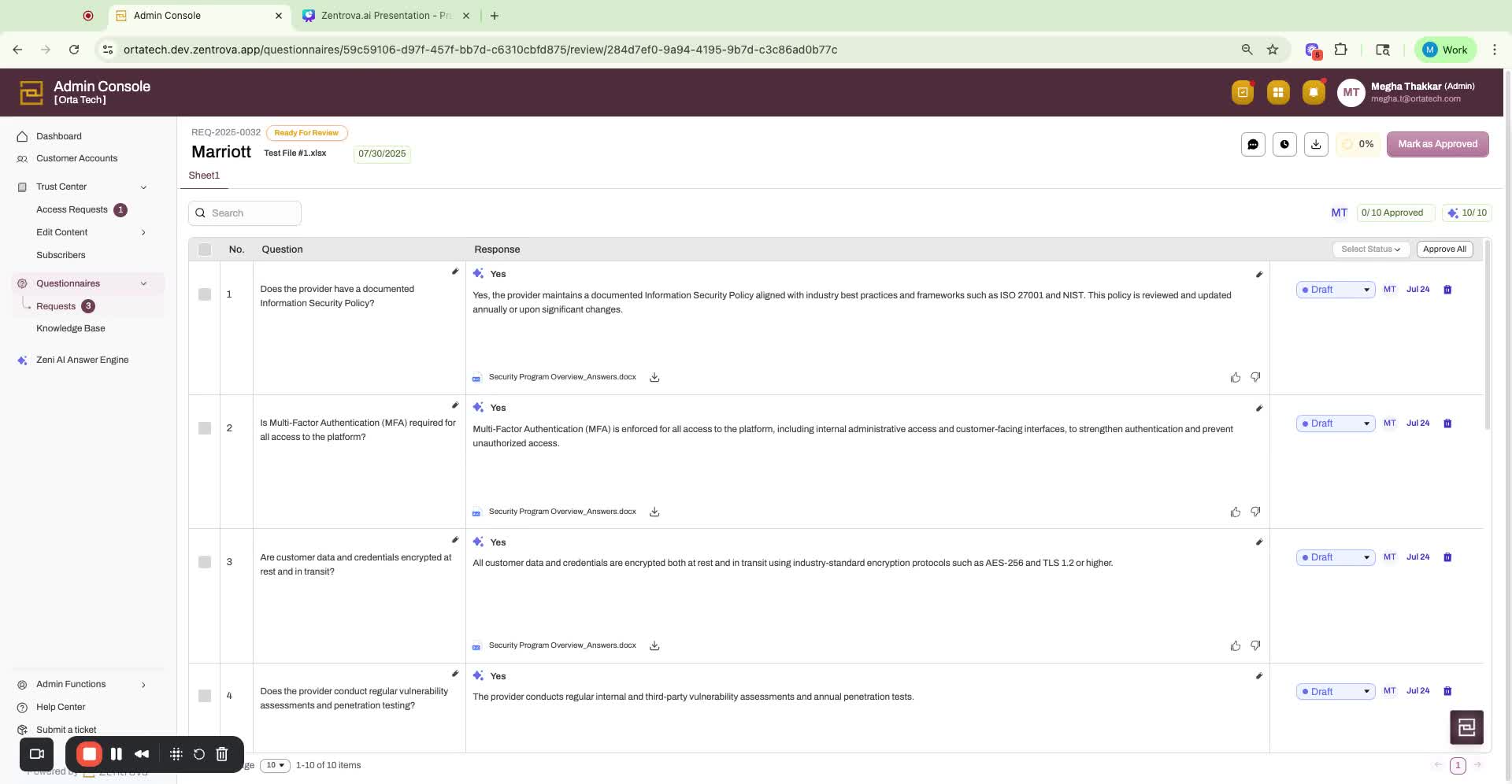
Human expertise required to review and approve responses.
Option to approve all responses at once.
13. Assigning Questions for Expert Review 8:08
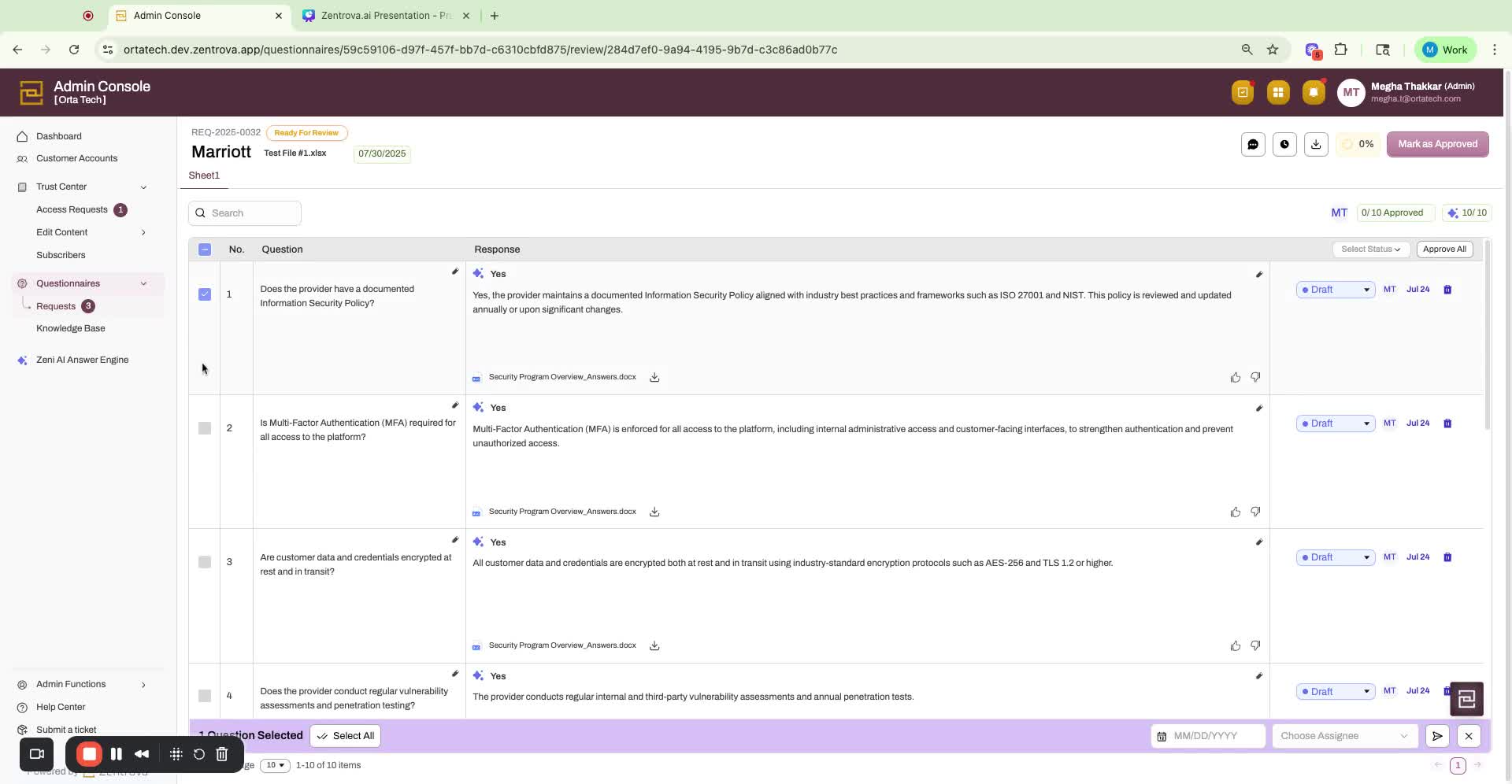
Select questions for a different subject matter expert.
Assign due date if needed and click 'Submit'.
14. Final Approval and Completion 9:07
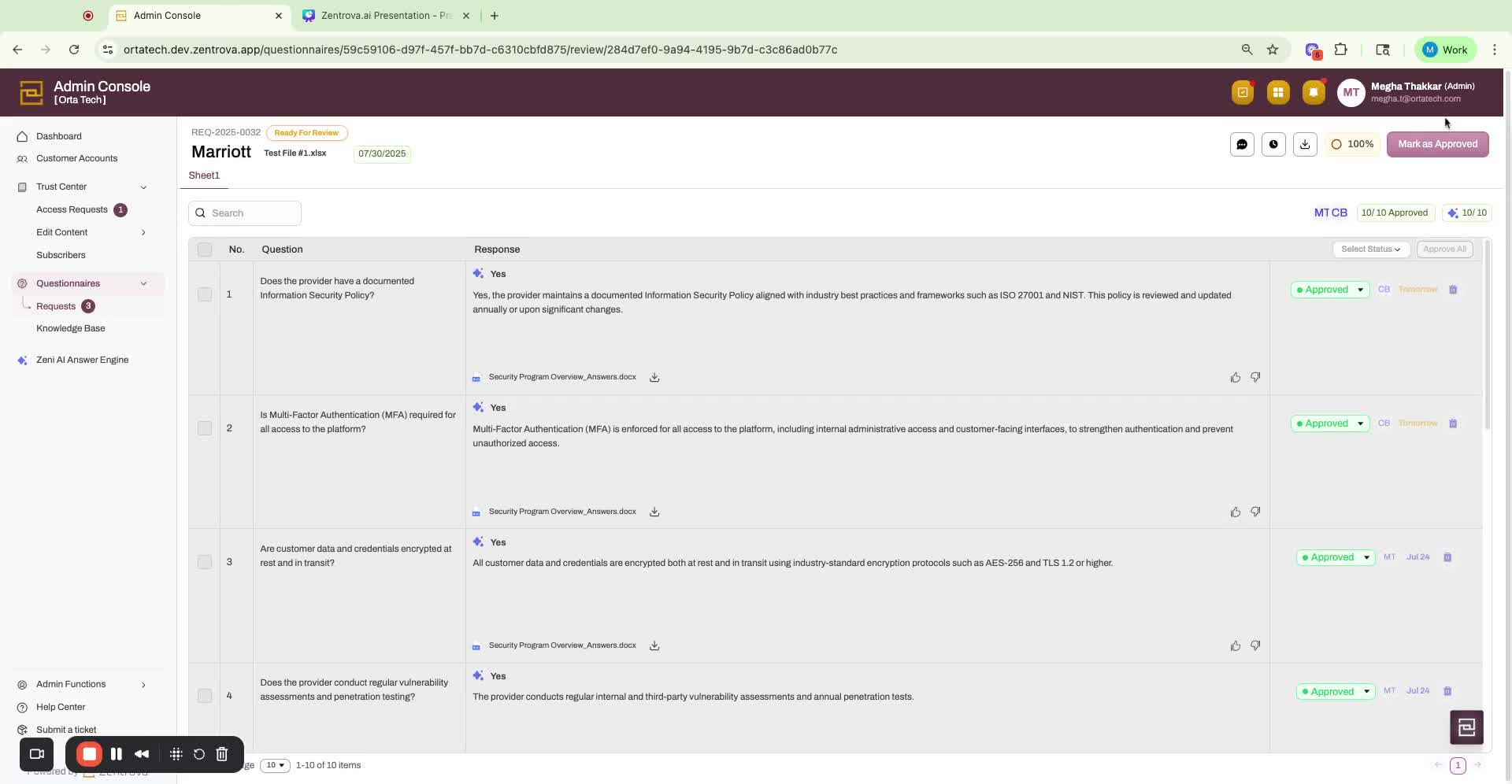
Click 'Mark as Approved' to lock responses.
Click 'Mark as Complete' to finalize the questionnaire.
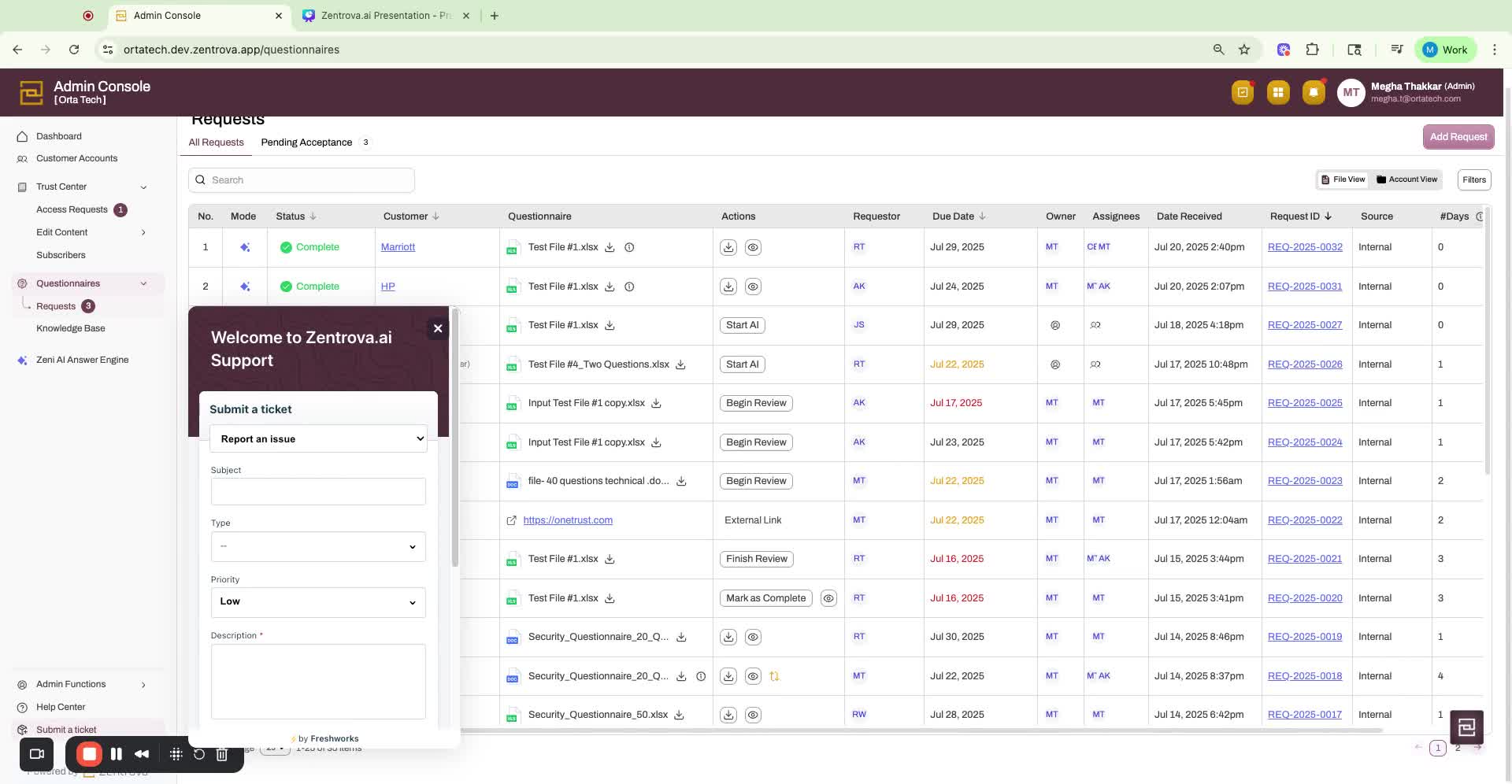
15. Notifications and Support 10:24
Email updates on key statuses sent to request owner and go-to-market team.
Option to submit a support ticket for assistance.
16. Conclusion 10:59
Summary of the walkthrough and thank you message.
Link to Loom
Was this article helpful?
That’s Great!
Thank you for your feedback
Sorry! We couldn't be helpful
Thank you for your feedback
Feedback sent
We appreciate your effort and will try to fix the article