Interacting with Zeni: A Step-by-Step Guide
Link the full training Loom video
https://loom.com/share/02f08dec09684b62a0fa6f9427b0df30
1. Logging In and Interacting with Zeni 0:02
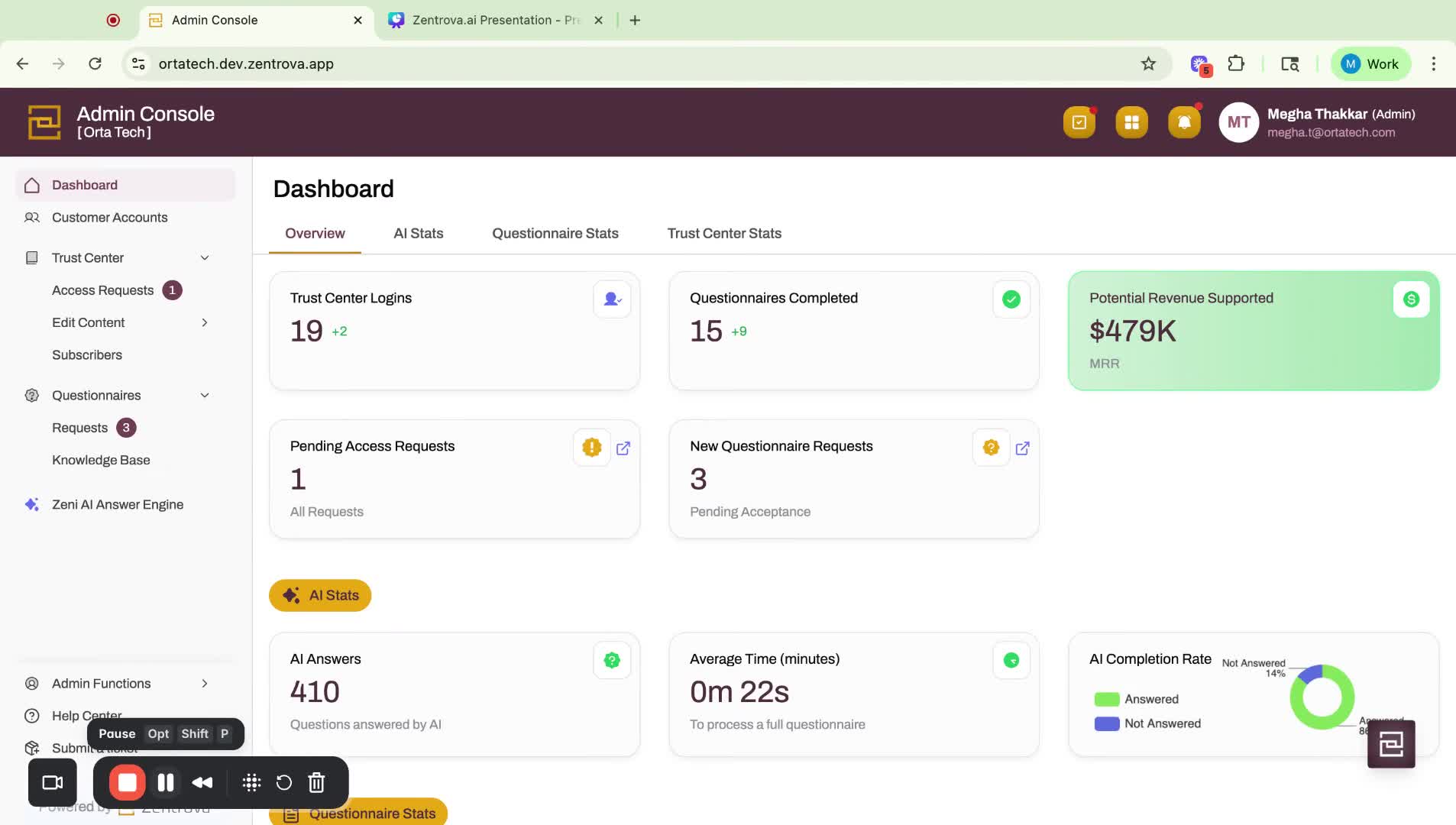
- Log in to your Zentrova Admin Portal account.
- You can interact with Zeni in different ways, including: through questionnaires and the AI answer engine.
2. Using Questionnaires 0:02
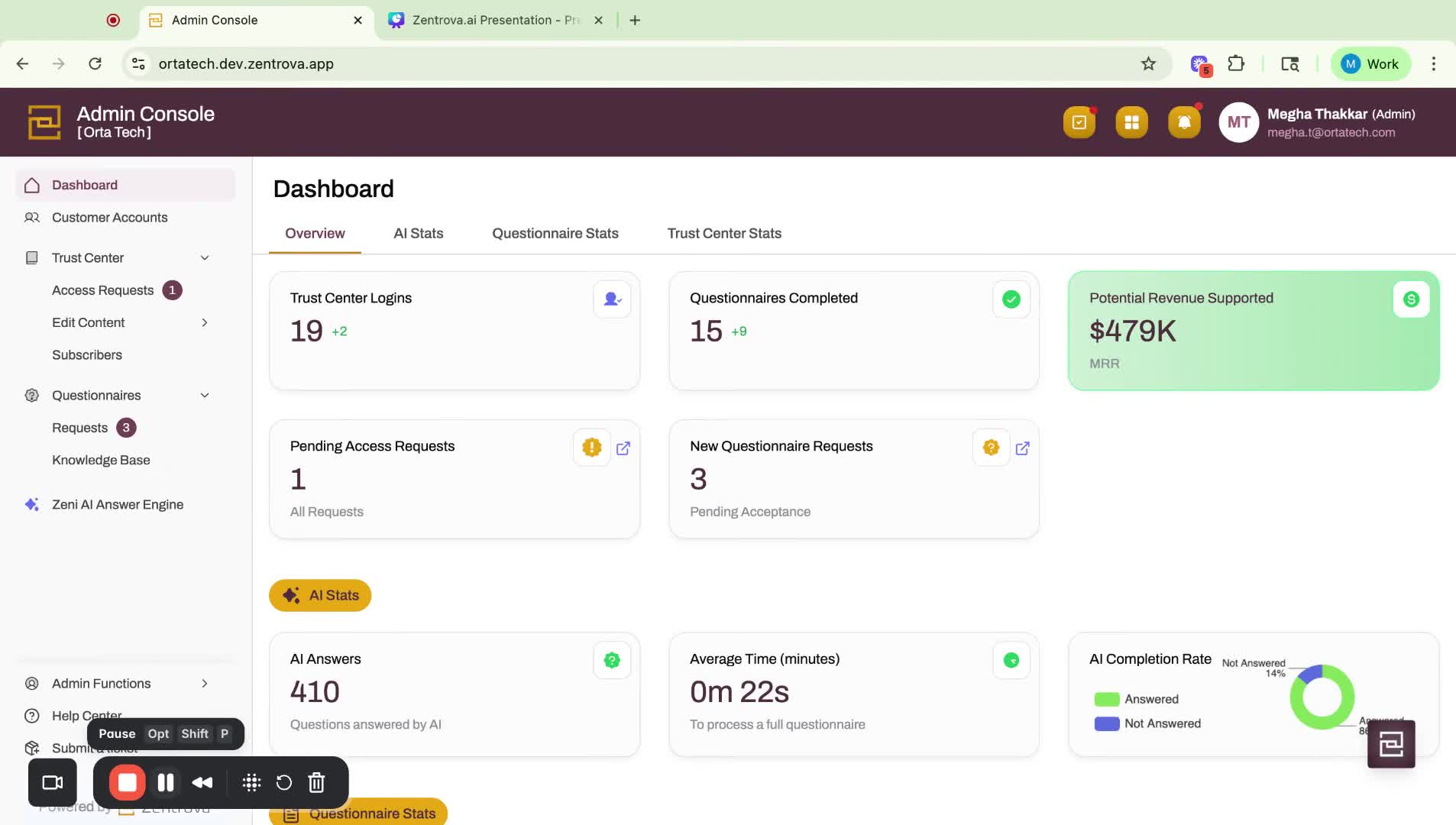
- Submit a questionnaire and click 'Start AI' to let Zeni complete it for you.
- For more details, refer to the video on questionnaires.
3. Accessing the AI Answer Engine 0:23
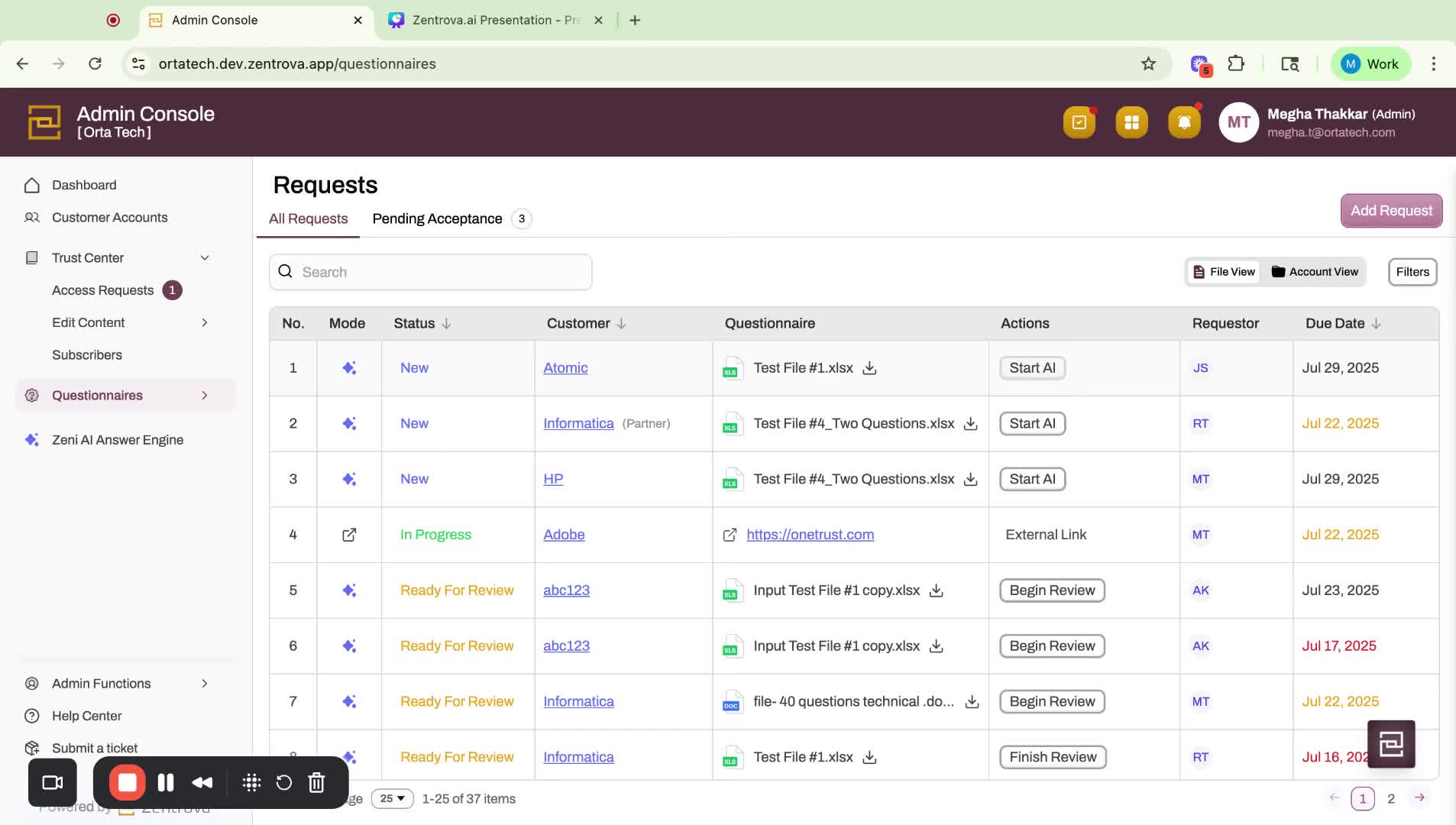
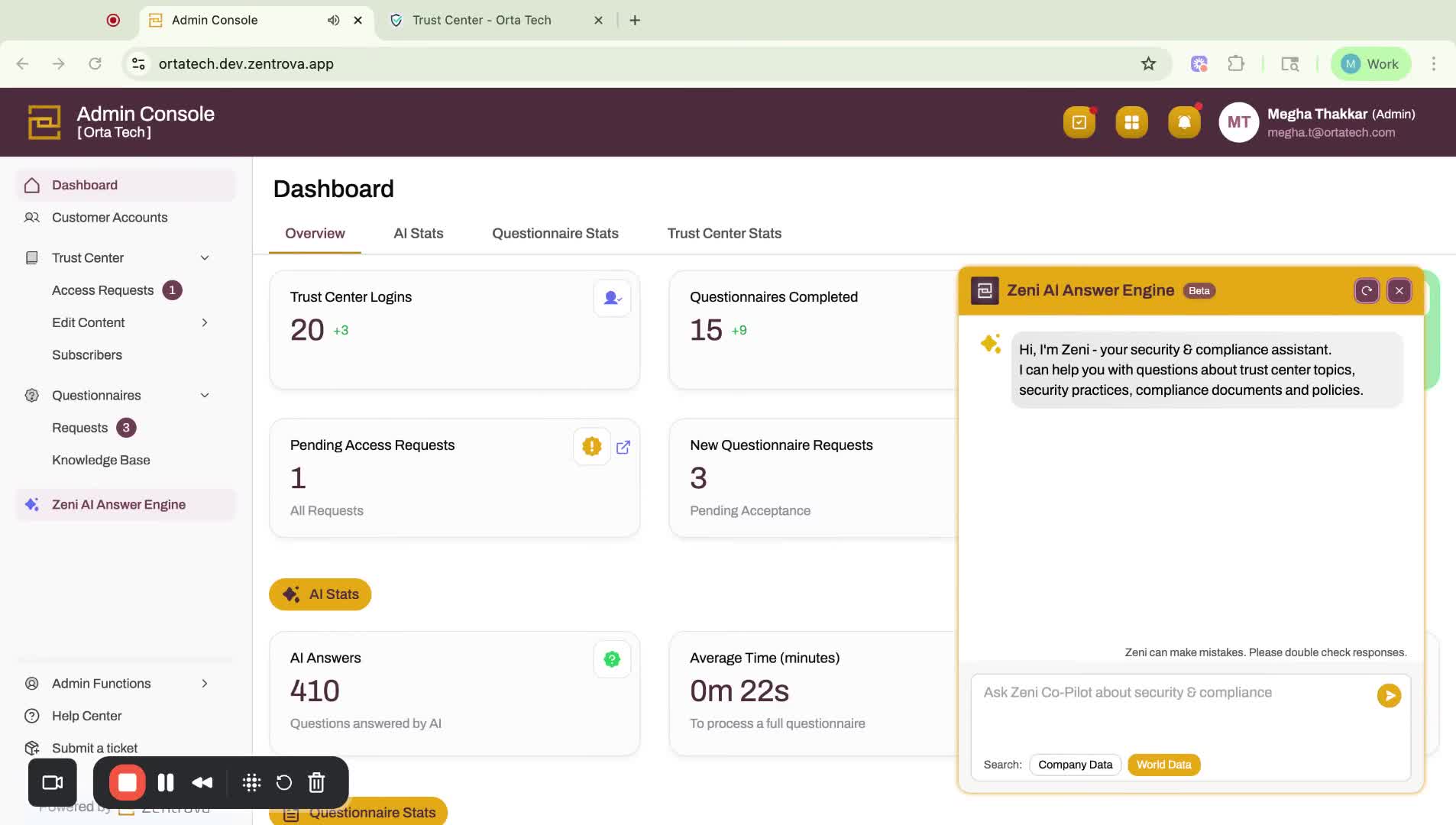
- Click on the AI answer engine icon to open a chatbot interface on the right side of the screen.
4. Asking Questions to Zeni 0:35
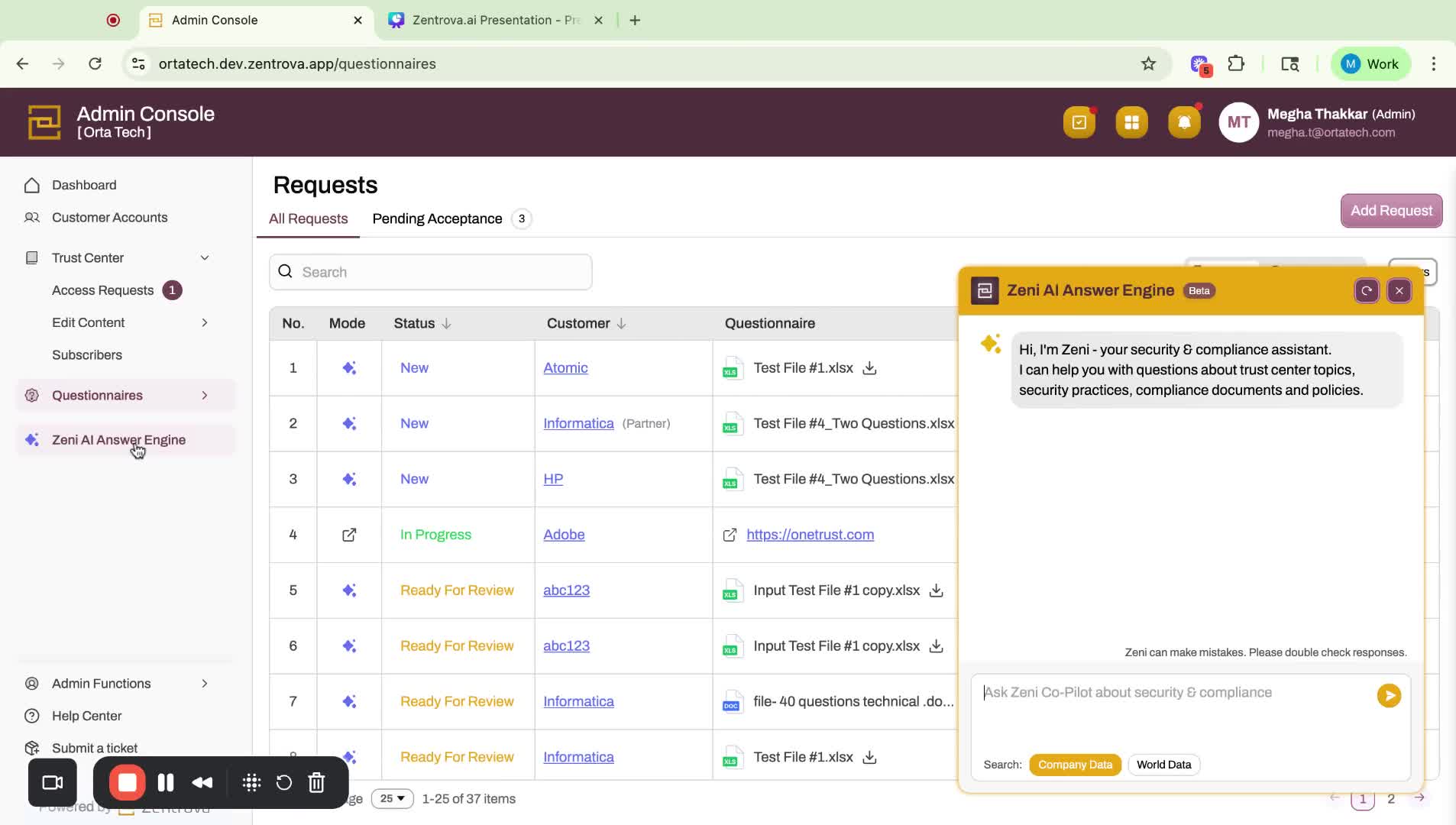
- Use the Co-Pilot agent to ask questions and get answers quickly.
- You can search for company data or world data.
5. Example Questions to Zeni 1:08
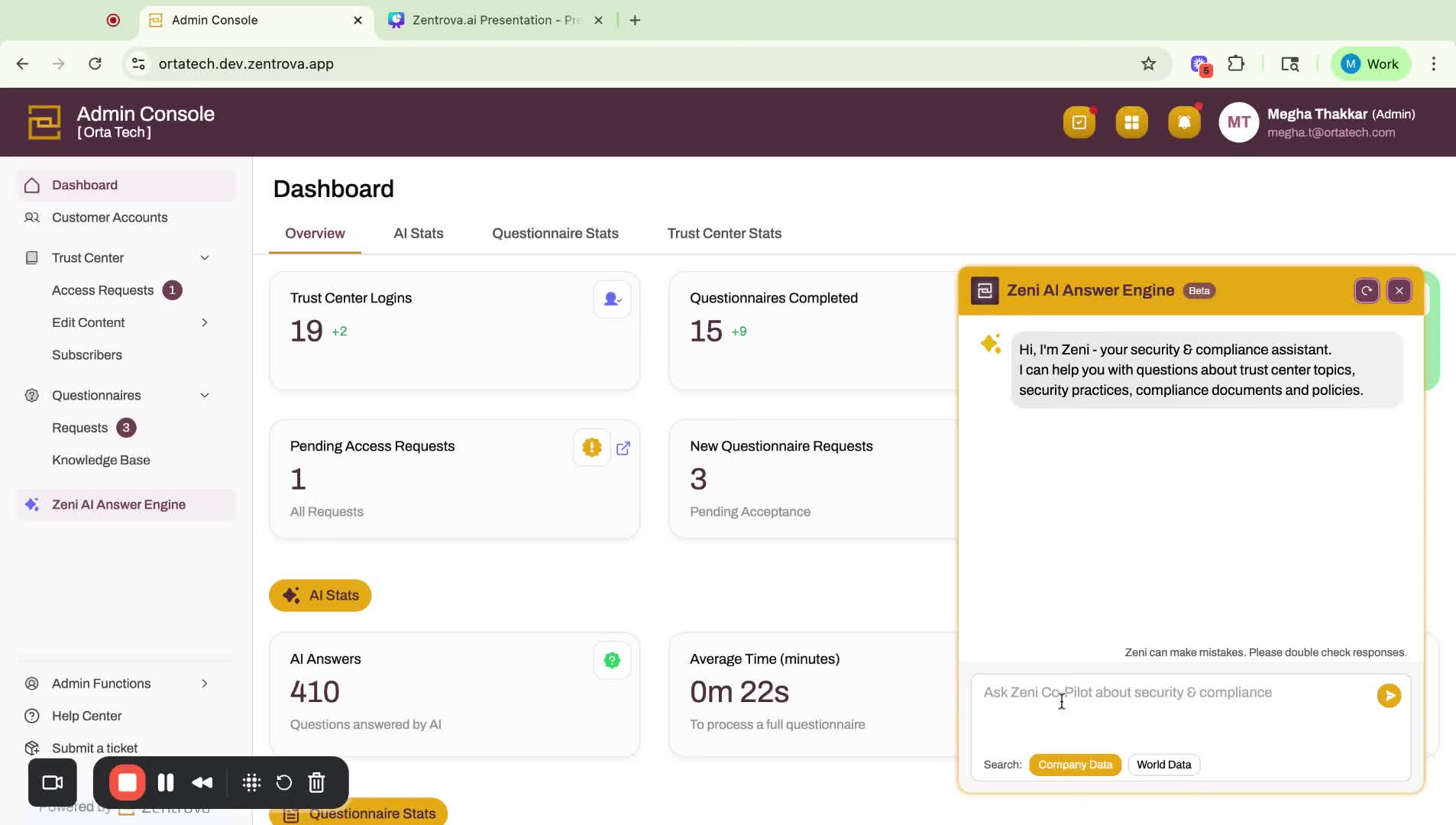
- Ask Zeni specific questions, such as:
- "What is our SOC 2 audit period?"
- "What is our encryption standard?"
- "What is our data retention standard?"
6. Providing Feedback and Updating Knowledge Base 3:08
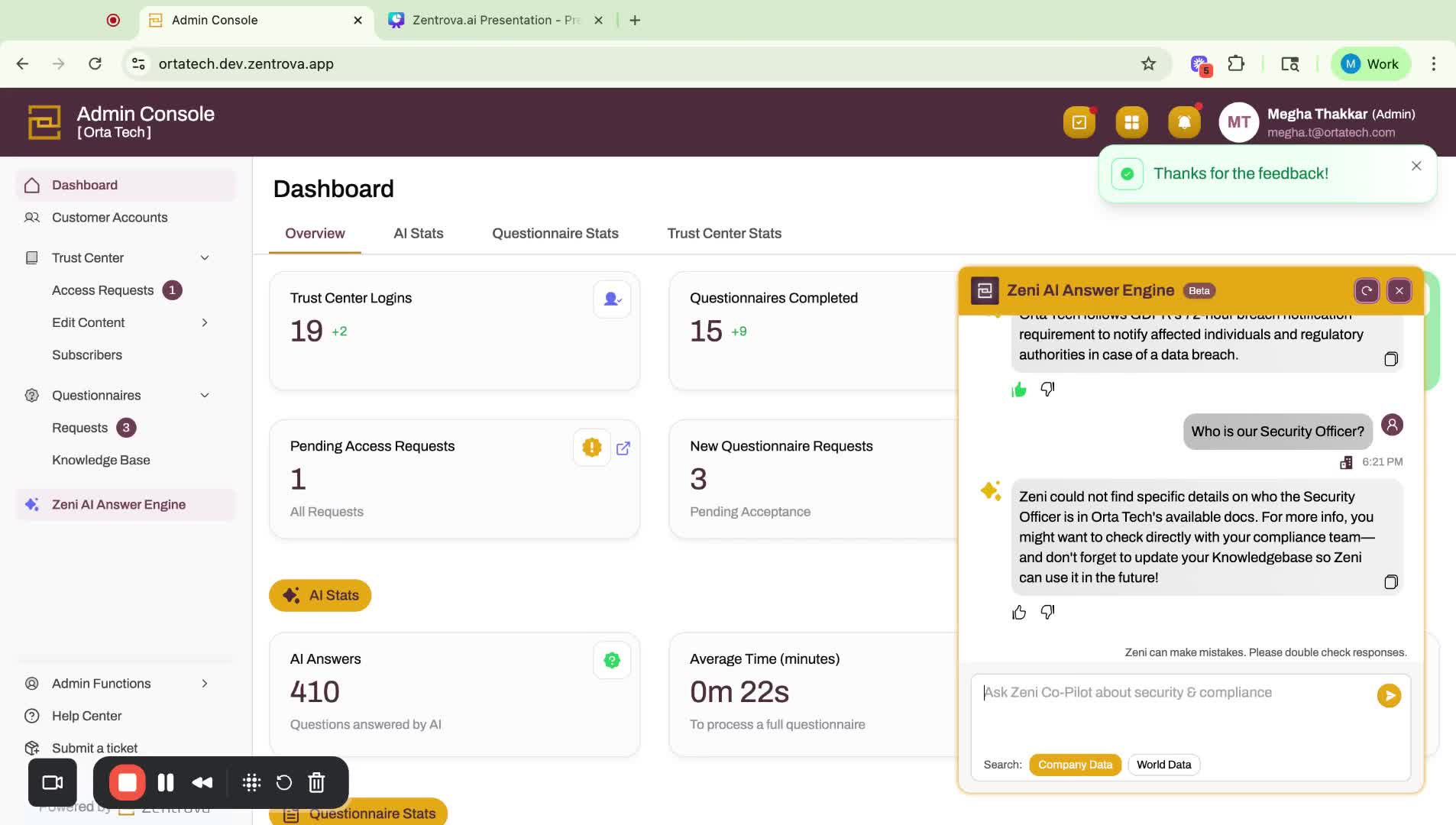
- If Zeni cannot find an answer, check your knowledge base for relevant information.
- Update the knowledge base as necessary.
7. Searching World Data 4:00
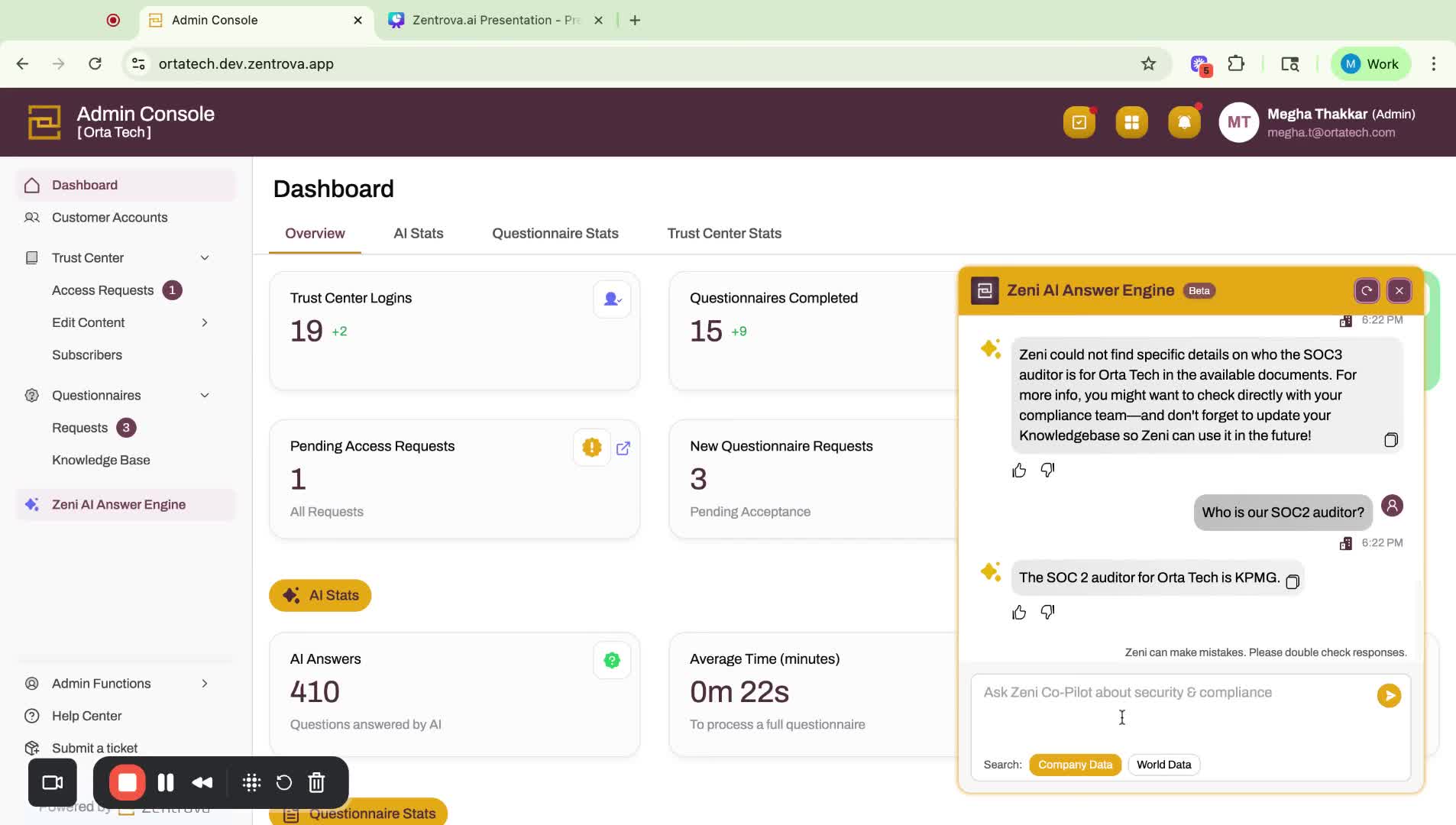
- Ask Zeni questions related to world data, such as:
- "Where can I find a copy of CAIQ?"
- Zeni will provide instructions on where to find the information.
8. Using Zeni's Smart Assistant Feature 4:48
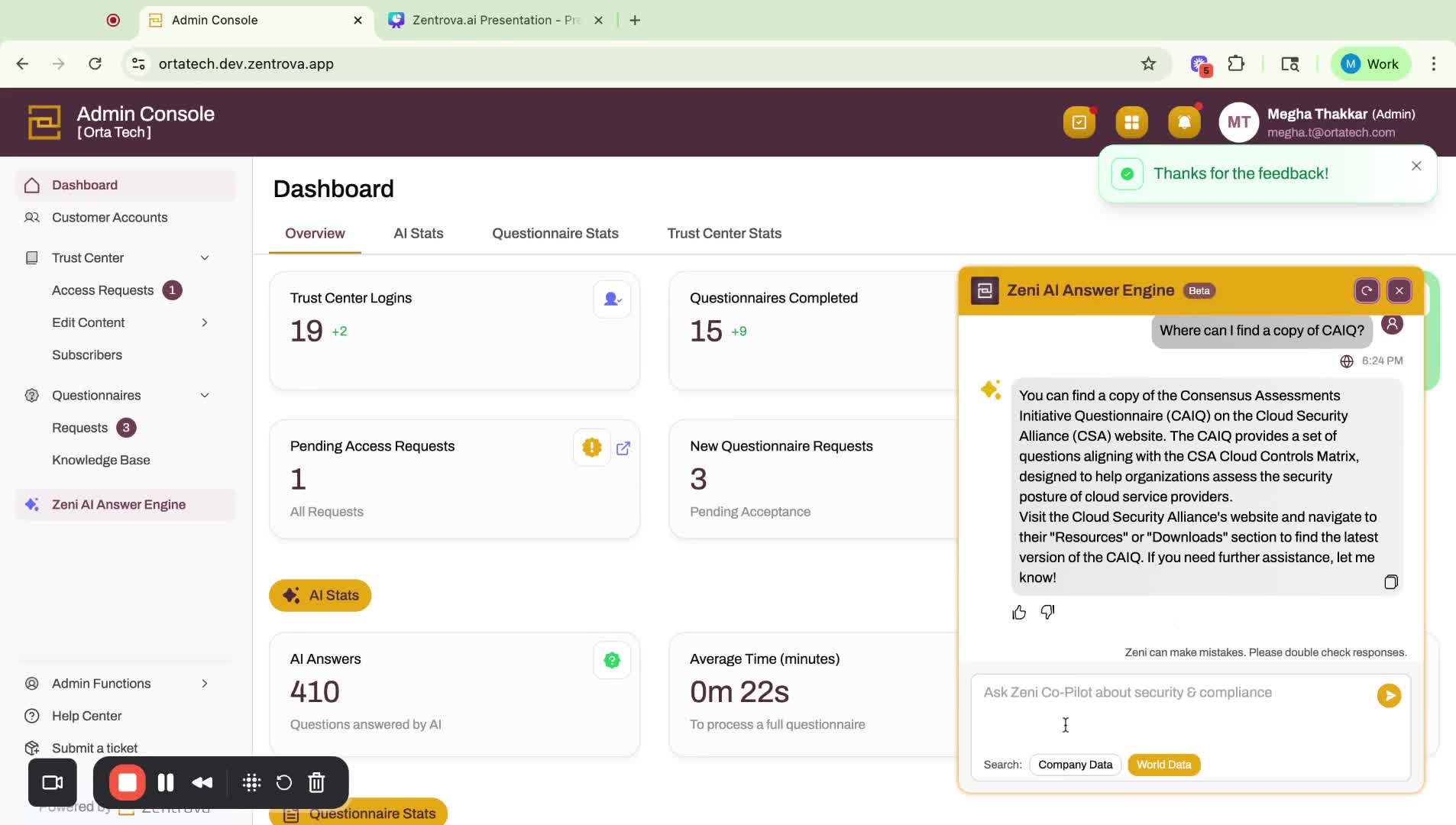
- When editing or updating your Trust Center, utilize Zeni's Smart Assistant.
- Start by uploading a new security report.
9. Generating Content with Smart Assistant 5:05
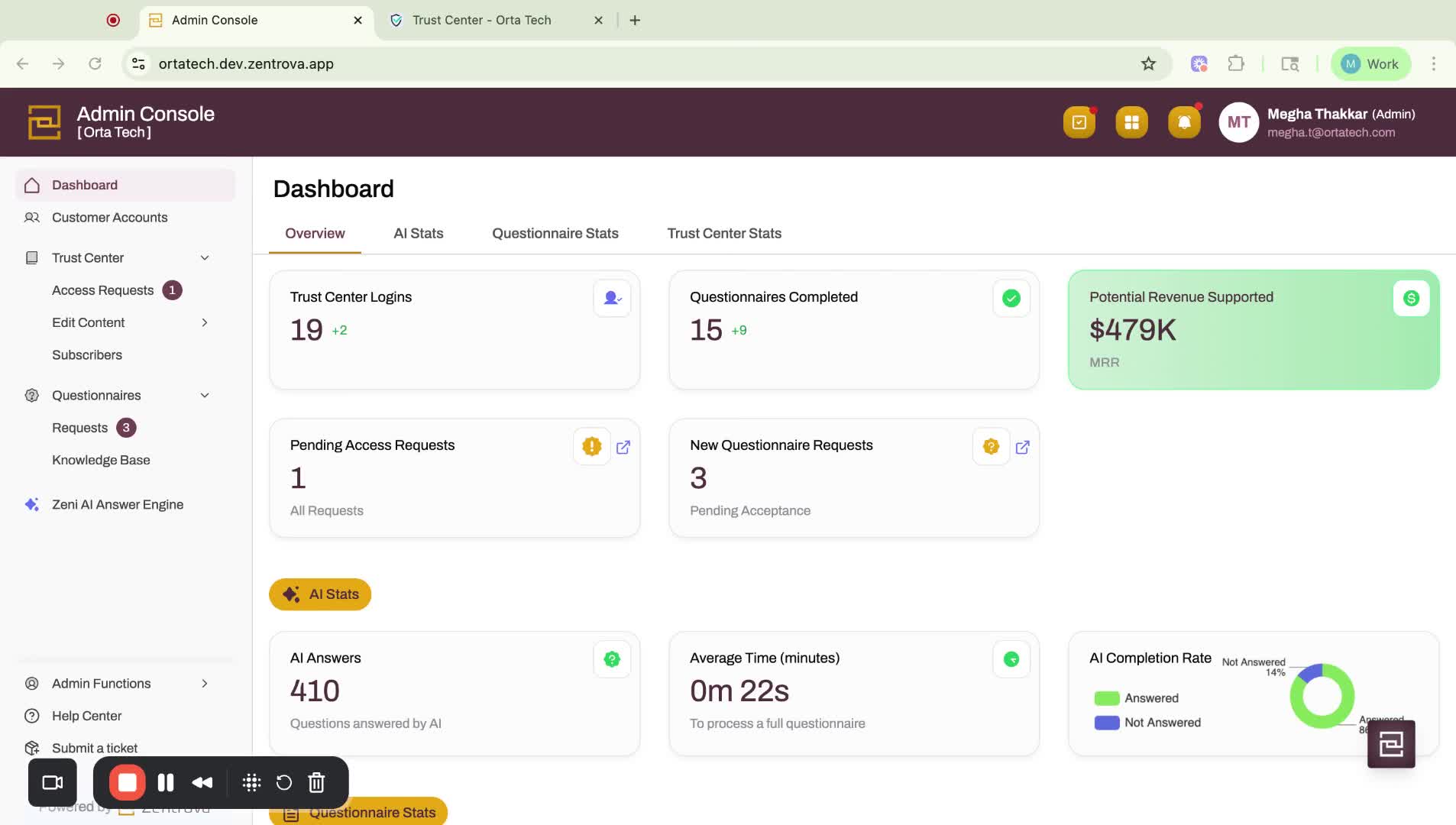
- Click 'Generate' to let Zeni create a summary of the report.
- Review the summary and either accept it or edit further.
10. Publishing the Report 5:50
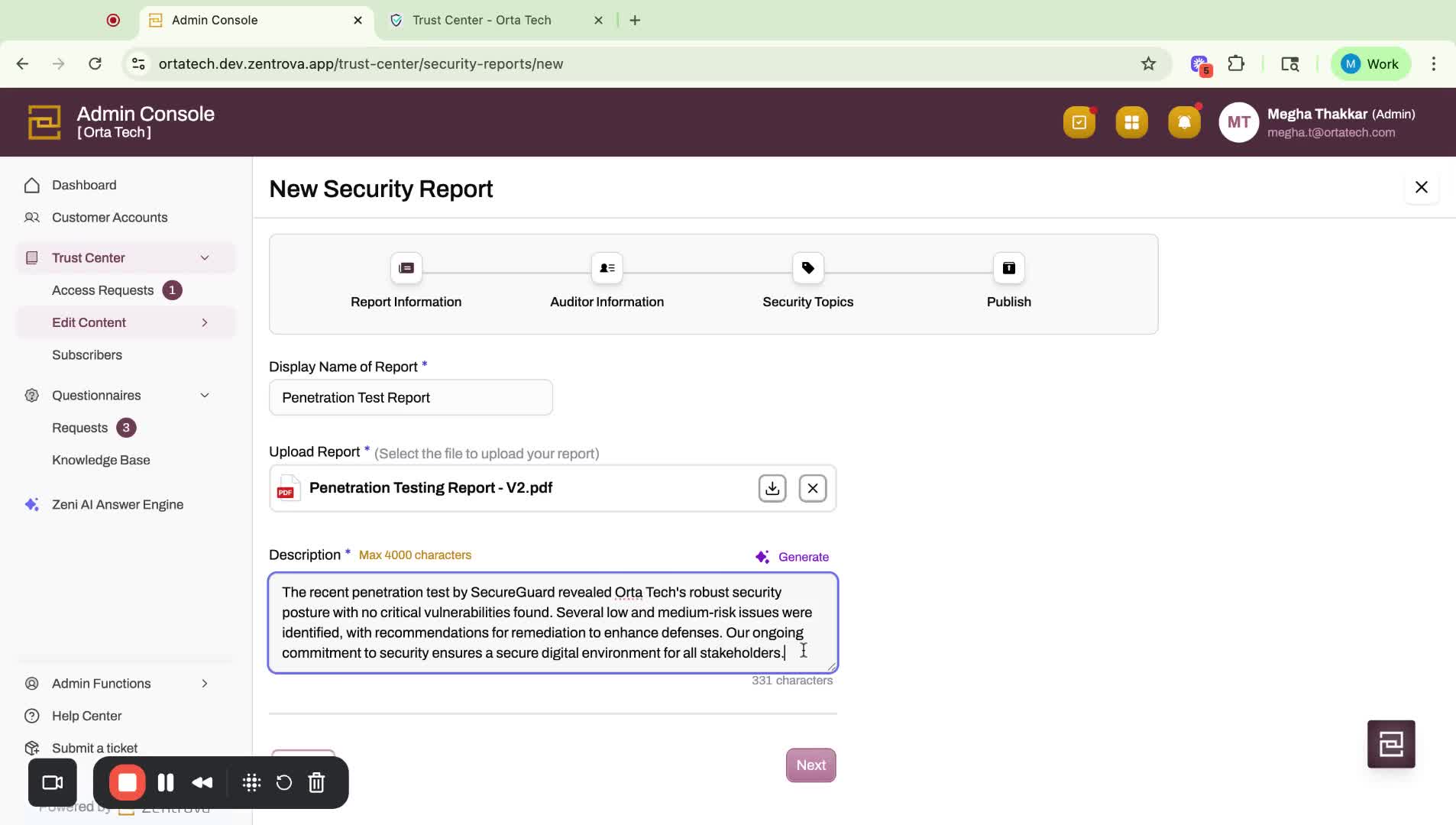
- Click 'Next' to publish the report.
- Mark the report as confidential and active, then click 'Submit'.
11. Reviewing the Trust Center 6:11
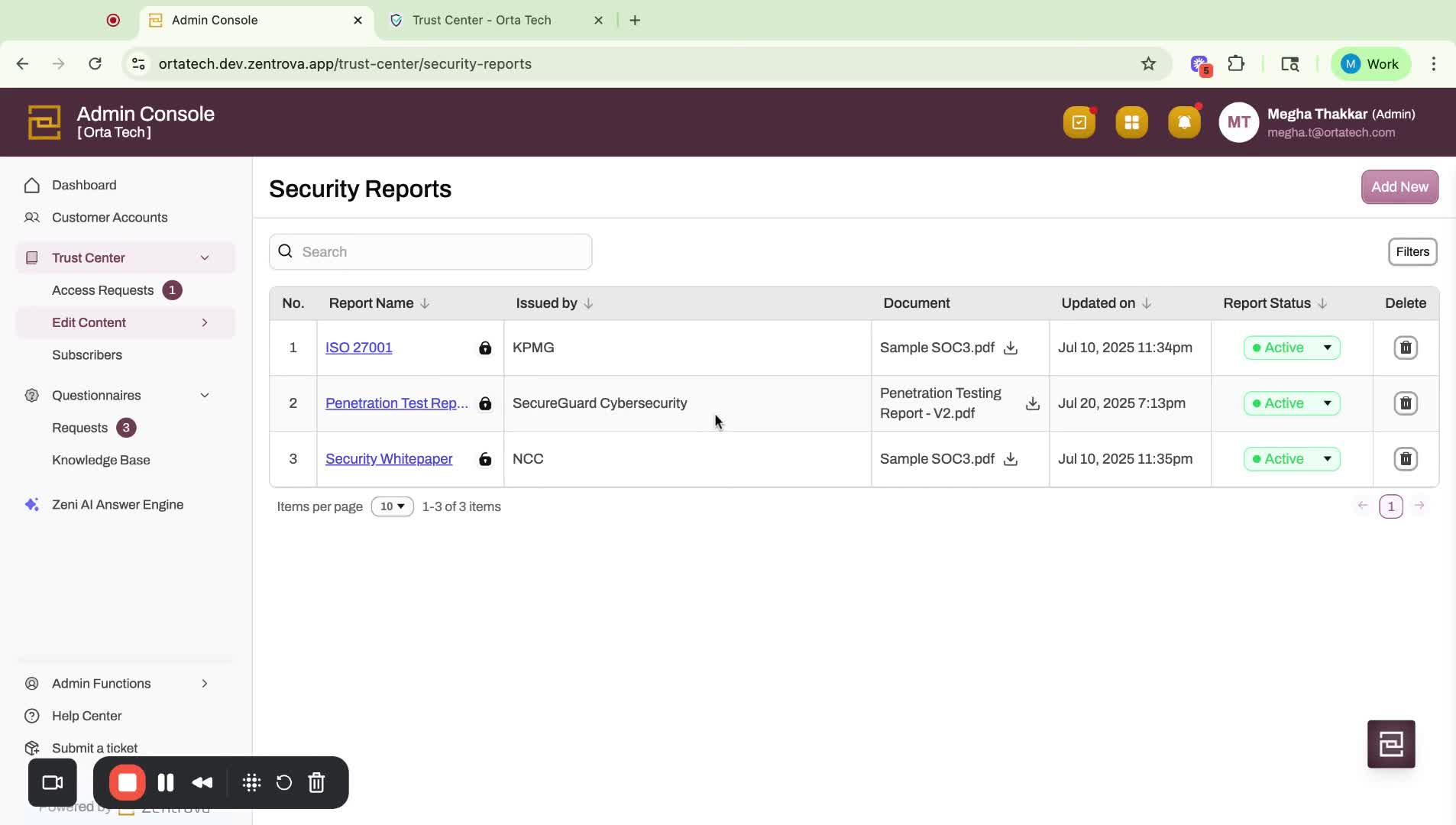
- Access the Trust Center to view the details of the newly created penetration test report.
12. Conclusion and Support 6:48
- Zeni aims to support your daily work and help build trust with customers.
- For further assistance, submit a ticket for support.
Link to Loom
https://loom.com/share/02f08dec09684b62a0fa6f9427b0df30
Was this article helpful?
That’s Great!
Thank you for your feedback
Sorry! We couldn't be helpful
Thank you for your feedback
Feedback sent
We appreciate your effort and will try to fix the article