Guide to Managing Org Users in Zentrova's Admin Portal
Link to the full training Loom video
https://loom.com/share/b25a47952bae41e694a4d6f8313ce194
1. Log into the Zentrova.ai Admin Portal 0:00
- Access the admin portal using your credentials.
- Navigate to the section labeled 'Admin Functions'.
2. Admin Functions -> Access Org User Management 0:19
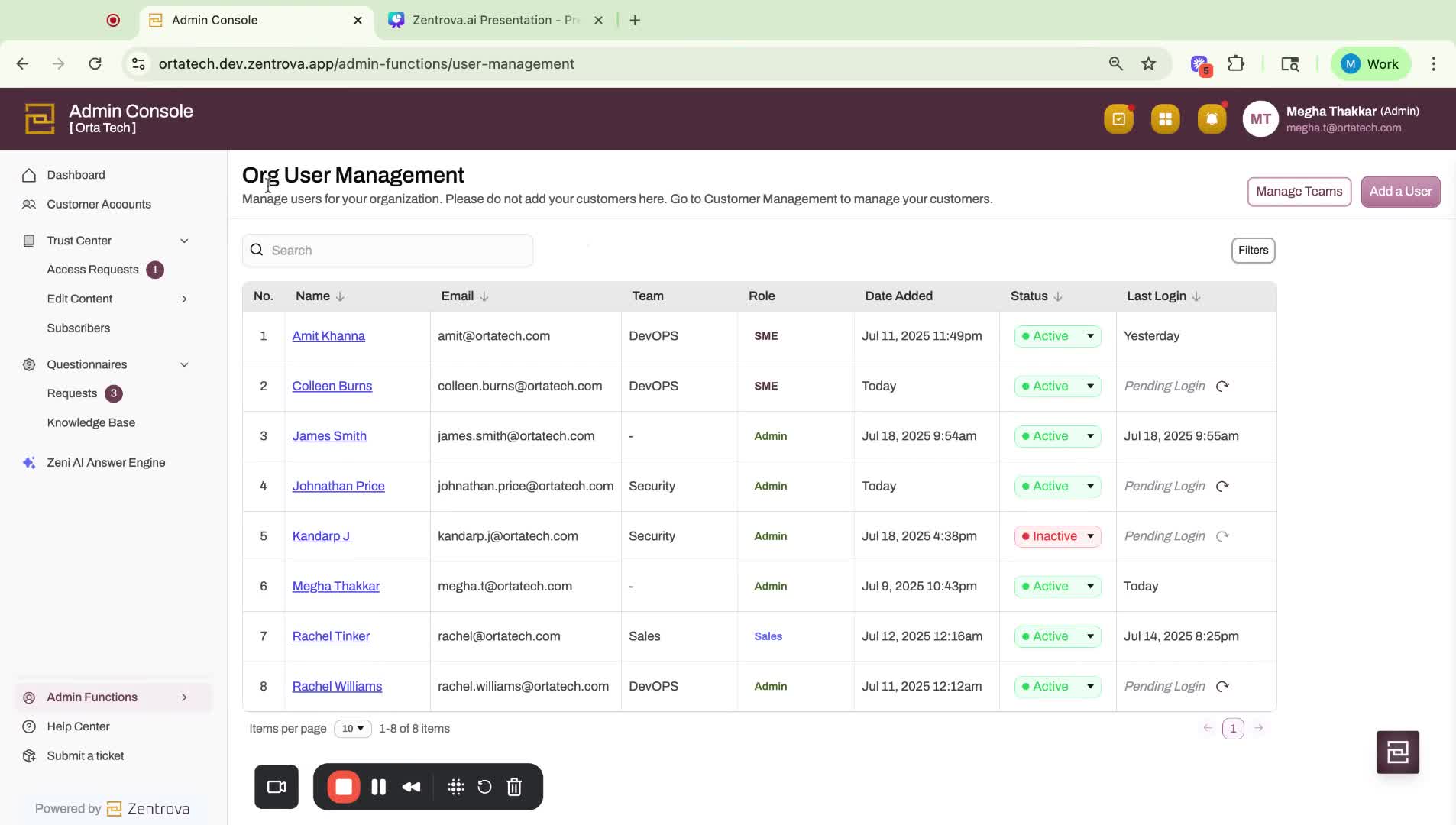
- Locate the 'Org User Management' option.
- This section allows you to manage users within your organization.
3. View Current Users 0:27
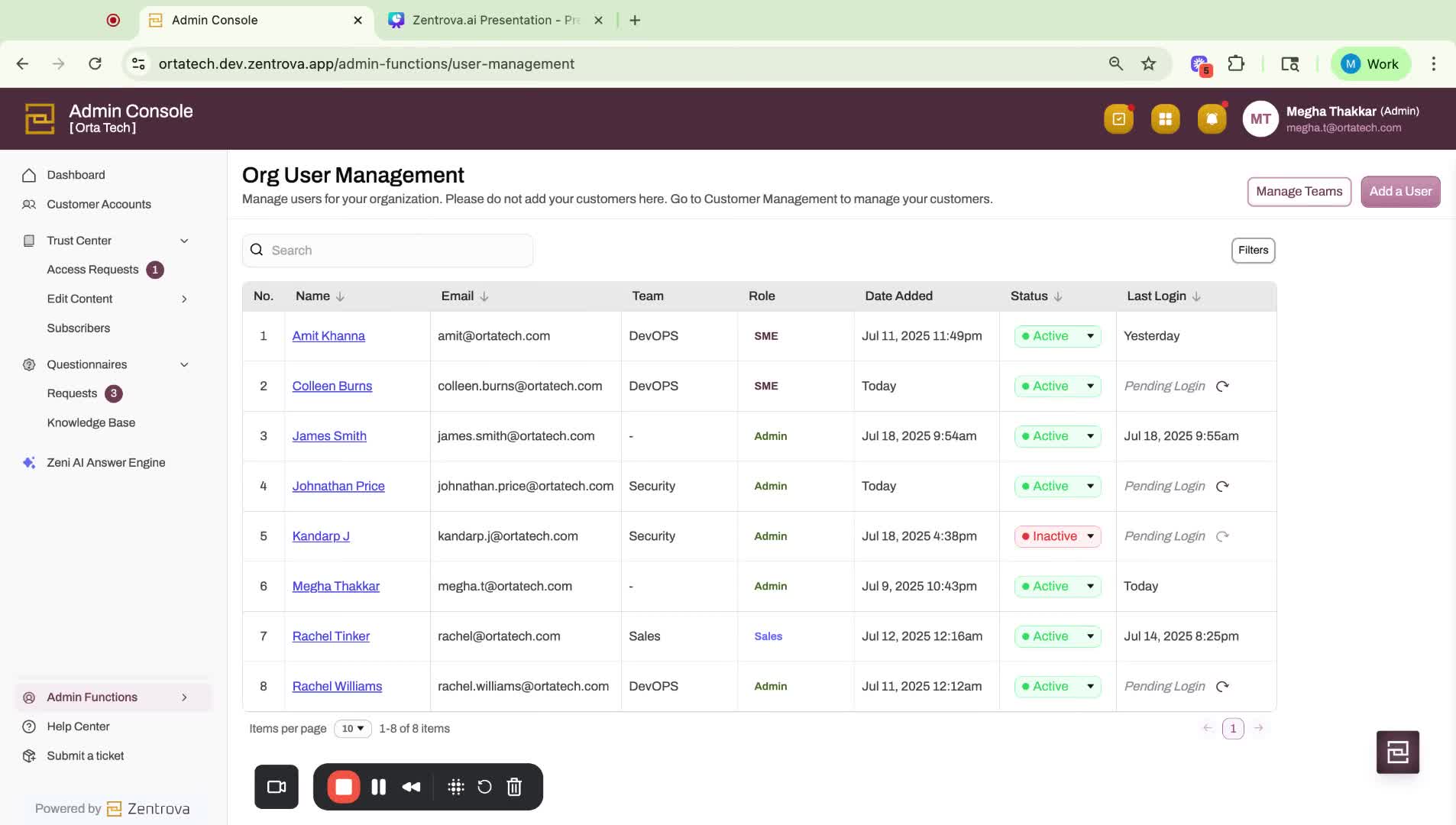
- Here, you will see a list of all members who currently have access to Zentrova's Admin Console.
4. Add a New User 0:27
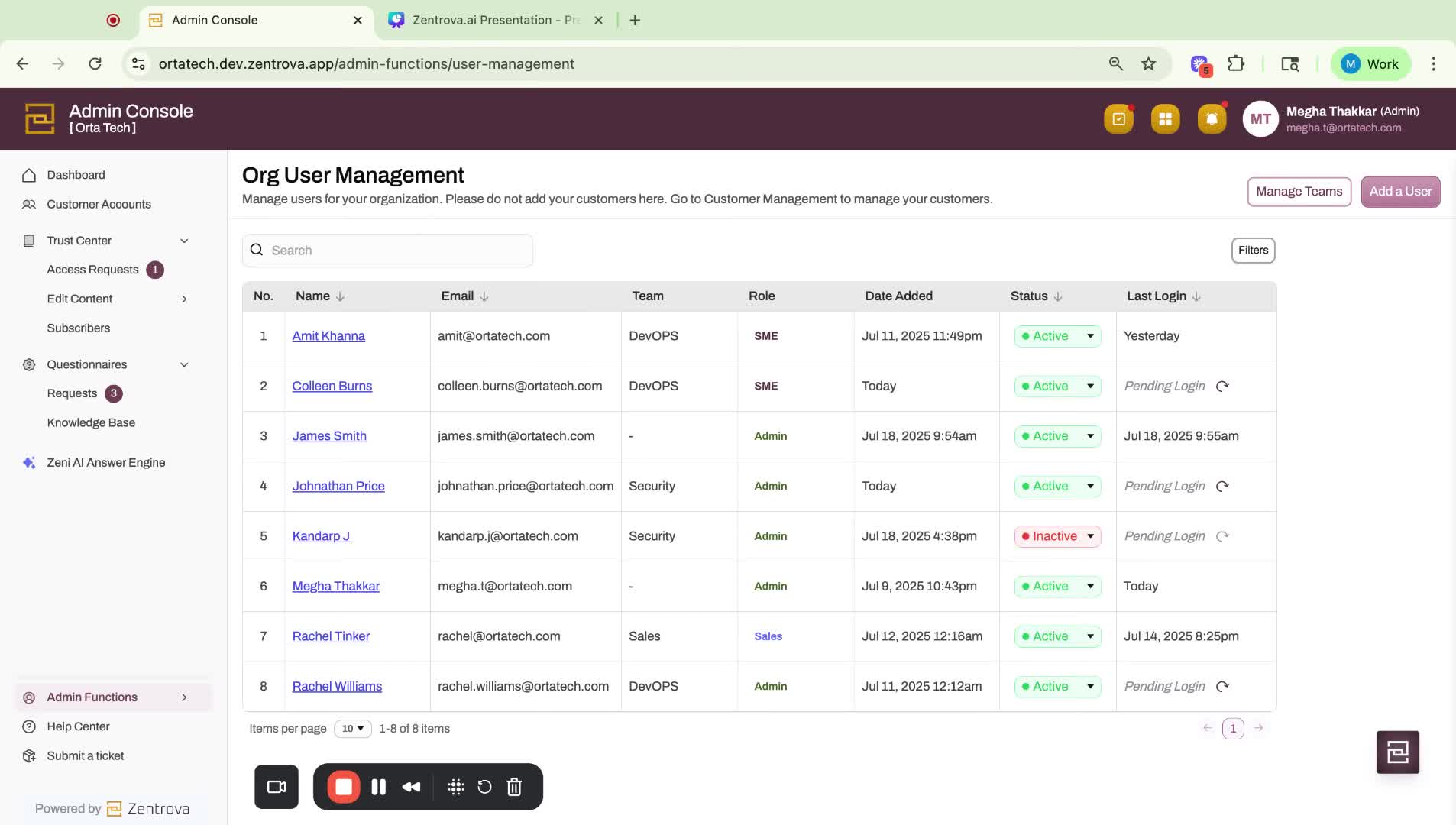
- Click on 'Add a User'.
- Fill in the user's information, including their role.
5. Assign User Role 0:49
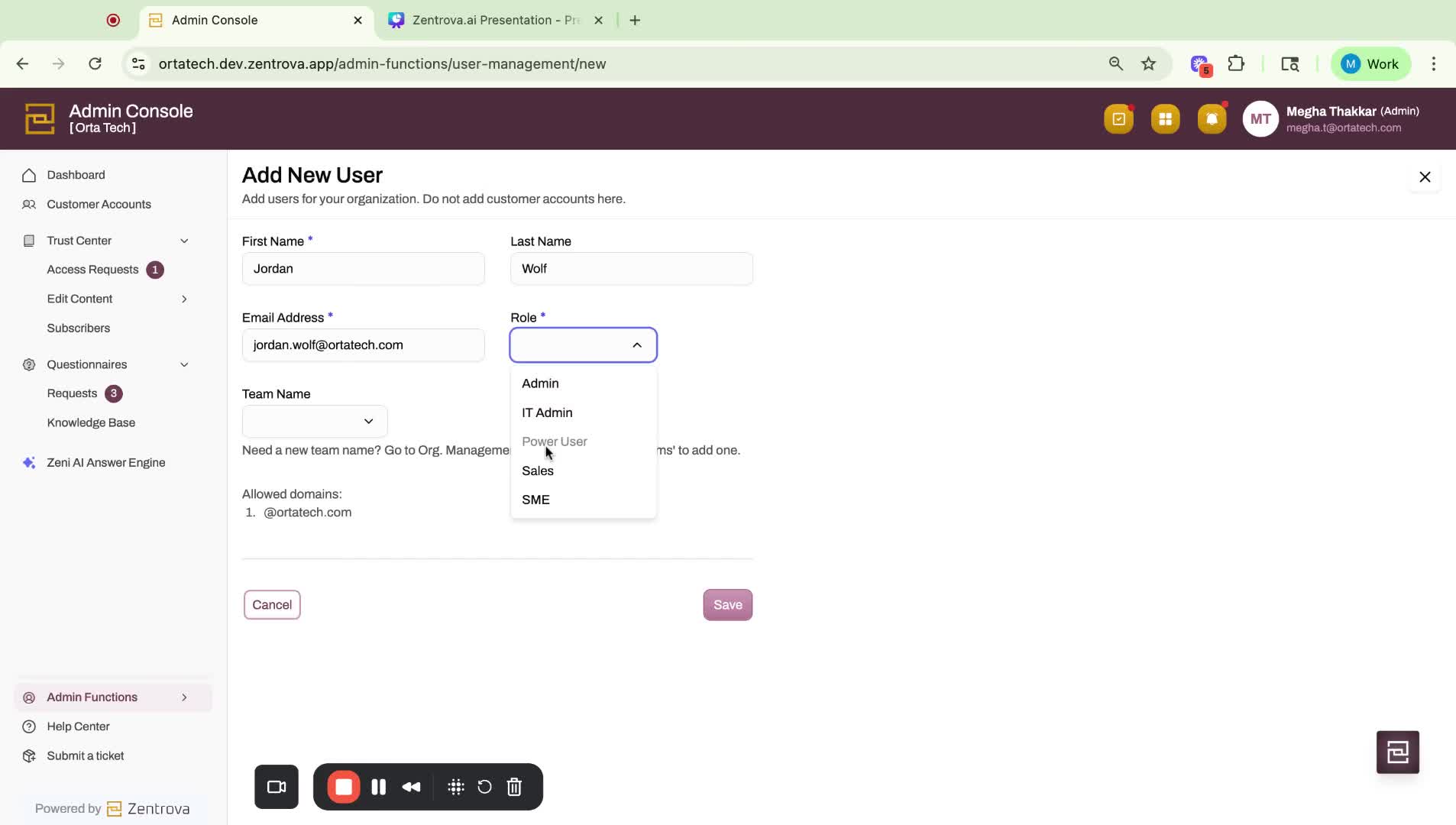
- Under the role section, select the appropriate role for the user:
- Admin
- IT Admin
- Sales
- Subject Matter Expert
- For this example, we will add them as an Admin.
6. Choose Team Name 1:02
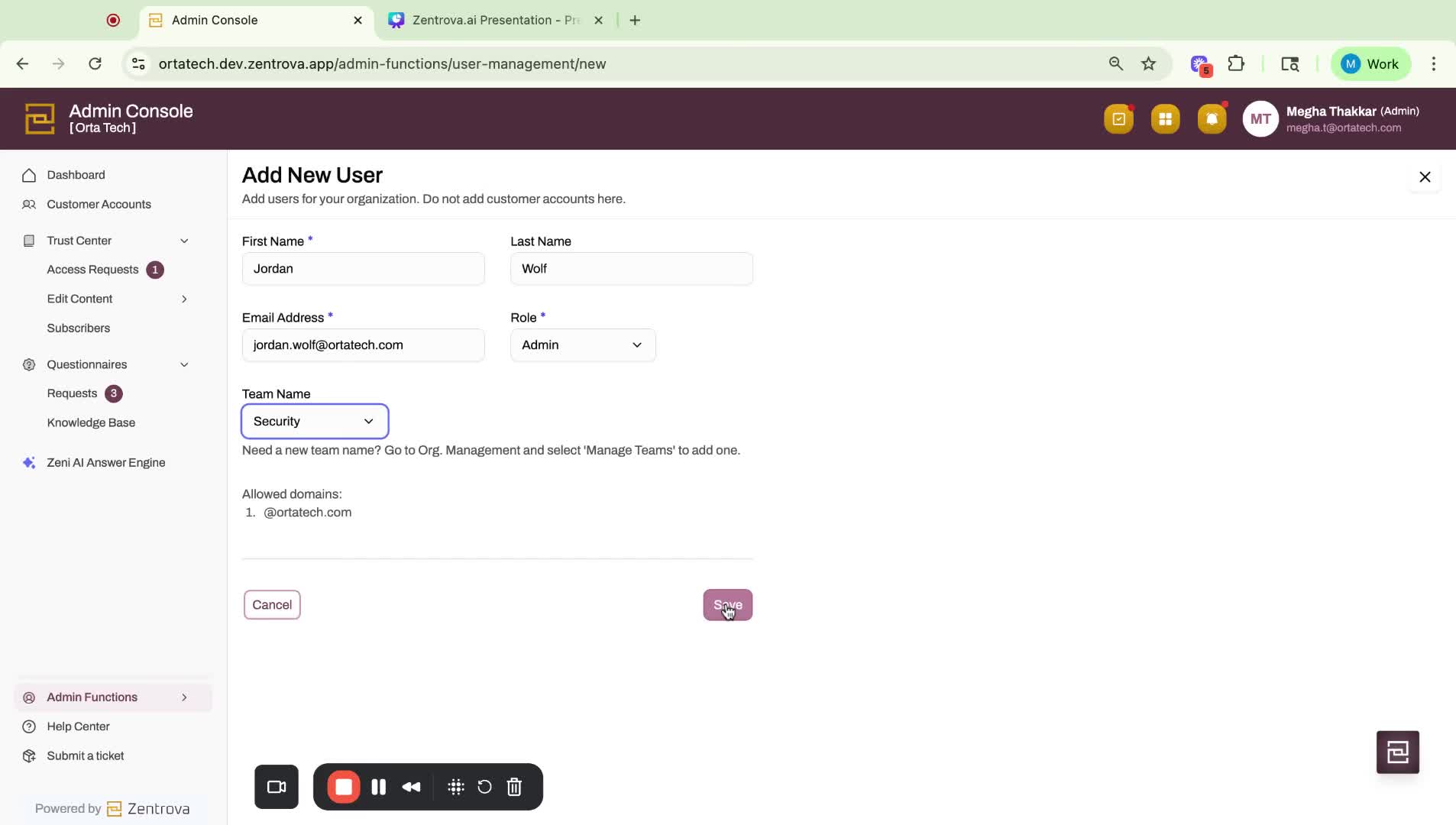
- Select the user's team name from the dropdown.
- You also have the option to add a new team name if necessary.
7. Save User Information 1:02
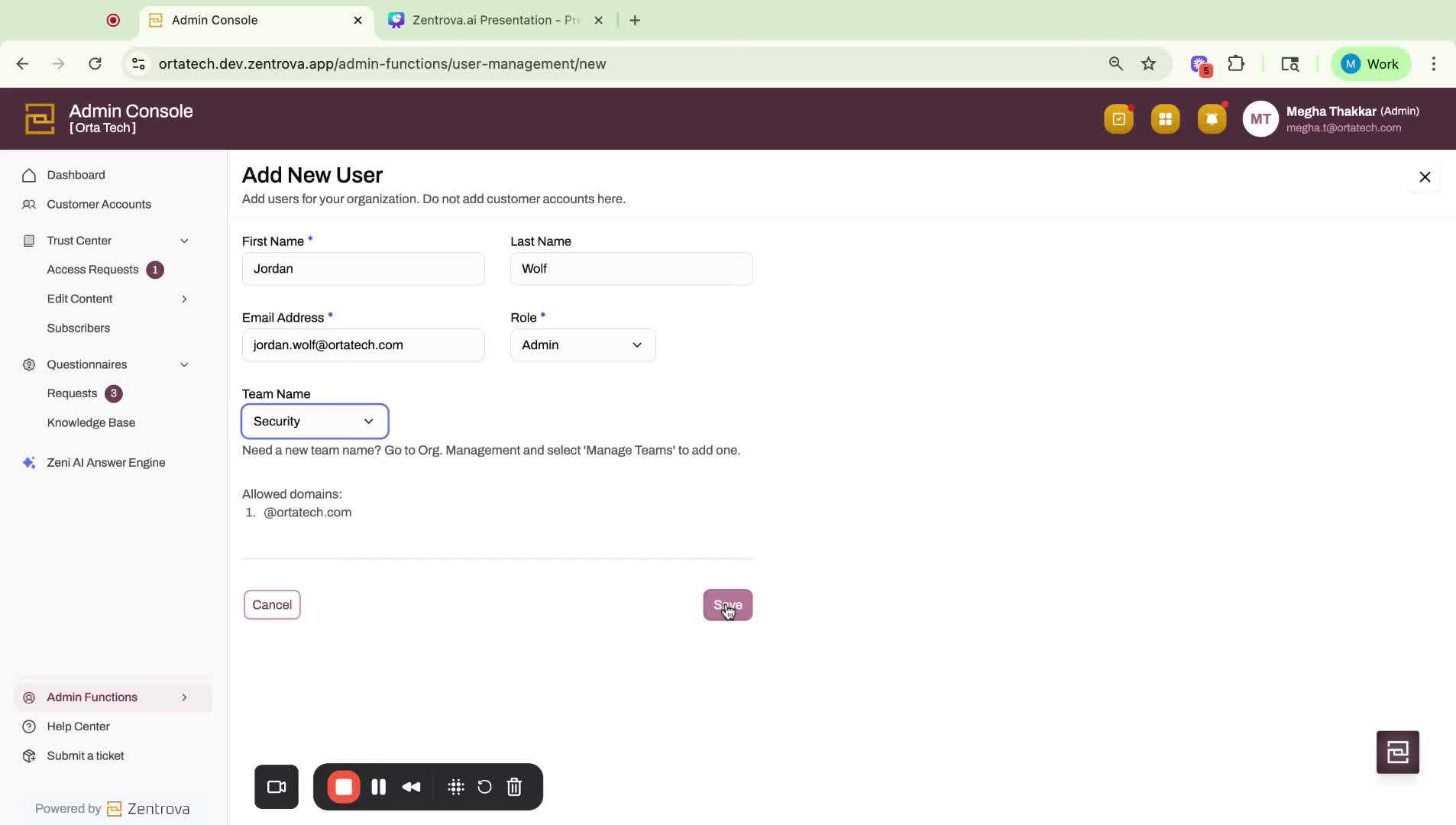
- Click 'Save' to create the user account.
- You will see a confirmation that the user (e.g., Jordan Wolf) has been created.
8. User Account Setup 1:14
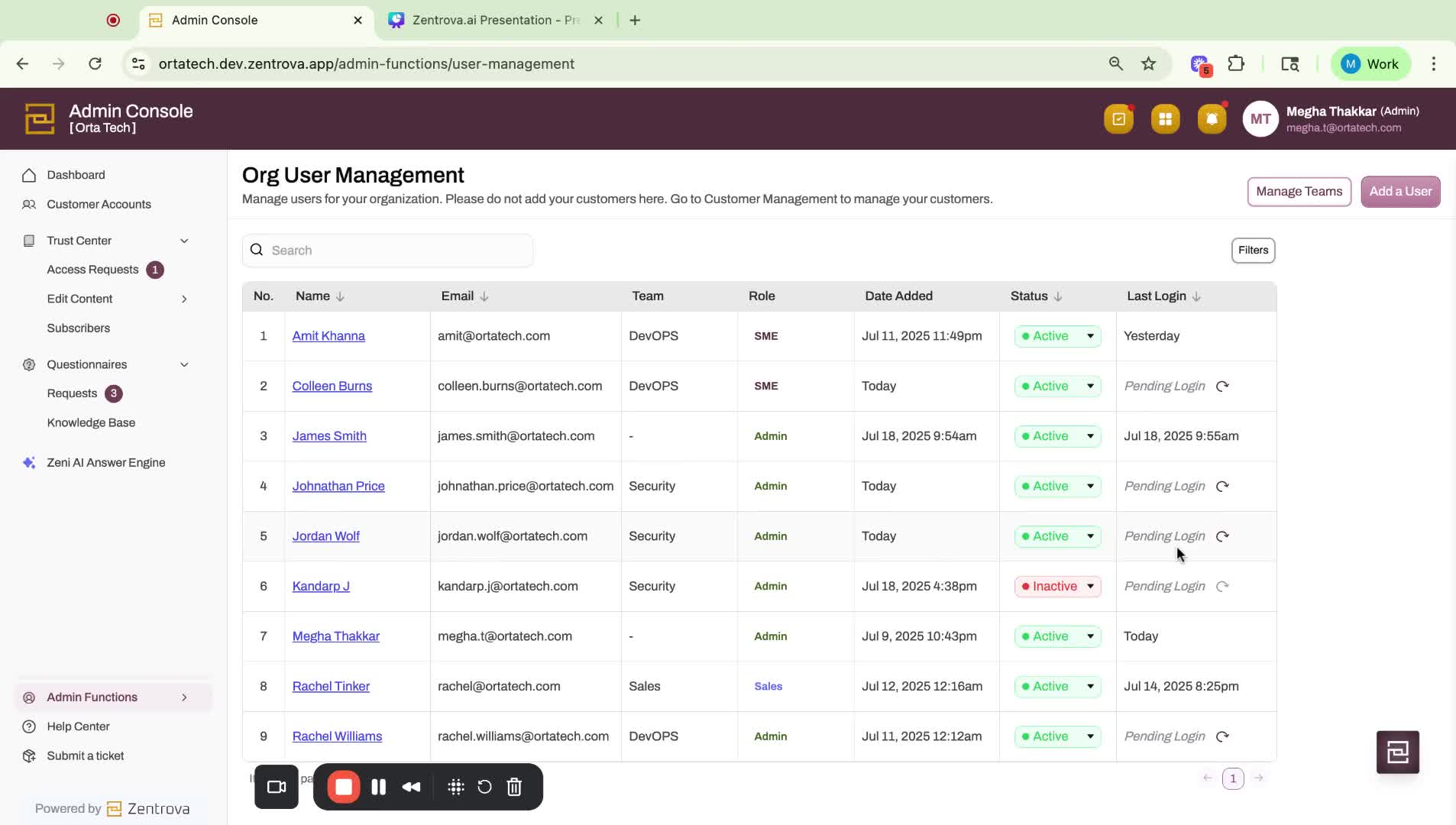
- An invitation link will be sent to the new user to set up their account.
- Once they log in, their information will be updated in the admin portal.
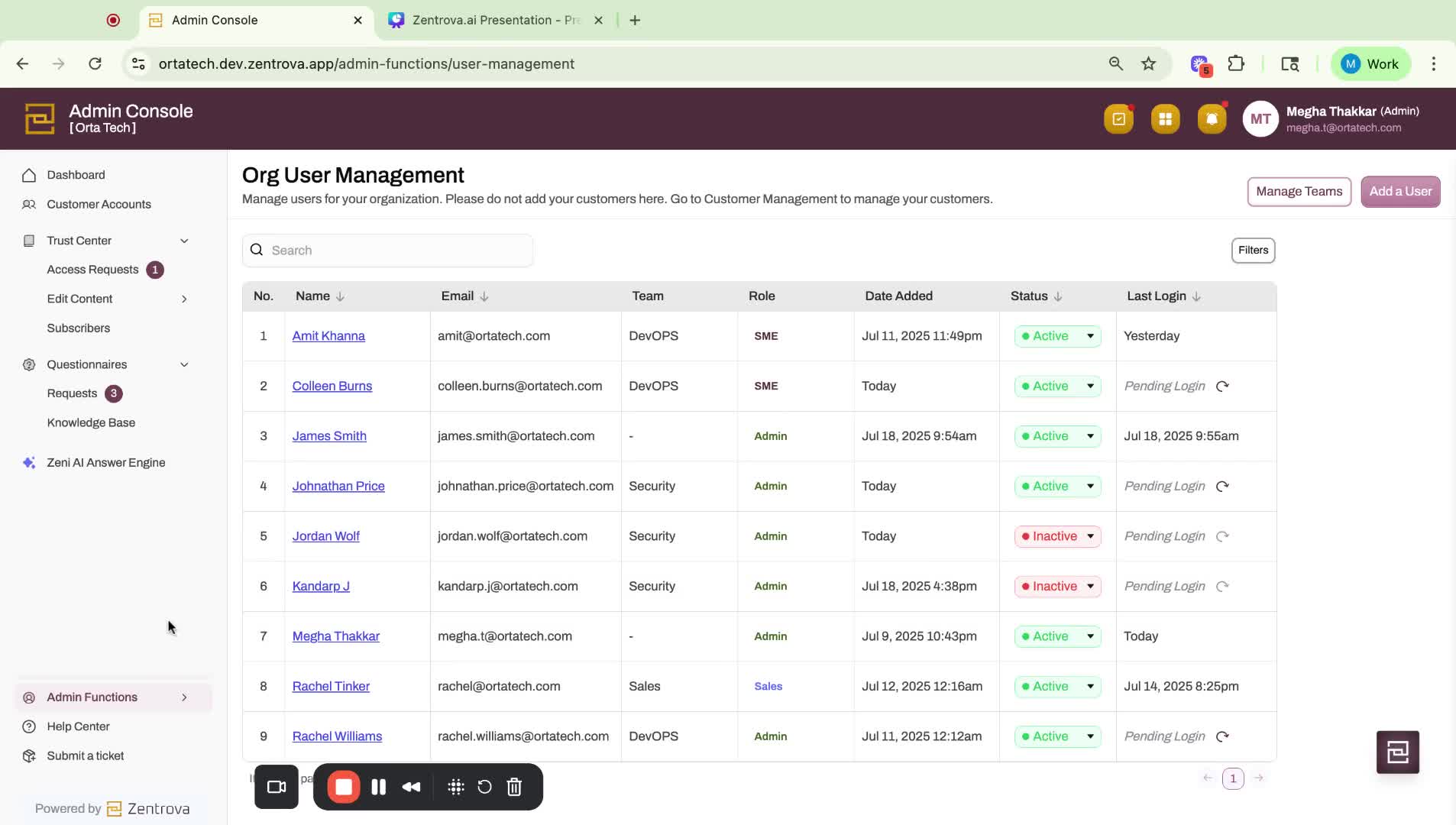
9. Mark User as Inactive 1:25
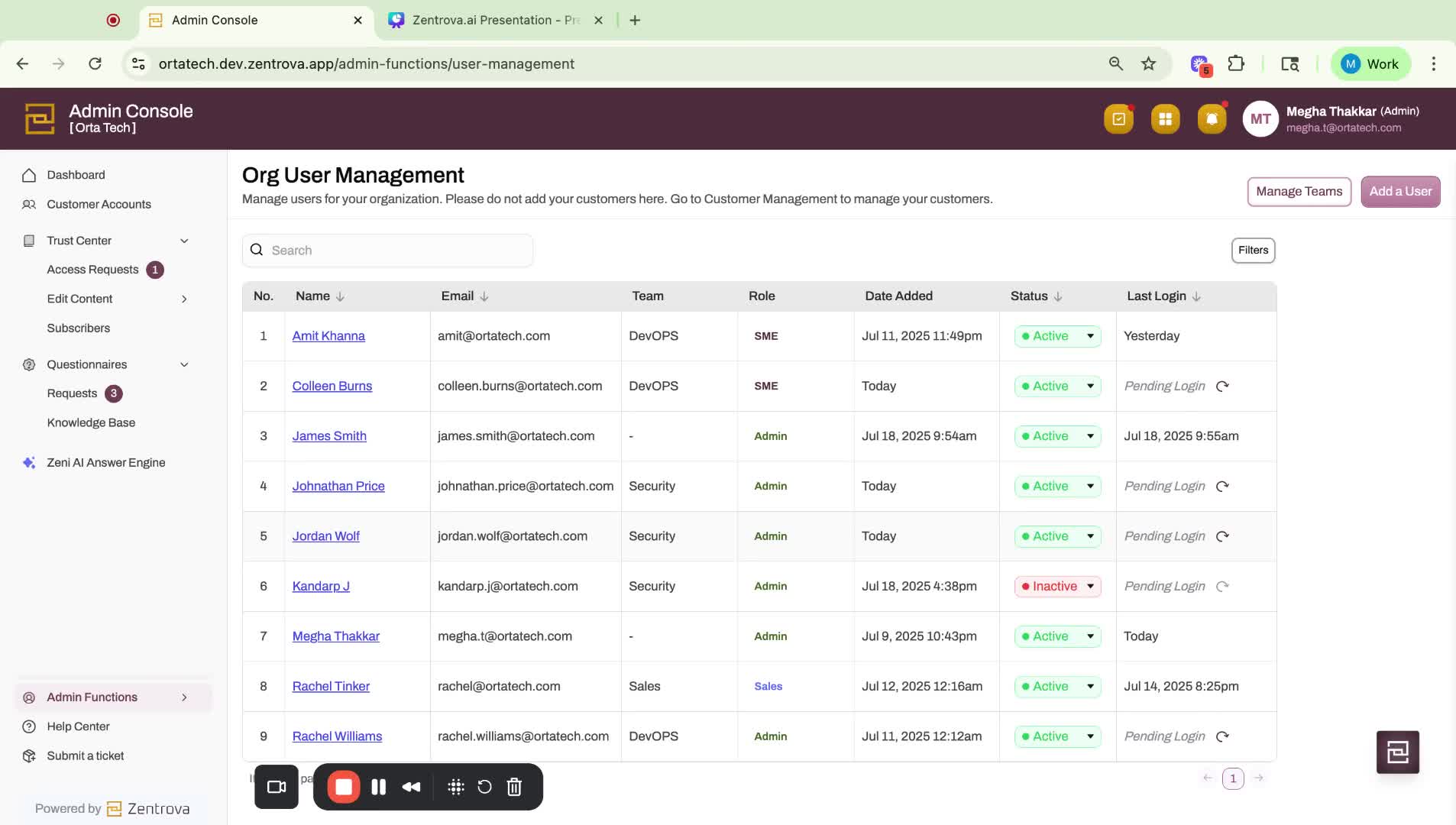
- If you need to deactivate a user, go to their status and select 'Inactive'.
- This will deactivate their account in the admin console.
10. Support and Assistance 1:41
- If you encounter any issues or have questions, submit a ticket for support.
- The support team will respond to your inquiry.
Link to Loom
https://loom.com/share/b25a47952bae41e694a4d6f8313ce194
Was this article helpful?
That’s Great!
Thank you for your feedback
Sorry! We couldn't be helpful
Thank you for your feedback
Feedback sent
We appreciate your effort and will try to fix the article